Note: In Vaults created in 26R2 and later, Safety Investigation objects and fields may be labeled as Signal Investigation.
With the 23R2 release, SafetyDocs supports signal management, offering the ability to track signals as Product-Event Combinations, set PEC Periods, and record details of Safety Investigations.
Overview
To configure this feature in your Vault:
- Configure object layouts
- Configure the Reporting Period field on the Safety Investigation object
- Configure object workflows
- Configure object lifecycles
- Configure security
Configure Layouts
Configure the following object layouts:
- Product-Event Combination
- PEC Period
- Signal Source
- Safety Investigation
- Safety Investigation Reporting Period
Configure the Product-Event Combination Object Layout
To configure the Product-Event Combination object layout:
- Navigate to Admin > Configuration > Objects > Product-Event Combination > Layouts > Product-Event Combination Detail Page Layout.
- Drag the Primary MedDRA Term field from the Details section into the System section.
- To the Details section, add the
 Primary MedDRA Term control field with the slider icon.
 - Configure the rest of the object layout as follows:
- Ensure the Details section contains the following fields in the following order:
- Primary Product Family
- Primary MedDRA Term
- Most Recent Disposition
- Most Recent Disposition Date
- Ensure the Product-Event Dispositions section contains the following default columns in the following order:
- Name
- Detection Date
- Reporting Period
- Primary Source
- Final Disposition
- Final Disposition Date
- Investigation Type
- Safety Investigation
- Ensure the System section contains the following fields in the following order:
- Combination Name
- Created By
- Created Date
- Primary MedDRA Term
- Last Modified By
- Last Modified Date
- Ensure the Documents section contains the following columns in the following order:
- Name
- Document Number
- Created By
- Created Date
- Ensure there is a Workflow Timeline section
- Ensure the Details section contains the following fields in the following order:
- Select Save.
Configure the PEC Period Object Layout
To configure the PEC Period object layout:
- Navigate to Admin > Configuration > Objects > PEC Period > Layouts > PEC Period Detail Page Layout.
- To the Details section, add the Primary MedDRA Term control field with the slider icon.
- Configure the rest of the object layout as follows:
- Ensure the Details section contains the following fields in the following order:
- Product-Event Combination
- Primary Product Family
- Primary MedDRA Term
- Primary Source
- Reporting Period
- Investigation Type
- Detection Date
- Final Disposition
- Final Disposition Date
- Safety Investigation
- Ensure the Documents section contains the following columns in the following order:
- Name
- Document Number
- Type
- Subtype
- Classification
- Status
- Ensure there is a Workflow Timeline section
- Ensure the System section contains the following fields in the following order:
- Created By
- Created Date
- Last Modified By
- Last Modified Date
- Ensure the Details section contains the following fields in the following order:
- Select Save.
Configure the Signal Source Object Layout
To configure the Signal Source object layout:
- Navigate to Admin > Configuration > Objects > Signal Source > Layouts > Signal Source Detail Page Layout.
- Configure the object layout as follows:
- Ensure the Details section contains the Name field
- Ensure the Product-Event Dispositions section contains the following default columns in the following order:
- Name
- Detection Date
- Final Disposition
- Final Disposition Date
- Reporting Period
- Safety Investigation
- Investigation Type
- Primary Product Family
- Ensure there is a Workflow Timeline section
- Ensure the System section contains the following fields in the following order:
- Created By
- Created Date
- Last Modified By
- Last Modified Date
- Select Save.
Configure the Safety Investigation Object Layout
To configure the Safety Investigation object layout:
- Navigate to Admin > Configuration > Objects > Safety Investigation > Layouts > Safety Investigation Detail Page Layout.
- Configure the object layout as follows:
- Ensure the Details section contains the following fields in the following order:
- Product Family
- Primary Source
- Start Date
- Detection Date
- Priority
- Validation Outcome
- Validation Outcome Date
- Final Disposition
- Final Disposition Date
- Ensure there is a Workflow Timeline section
- Ensure the Product-Event Dispositions section contains the following default columns in the following order:
- Name
- Detection Date
- Final Disposition
- Final Disposition Date
- Reporting Period
- Safety Investigation
- Investigation Type
- Primary Product Family
- Ensure the Summary of Key Data section includes the Summary of Key Data field
- Ensure the Documents section contains the following columns in the following order:
- Name
- Document Number
- Type
- Subtype
- Classification
- Status
- Ensure the System section contains the following fields in the following order:
- Created By
- Created Date
- Last Modified By
- Last Modified Date
- Ensure the Details section contains the following fields in the following order:
- Select Save.
Configure the Safety Investigation Reporting Period Object Layout
To configure the Safety Investigation Reporting Period object layout:
- Navigate to Admin > Configuration > Objects > Signal Reporting Period > Layouts > Safety Investigation Reporting Period Detail Page Layout.
- Configure the object layout as follows:
- Ensure the Details section contains the following fields in the following order:
- Name
- Product Family
- Start Date
- End Date
- Ensure the Product-Event Dispositions section contains the following default columns in the following order:
- Name
- Detection Date
- Final Disposition
- Final Disposition Date
- Reporting Period
- Safety Investigation
- Investigation Type
- Primary Product Family
- Ensure the Safety Investigations section contains the following default columns in the following order:
- Name
- Detection Date
- Final Disposition
- Final Disposition Date
- Product Family
- Reporting Period
- Validation Outcome
- Ensure there is a Workflow Timeline section
- Ensure the System section contains the following fields in the following order:
- Created By
- Created Date
- Last Modified By
- Last Modified Date
- Ensure the Details section contains the following fields in the following order:
- Select Save.
Configure the Reporting Period Field
To configure the Reporting Period field on the Safety Investigation object:
- Navigate to Admin > Configuration > Objects > Safety Investigation > Fields.
- Select Reporting Period.
- Select Edit.
- Clear the Display in default lists and hovercards checkbox.
- Select Save.
Configure Object Workflows
Configure signal management object workflows. Use these steps as a starting point, but configure your workflows according to your business processes:
Create the Safety Investigation Workflow
To create the Safety Investigation Workflow:
- Navigate to Admin > Configuration > Workflows.
- Select Create.
- In the Create Workflow window, select Object Workflow.
- Select Continue.
- On the Create Workflow page, populate the fields as follows:
- Label: Enter
Safety Investigation Workflow - Lifecycle: Select Safety Investigation Lifecycle
- Label: Enter
- Select Save.
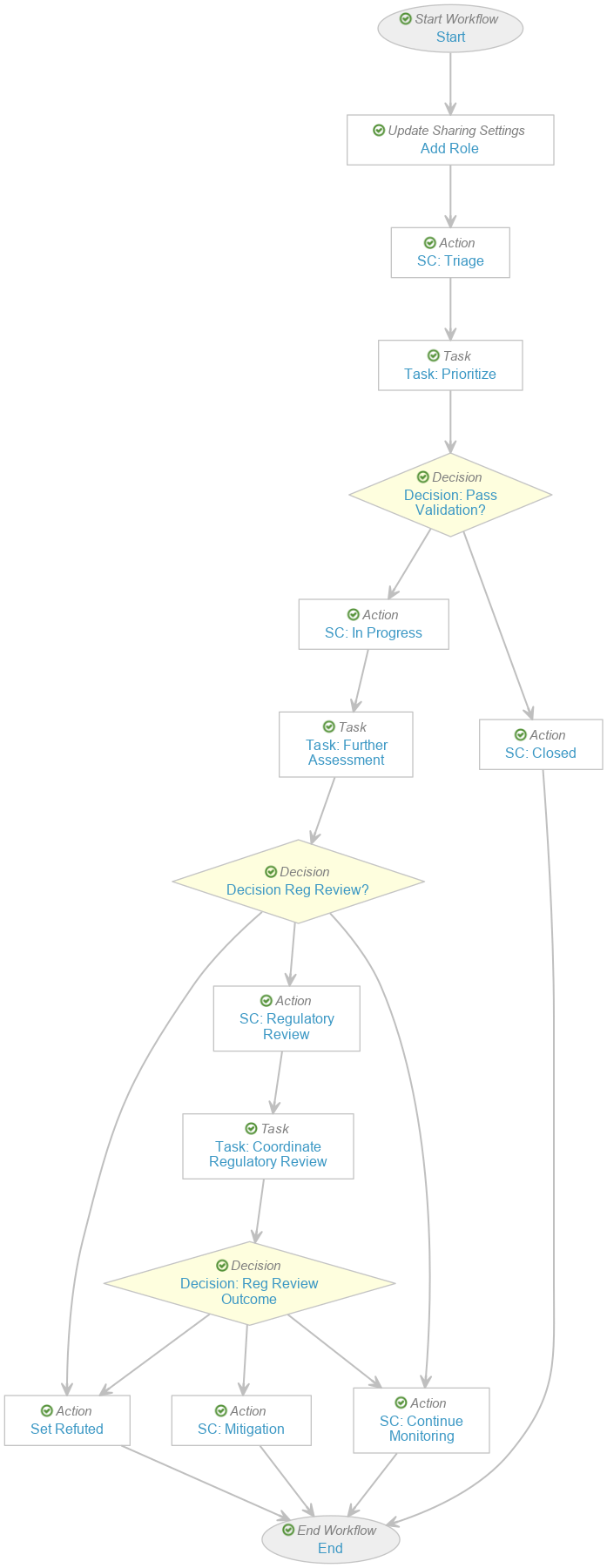
- In the Workflow Steps section, configure the workflow to include the following steps:
- Start start step
- Add Role update sharing settings step
- SC: Triage state change action step
- Task: Prioritize task step
- Decision: Pass Validation? decision step
- SC: In Progress state change action step
- Task: Further Assessment task step
- Decision: Reg Review? decision step
- Set Refuted action step
- SC: Regulatory Review state change action step
- Task: Coordinate Regulatory Review task step
- Decision: Reg Review Outcome decision step
- SC: Mitigation state change action step
- SC: Continue Monitoring state change action step
- SC: Closed state change action step
- End end step
- In the Status field, select Make configuration active.
Create the Evaluate Disposition Workflow
To create the Evaluate Disposition Workflow:
- Navigate to Admin > Configuration > Workflows.
- Select Create.
- In the Create Workflow window, select Object Workflow.
- Select Continue.
- On the Create Workflow page, populate the fields as follows:
- Label: Enter
Evaluate Disposition Workflow - Lifecycle: Select Product-Event Disposition Lifecycle
- Label: Enter
- Select Save.
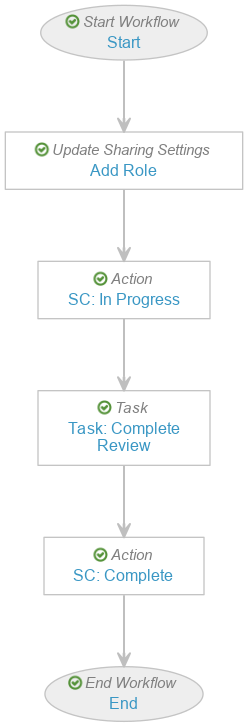
- In the Workflow Steps section, configure the workflow to include the following steps:
- Start start step
- Add Role update sharing settings step
- SC: In Progress state change action step
- Task: Complete Review task step
- SC: Complete state change action step
- End end step
- In the Status field, select Make configuration active.
Configure Object Lifecycles
To configure signal management object lifecycles:
- Configure actions on the Safety Investigation Lifecycle
- Configure actions on the Product-Event Disposition Lifecycle
- Configure a Safety Investigation Lifecycle Stage Group
Configure Actions on the Safety Investigation Lifecycle
To update the Safety Investigation Lifecycle object lifecycle to support the Safety Investigation Workflow, create the following:
| Lifecycle State | Type | Configuration |
|---|---|---|
| Open | User action |
|
| Monitoring | User action |
|
| Closed | Entry criteria |
|
Configure Actions on the Product-Event Disposition Lifecycle
To update the Product-Event Disposition Lifecycle object lifecycle to support the Evaluate Disposition Workflow, create the following:
| Lifecycle State | Type | Configuration |
|---|---|---|
| Active | User action |
|
| Complete | Entry criteria |
|
| Entry action |
|
Configure the Safety Investigation Lifecycle Stage Group
Create an object lifecycle stage group with the following settings:
- Stage Group Label: Enter
Safety Investigation Stages - Object Lifecycle: Select Safety Investigation Lifecycle
- Object Type: Select Base Safety Investigation
Then, create stages and define their states as follows:
| Stage | States |
|---|---|
| Signal Prioritization | Open |
| Signal Validation | Triage, Regulatory Review |
| Further Assessment | In Progress |
| Mitigation | Monitoring, Risk Mitigation |
| Complete | Complete |
Configure Security
Configure security settings to grant access to signal management features. Use the following settings as a starting point, but configure access according to your business processes:
- Create a permission set with the label
Signal Management - Create a security profile with the label
Signal Managementand assign to it the Signal Management permission set - Create a group with the label
Signal Managersand add the Signal Management security profile as an included security profile - Configure permissions for the Signal Management document type
- Grant permissions on the Signal Management permission set
Configure Document Type Permissions
To configure permissions for the Signal Management (signal_management__v) document type:
- Navigate to Admin > Configuration > Document Types.
- Select Signal Management (signal_management__v) and then in the All Actions menu, select Edit Details.
- Navigate to the Security tab.
- In the Create Document Permission field, add the following:
- Administrators
- Signal Managers
- Under Default Settings for New Documents, in the Editors field, add Signal Managers.
- Select Save.
Grant Permissions on the Signal Management Permission Set
To grant permissions to the Signal Management permission set:
- Grant Read object permissions on the following objects:
- Aggregate Reporting Group
- Case
- Case
- Parent Information
- Imported Case
- Child Information
- Case Access Group
- Case Adverse Event
- Case Assessment
- Case Assessment Expectedness
- Case Assessment Result
- All Case Cause of Death objects
- All Case Contact objects
- Case Diagnosis
- Case Drug History
- Case Drug History Substance
- Case Identifier
- Case Medical History
- Case Number
- All Case Product objects
- Case Product Device Code
- Case Product Dosage
- Case Product Indication
- All Case Product Registration objects
- Case Product Substance
- Case Relationship
- Case Signature
- Case Study Registration
- Case Test Result
- All Controlled Vocabulary objects
- Country
- Country State/Province
- Datasheet
- All Device Code objects
- Dictionary
- MedDRA Dictionary
- WHODrug Dictionary
- EDQM Standard Term
- IMDRF Device Code
- Document Lifecycle Stage Label
- Document Lifecycle State-Stage
- Document Type Detail
- Document Type Group
- Document Type Group Detail
- Document Usage
- Dose Form
- EDQM
- Emailed Document
- IMDRF Device Code
- Inactive Ingredient
- Inactive Ingredient Registration
- Inbox Item
- Language
- Language (ISO)
- Language Locale
- Literature Article
- Literature Database
- Literature Review
- Literature Search Term
- Local Reporting Details
- Local Reporting Details/Product Join
- Locale
- Localization
- Localized Case
- Localized Case Adverse Event
- Localized Case Assessment
- Localized Case Assessment Result
- Localized Case Cause of Death
- Localized Case Comment
- Localized Case Contact
- Localized Case Document
- Localized Case Drug History
- Localized Case Identifier
- Localized Case Medical History
- Localized Case Product
- Localized Case Product Device Code
- Localized Case Product Dosage
- Localized Case Product Indication
- Localized Case Product Substance
- Localized Case Test Result
- Localized Case Translation
- Localized Controlled Vocabulary
- Localized Country
- Localized Country State/Province
- Localized Dose Form
- Localized Organization
- Localized Product
- Localized Reason Omitted
- Localized Route of Administration
- Localized Study
- Localized Study Arm
- Localized Substance
- Localized Unit of Measurement
- Market Segment
- MedDRA
- MedDRA (Localized)
- MedDRA Criteria
- Datasheet Criteria
- Watchlist Criteria
- MedDRA Query Criteria
- MedDRA Join
- MedDRA Query
- MedDRA Synonym
- MedDRA Synonym Context
- MedDRA Version
- Object Lifecycle Stage Label
- Object Lifecycle State-Stage
- All Organization objects
- All Person objects
- All Product objects
- Product Alias
- Product Constituent
- Product Family
- Product Registration
- Product Substance
- Product-Event Combination
- PEC Period
- Reason Omitted
- Report
- Reporting Group Product Registration
- Reporting Group Study Registration
- Safety Investigation
- Signal Reporting Period
- Signal Source
- Study
- Study Arm
- Study Arm Product
- Study Indication
- Study Person
- All Study Product objects
- Study Product Group
- Study Product Placeholder
- Study Product Substance
- Study Registration
- Study Site
- Substance
- Substance Alias
- Tab Group
- All Transmission objects
- Unit of Measurement
- All User Task objects
- Validation Result
- Workflow
- Grant Create object permissions on the following objects:
- Product-Event Combination
- PEC Period
- Safety Investigation
- Signal Reporting Period
- Signal Source
- Grant Edit object permissions on the following objects:
- Product-Event Combination
- PEC Period
- Safety Investigation
- Signal Reporting Period
- Signal Source
- Grant Delete object permissions on the PEC Period object.
- Grant View tab permissions for the Signal Management tab collection and the following tabs:
- Home
- Cases
- Analytics
- Reports
- Dashboards
- Literature
- Literature Articles
- Product-Event Combinations
- Safety Investigations
- Safety Investigation Reporting Periods
- Generated PSMFs