# Manage Workbench Reports

_Workbench Reports_ support ad-hoc and periodic reporting for organizations that process a large number of cases. 

In a _Workbench Report_, you can select a safety view to predefine the available report data and specify the parameters Vault will use to generate a report. Safety views define each individual record in a report, for example, a document, a product, or a specific instance of a workflow. Safety views also determine what fields are available as filters, report columns, and more.

To create a _Workbench Report_, navigate to the **Workbench > Ad-Hoc Reports** tab and select **Create**.

The following sections in this article describe the different sections of a _Workbench Report_ and how to complete them. 

Safety Workbench allows you to generate, run, and download multiple _Workbench Reports_ at once. If this option is relevant to your organization's business processes, see <a href="/en/lr/826869/">Generate & Run Report Sets</a>.

## Properties

Use the _Properties_ section to define the name of the _Workbench Report_ and the <a href="/en/lr/752978/">safety view</a> this report will use. 

Vault uses the selected safety view to structure the _Workbench Report_, for example, preconfigured [filters][1] and [layout][2]. 

### Categories

In the _Properties_ section, Vault uses categories to separate ad-hoc and aggregate reports. When creating or editing a _Workbench Report_, Vault sets the _Report Category_ field to _Ad Hoc_. You cannot edit this value. <a href="/en/lr/826869/#add-workbench-report-definitions">_Workbench Report Definitions_</a> may be categorized as either _Ad Hoc_ or _Aggregate_, and reports generated from those definitions will inherit the appropriate value. You can assign a _Report Subcategory_ value to further categorize the _Workbench Report_. The options include _PADER_, _SAR_, and other custom values your Admin may have configured.

### Document Sensitivity

Use the _Document Sensitivity_ field to classify the sensitivity of the report data. Select one (1) of the following values for sensitive data:
* _Confidential_
* _Proprietary_
* _Sensitive_ 

Select one (1) of the following values for less sensitive data:
* _Public_
* _Not Classified_
 
When you <a href="/en/lr/827412/">upload a _Workbench Report_ to the Vault library</a> as a Library document, the document inherits this value from the report. Vault also enables <a href="/en/lr/01176/">blind protection</a> and <a href="/en/lr/01225/#study-content-protection">study content protection</a> on the document.

### Case Series

A _Case_ series stores a set of _Case_ versions and ensures that the data set is static. Whereas when you filter on _Cases_ using _Workbench Report_ [filters][1], the data set can vary on subsequent days. When <a href="/en/lr/774367/">enabled</a> and <a href="/en/lr/752978/#case-version-key">configured</a> by your Admin, you can specify a _Case_ series in the _Properties_ section of a _Workbench Report_. If you apply a _Case_ series, Vault applies filters and report parameters to the specific set of _Case_ versions in the series that are in the safety view. An example scenario for using _Case_ series would be when you want to generate a CIOMS II line listing using the results of an aggregate or ad-hoc report.

#### Create Case Series

When you run a _Workbench Report_ using a safety view with _Workbench Case Series_ enabled, Vault stores this _Case_ series data as a _Workbench Case Series_ record. When you run the _Workbench Report_ again, Vault updates the list of _Case_ versions in the record. You can [download][3] the _Case_ series in CSV format, which provides a single column of _Case_ version IDs that match the output of the _Workbench Report_. For additional information about these _Cases_, run a _Workbench Report_ using this _Case_ series. Your Admin can also <a href="/en/lr/1004693/">configure and import _Case_ series</a>.

For more information about creating _Signal Case Series_, see <a href="/en/lr/935435/#signal-case-series">Create Statistical Data</a>.

#### Use Case Series in Workbench Reports

To use a _Case_ series in a _Workbench Report_, do one of the following:
* To specify a _Workbench Case Series_, from the **Filter Report Cases in** drop-down, select a _Case_ series.
* To specify a <a href="/en/lr/935435/#signal-case-series">_Signal Case Series_</a>:
    1. From the **Filter Signal Cases in** drop-down, select a _Statistical Data_ record. Vault restricts the _Statistical Data_ options to those with the same data source as the report view's _Principal View_. For example, if the _Principal View's_ data source is FAERS, the _Statistical Data_ options include only those with a FAERS _Signal Source Data_. Similarly, if the _Principal View_ does not have a _Data Source_, the _Statistical Data_ options include only those with a blank _Signal Source Data_ field, which Vault interprets as Safety data.
    2. In the drop-down after the _Statistical Data_, select a _Signal Case Series Key_.
    3. Optional: Hover over **Additional Information** to learn more about the _Statistical Data_ record you selected. \
    After you generate a report with a _Signal Case Series_, Vault returns _Cases_ that match the _Statistical Data_ record on the following data:
    * Reporting period
    * _Product Family_
    * MedDRA term
    * _Signal Source Data_
    * The selected _Signal Case Series Key_ matches the _API Name_ of the _Statistical Data_ record. 

A _Workbench Report_ can use either a _Workbench Case Series_ or a _Signal Case Series_, but not both.

<div class="note-border alert-info">
  <div class="alert alert-info" role="alert">
    <div><i class="far fa-info-circle"></i></div>
    <div class="alert-text">
      <p><strong>Note</strong>: To use <em>Signal Case Series</em> in <em>Workbench Reports</em> you must have the <a href="/en/lr/753121/">Veeva Safety Signal application</a> set up.</p>
    </div>
  </div>
</div>


You can also apply _Case_ series to <a href="/en/lr/831712/#case-series">_Workbench Dashboards_</a>.

### Workbench Report Execution Status

The _Workbench Report Execution Status_ appears on _Workbench Reports_ in view mode and indicates the run status of the report. Vault updates the status accordingly: 
* **New**: The report has not run.
* **In Progress**: The report is currently running; you can select the **Refresh** button to update the status. You cannot edit or run a report in this status, but you may cancel it.
* **Error**: The report encountered an error and did not complete. You can view the Vault notification for more details.
* **Completed Successfully**: The report completed successfully. 
* **Cancelled**: A user <a href="/en/lr/752975/#cancel-running-reports">cancelled</a> the report.

## Filters

Use the _Filters_ section to add filters for the _Workbench Report_ to narrow the scope of your report. 

For more information about _Workbench Report_ filters and how to define them, see <a href="/en/lr/752968/">Use Workbench Report Filters</a>. 

### Filter by MedDRA Queries

You can <a href="/en/lr/752968/#equals-query">filter</a> a _Workbench Report_ by Standardised MedDRA Queries (<a href="/en/lr/01189/#smq">SMQs</a>) and custom _MedDRA Queries_ (<a href="/en/lr/01189/#cmq">CMQs</a>). When the report runs, Vault will look for terms defined within the CMQ or SMQ using the _Event (LLT)_ field on _Case Adverse Events_ in your Safety Vault. When a CMQ is updated in Safety (for example, terms were added or the name changed), this update is immediately available for filtering in your Workbench Vault. To filter by MedDRA queries, your Admin must first <a href="/en/lr/752978/#workbench-view-columns">configure</a> _MedDRA_ column type view columns in the appropriate safety view.

To filter a _Workbench Report_ by multiple MedDRA queries, add multiple filters of the _MedDRA_ field type and select the appropriate queries. You can then apply <a href="/en/lr/752968/#advanced-logic">advanced logic</a>, if relevant to your business needs.

You can also filter by MedDRA queries on <a href="/en/lr/860557/#generate">_Workbench Report Sets_</a> and <a href="/en/lr/831712/#add-filters">_Workbench Dashboards_</a>.

## Layout

Use the _Layout_ section to specify the tabular structure of the report data. This section determines the organization of data in the supported format after report generation. 

For more information about the _Layout_ section, see <a href="/en/lr/752971/">Set Up the Workbench Report Layout</a>.

## Advanced Options

Use the _Advanced Options_ section to perform the following actions:
* Under _Excel Template_, download a sample template of the report and learn how to use tokens to insert report data.
* Under _Default Style Template_, download a sample template of the report and learn how to use tokens and apply styling. If you do not see this button, your Admin must first <a href="/en/lr/1004268/">configure</a> the feature.
* Under _Report Output_, the _Apply Default Style Template_ checkbox appears if <a href="/en/lr/1004268/">configured</a> by your Admin. You can: 
    * Select the checkbox to use the default template customized by your Admin, which includes custom styling according to your business needs. 
    * Clear the checkbox to use a <a href="/en/lr/752973/">custom Excel template</a> (with no styling). If you upload an Excel template to the report and select the _Apply Default Style Template_, your Admin's template (if one exists) overrides the Excel file uploaded to the report.
* Under _Upload Excel Template_, upload an Excel template file with a customized tabular structure for the _Workbench Report_. This Excel template formats the specified tabular structure in the [_Layout_][2] section.
* {: #report-timezone} Specify a **Timezone**. When generating a report output, filters adhere to the specified timezone for all users collaborating on this _Workbench Report_. If this field is blank, filters adhere to the Vault timezone of the user who ran the _Workbench Report_. Vault uses the <a href="/en/lr/13309/#vault-date--time-formats">_Vault Date Format_</a> to format date and time field values.

For more information about the _Advanced Options_ section, see <a href="/en/lr/752973/">Use Custom Templates for Workbench Reports</a>.

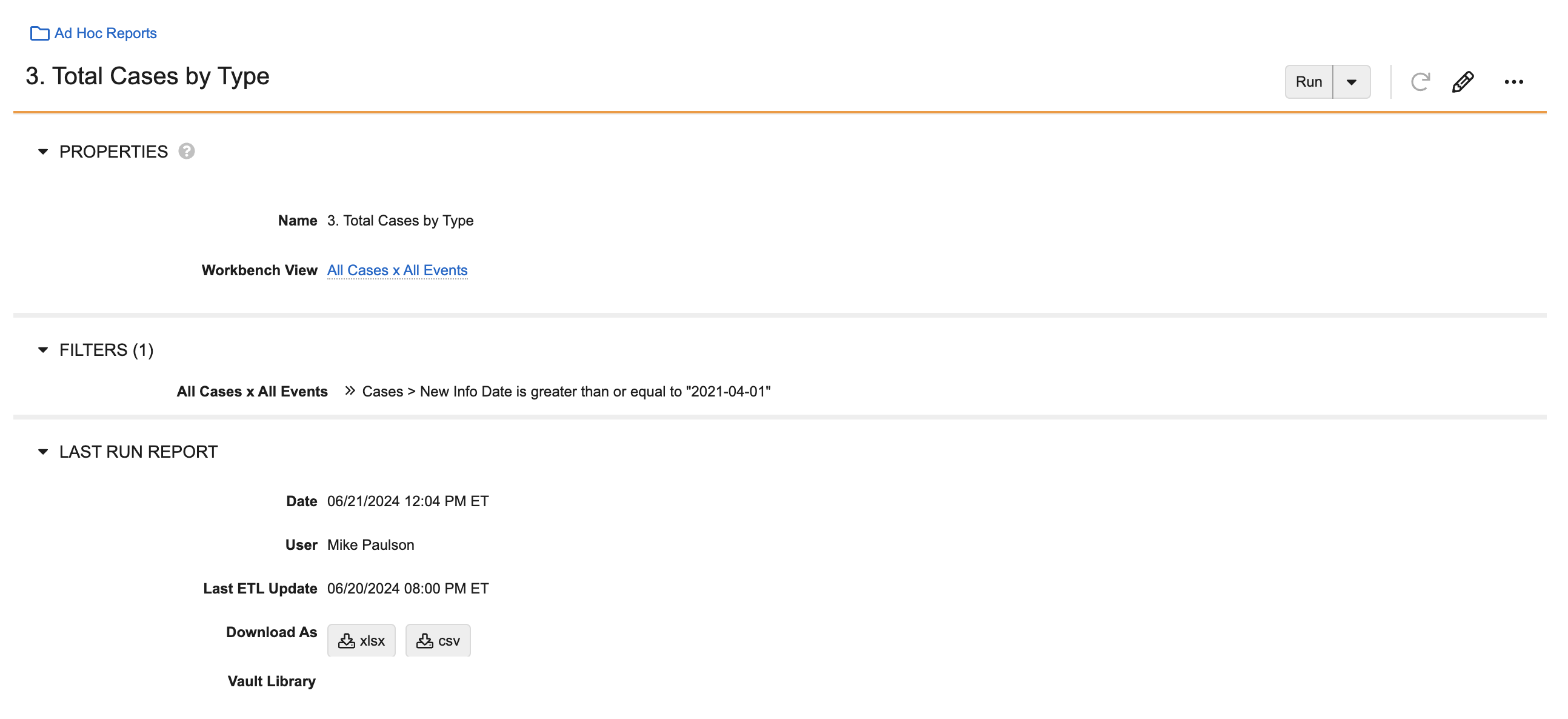
## Last Run Report

The _Last Run Report_ section appears after saving the report. You can download a report that was previously generated or re-run and download a newly generated report. This section does not appear when editing a report. 

<a href="https://platform.veevavault.help/assets/images/saf-workbench-last-run-report-section.png" data-lightbox="saf-workbench-last-run-report-section.png" data-title="" data-alt="saf-workbench-last-run-report">
  <img class="docimage" src="https://platform.veevavault.help/assets/images/saf-workbench-last-run-report-section.png" alt="saf-workbench-last-run-report" style="max-width: 70%;"  />
</a>

The following table describes the fields in this section: 

<table>
    <thead>
        <tr>
            <th>Field</th>
            <th>Description</th>
        </tr>
    </thead>
<tbody>
      <tr>
           <td><em>Date</em></td>
           <td>The day and time the <em>Workbench Report</em> was last run.</td>
      </tr>
      <tr>
           <td><em>User</em></td>
           <td>The user who last ran the <em>Workbench Report</em>.</td>
      </tr>
      <tr>
           <td><em>Last ETL Update</em></td>
           <td><a href="/en/lr/752926/#recurring-data-extraction-from-veeva-safety">Data transfer from Safety to Safety Workbench</a> occurs daily. This field defines the cut-off day and time for the transfer of Safety data that was reported on. As you can download a <em>Workbench Report</em> days or weeks after it was last run, this field indicates how recent the report's data is.</td>
      </tr>
      <tr>
           <td><em>Download As</em></td><a id="download-as"></a>
           <td>The specified download format. Select one (1) of the options to download the report. The supported formats include: 
                <ul>
                    <li><em>xlsx</em></li>
                    <li><em>csv</em></li>
                    <li><em>Case Series</em><br>When <a href="/en/lr/774367/">configured</a> by your Admin on a safety view that returns <em>Cases</em>, the <em>Download As</em> section displays the <em>Case Series</em> format. Each time you run this <em>Workbench Report</em>, Vault generates this file.</li>
                </ul>
           </td>
      </tr>
      <tr>
           <td><em>Vault Library</em></td><a id="vault-library"></a>
           <td>The link to the generated <em>Workbench Report</em> Vault Library document, if it exists.<br>
            <br>To download the PDF file of the document, select the <strong>Download Viewable Rendition</strong> (<img class="inline" src="https://platform.veevavault.help/assets/images/saf-download-icon.png" alt="download icon" style="" />) icon.<br>
            <br>For more information, see <a href="/en/lr/827412/">Upload Workbench Reports to the Vault Library</a>.
           </td>
      </tr>
</tbody>
</table>

## Workbench Report Actions 

After setting up the _Workbench Report_, there are a few actions you can use to run it. For more information about the _Workbench Report_ actions, see <a href="/en/lr/752975/">Run, Download & Copy Workbench Reports</a>.  

## Imported Follow-Up Case Data

Before you can import follow-up _Cases_ from external pharmacovigilance (PV) databases, your Admin must <a href="/en/lr/32218/#how-to-copy-records">copy</a> the relevant standard safety views to create custom records for reports.

You can import follow-up _Cases_ to Safety from external PV systems, though not every system tracks changes through case versioning. When migrating data from a system that doesn't capture every version of a case, the older versions are captured in Vault with the _Imported Follow Up Information_ object type; these cases are known as historical _Cases_. These _Cases_ track key case-level fields, such as _New Info Date_ and _Approval Date_, but do not include _Product_ or _Event_ data, which are linked to the most recent imported _Case_ only. If a historical _Case_ is included in an interval reporting period, Vault extracts the missing data to the report from the next non-historical _Case_ version. For example, _Case_ _00001_ of version 1.0 was imported as an _Imported Follow Up Information Case_ from an external PV system and will be included in an aggregate report. Vault extracts the missing data from imported _Case 00001_ version 2.0, which was created in Safety.

When generating a _Workbench Report_ or an aggregate report, the report output indicates which field values were originally missing and retrieved from a follow-up _Case_ version by appending a superscript _h_ to the value. For example, if Vault retrieves the MedDRA Preferred Term (PT) value (_Headache_) for _Case 00001_ version 1.0 from follow-up _Case_ version 2.0, the report displays the PT value for _Case 00001_ as _Headache<sup>h</sup>_. This feature works with reports using safety views provided by Veeva; to use this feature with custom reports, contact your Veeva Representative.

[1]: #filters
[2]: #layout
[3]: #download-as