When you run a Workbench Report, Vault uses the report filters to parse through records defined by the safety view and generate the output.
Navigate to the Ad Hoc Reports tab to select a Workbench Report. Then, expand the Filters section to make updates.
The main components of a filter are:
- The filter field
- The operator
- The filter value

There are multiple types of Workbench Report filters:
- Report-specific filters: The filters you add to the Workbench Report, which appear in the Filters section under the Additional subsection.
- Inherited filters: The filters inherited from the selected safety view and any other views dependent on this view, including:
- Criteria: When running a Workbench Report, criteria represent special parameters that change the output based on your Admin’s configuration. These filters appear in the Filters section under the Criteria subsection.
- Required: The filters inherited from the safety view that are required or not editable. These filters appear in the Filters section under the Required subsection.
- Optional: The filters inherited from the safety view that are editable and not required. These filters appear in the Filters section under the Optional subsection.
How to Add Filters
You can add filters on the Workbench Report in addition to any inherited filters. To add a filter to the report:
- In the Filters section of the Workbench Report, select a field from the dropdown. Some fields require the use of Dynamic Views. A single Workbench Report can reference up to 15 Dynamic Views; this includes any filters you add and view columns you select in the Layout.
- Select an operator from the dropdown.
- Select a field value, if applicable.
- (Optional) Add more filters by selecting the Plus (+) icon to the right.
- (Optional) Delete a filter by selecting the Minus (-) icon.
The fields you can select in the Filters section depend on the safety view you selected in the Properties section.
If you cannot select a field to filter on, contact your Admin as there may be a misconfiguration on the selected view.
For more information on Workbench Views and Principal Views, and understanding Workbench Report filtering logic, see Configure Safety Views in Safety Workbench.
Operators
When Vault parses for data using filters, filter values are case-sensitive. The sections below describe filtering behavior for each operator.
The operators available for selection on a filter depend on the filter’s field type. Field types include the following:
- Text
- Date and DateTime
- Number
- Yes/No
- Object
- Picklist
- Multi-Value Picklist
- MedDRA
Equals
Returns results where all filter values are in the field.
Example filter: (Field) Case > Patient Initials (operator) equals (value) AD
Is Not Equal To
Returns results where the field does not contain any of the filter values.
Example filter: (Field) Case > Patient Initials (operator) is not equal to (value) AD
Is Blank
Returns results where the field contains no field value.
Example filter: (Field) Case > Study Arm (operator) is blank
Is Not Blank
Returns results where the field contains a field value.
Example filter: (Field) Case > Study Arm (operator) is not blank
Starts With
For the Text field type only, you can enter any value up to 50 characters. Vault returns results that start with this value.
Example filter: (Field) Lot Number (operator) starts with (value) 123abc
Contains (Sensitive and Insensitive)
For the Text field type only, you can enter any value up to 50 characters. Vault returns results that contain this value. You can select whether this filter value is case-sensitive or case-insensitive.
Example filters:
- (Field) Lot Number (operator) contains (sensitive) (value) 123abc
- (Field) Lot Number (operator) contains (insensitive) (value) 123abc
In
For the Picklist, Multi-Value Picklist, and Object field types only. For multi-value picklists, the in operator returns results that include at least one of the filter values.
Example filter: (Field) Case > Lifecycle State (operator) in (value) Open In Progress Complete
Not In
For the Picklist, Object, and MedDRA field types only, returns results that do not include the filter values.
Example filter: (Field) Case > Lifecycle State (operator) not in (value) Closed
Is After
For the Date and DateTime field types only, returns results that succeed the filter value.
Example filter: (Field) Case > Event Onset (Normalized) (operator) is after (value) 01 Apr 2024
Is Before
For the Date and DateTime field types only, returns results that precede the filter value.
Example filter: (Field) Case > Event Onset (Normalized) (operator) is before (value) 01 Apr 2024
Is in the Range
For the Date and DateTime field types only, returns results that include date values that fall within the set date range.
Is Greater Than
For the Number field type only, returns results that are larger than the filter value.
Example filter: (Field) Case > Age (operator) is greater than (value) 18
Is Less Than
For the Number field type only, returns results that are smaller than the filter value.
Example filter: (Field) Case > Age (operator) is less than (value) 18
Is Greater Than or Equal To
For the Number field type only, returns results that are larger than or equal to the filter value.
Example filter: (Field) Case > Age (operator) is greater than or equal to (value) 18
Is Less Than or Equal To
For the Number field type only, returns results that are smaller than or equal to the filter value.
Example filter: (Field) Case > Age (operator) is less than or equal to (value) 18
Relative Dates
Vault supports a number of filter operators that are relative to the current date for the Date and DateTime field types. For more information about relative filters and to see the complete list of supported relative date filter operators (with the exception of Is in the last full), see Using Report Filters.
When running a Workbench Report that contains a filter with a relative operator, consider the following:
- For is in the last, is in the next, and is not in the last operators:
- A month is 30 days.
- A year is 365 days.
- For all relative operators:
Example
A user configures a report to show completed cases for their product. They apply a filter to the report to show only cases in the last calendar month. If a user runs this report on August 2, Vault returns cases from July 1 to July 31; if a user runs this report on October 10, Vault returns cases from Sept 1 to Sept 30.
Equals Query
For the MedDRA field type only, users can select a filter value from any standard MedDRA query (SMQ) or custom MedDRA query (CMQ). You can also select Narrow or Broad to filter for MedDRA terms based on the scope applied on the SMQ or CMQ. The Broad scope queries MedDRA Terms with a Narrow, Broad, or blank Scope value while the Narrow scope queries MedDRA Terms with only the Narrow value.
Note: Within an SMQ or CMQ, if subqueries include the same MedDRA term but with different scopes, Vault excludes the term from the results.
If the query contains higher level MedDRA terms, such as System Organ Class (SOC), the query will expand to the Lower Level Terms (LLTs) included within the SOC. These LLTs are matched against the Event (LLT) field on Case Adverse Events in your Safety Vault. Returned results include Case Adverse Events that match any LLT within the expanded query.
Example filter: (Field) Event (LLT) (operator) equals query (value) [Custom MedDRA Query]
Advanced Logic
Vault assigns advanced logic numbers to each filter, as displayed in the following image:
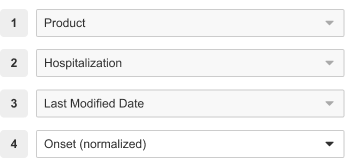
While advanced logic is turned on, you can only remove the last filter. To remove other filters, select Remove to turn advanced logic off.
For more information about adding advanced logic, see Using Report Filters. Vault’s advanced logic limitations do not apply to the Safety Workbench application. Instead, consider the following advanced logic criteria:
- All open brackets must have a close bracket.
- All advanced logic numbers must be present in the Advanced Logic section.
- Only one (1) operator (AND or OR) is allowed within a single bracket level, for example, (1 OR (2 AND 3)).
Inherited Criteria and Filters
Workbench Reports can inherit filters from associated safety views in the following ways:
- Criteria: In the Workbench Report, criteria fields appear in the Filters section under the Criteria subsection. When running a Workbench Report, criteria represent special parameters that change the output based on your Admin’s configuration. For example, criteria can filter data, insert additional columns, or change report colors. To learn more about your report’s specifications, contact your Admin. For Date and DateTime filters, unless you specify a Timezone, Vault defaults to UTC.
- Required and optional filters: In the Workbench Report, required and optional filter fields appear in the Filters section under the Required and Optional subsections, respectively. Depending on your Admin’s configuration, you may need to enter filter values in the Required subsection. However, you cannot edit the filter fields or operators.
If you select a Case series on a Workbench Report, required filters become optional. Vault displays previously required filters in the Optional subsection and hides the Required subsection. Vault retains any filter values when you select or clear the Case series from the Workbench Report.
Note: Advanced logic is unavailable for inherited filters and does not apply to criteria fields.