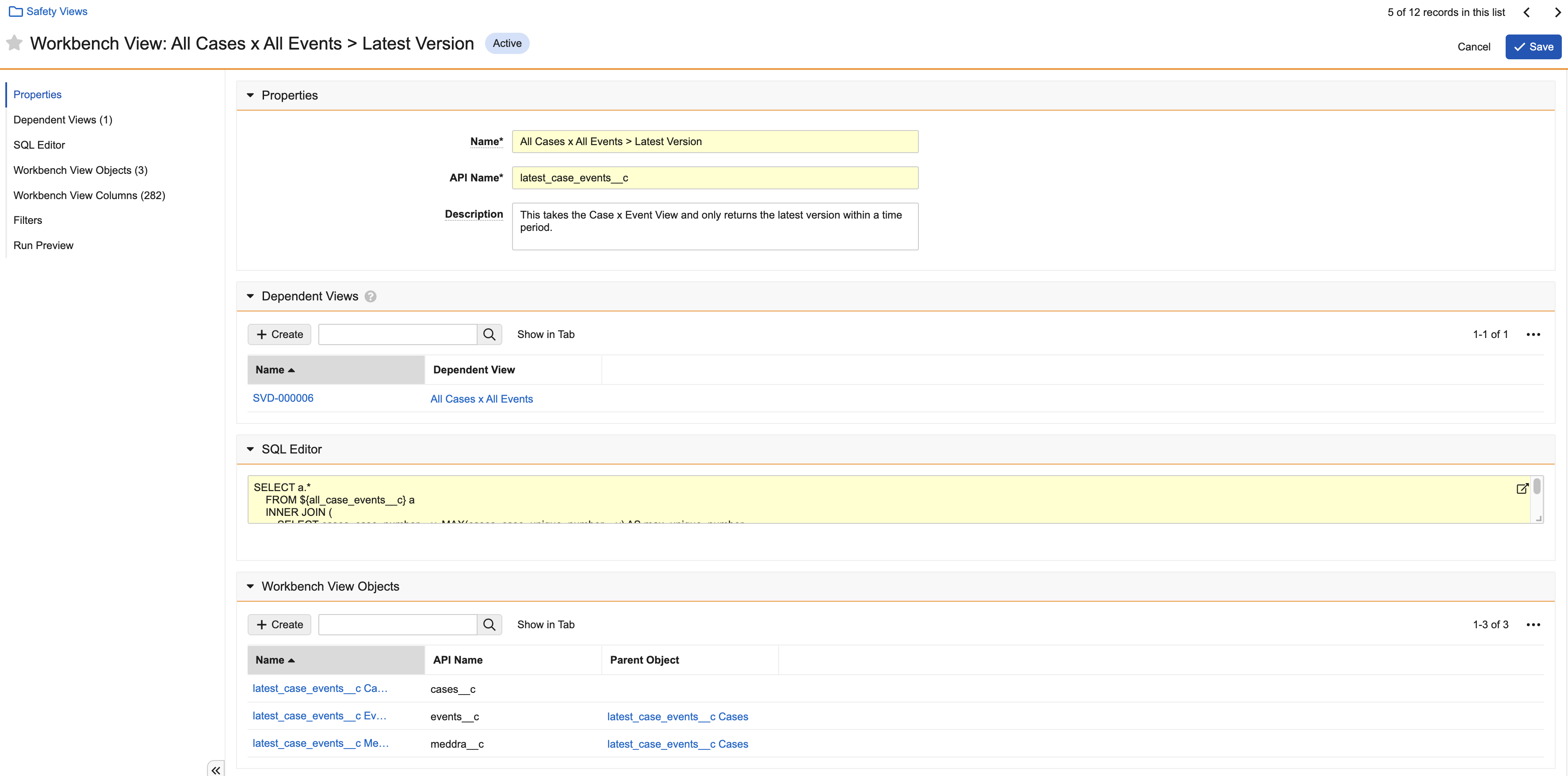
Note: Do not edit a safety view if a Workbench Report is using it. Any changes you make to the safety view will not be reflected in Workbench Reports referencing this safety view.
 ## Create and Access Safety Views {#create-and-access-safety-views}
To create a safety view:
1. Navigate to **Business Admin > Objects > Workbench Views**.
2. Select **Create**.
3. In the _Create Workbench View_ window, specify the type of view you want to create and then select **Continue**.
4. Complete the following information about the safety view in the _Details_ section:
* **Name**: Enter a **Name** for the safety view.
* **API Name**: Enter an **API Name** for the safety view. The API Name cannot include spaces and must end in `__c`.
* **Description**: Enter a **Description** for the safety view.
* **View Tag**: Select a tag from the picklist to organize this safety view. Add values to the _Workbench View Tag_ picklist as needed.
* {: #follow-view-sort-order-checkbox} **Sortable by Row Number**: Select **Yes** to allow users to follow the sort order configured in this safety view's SQL. Contact your Veeva Representative to provide the appropriate input. Otherwise, select **No**.
* **Use Total Row**: This field appears for _Workbench View_ types only. Select this checkbox to display a _Grand Total_ row on _Workbench Dashboards_ using this view. Then, contact your Veeva Representative to provide the appropriate SQL input.
## Create and Access Safety Views {#create-and-access-safety-views}
To create a safety view:
1. Navigate to **Business Admin > Objects > Workbench Views**.
2. Select **Create**.
3. In the _Create Workbench View_ window, specify the type of view you want to create and then select **Continue**.
4. Complete the following information about the safety view in the _Details_ section:
* **Name**: Enter a **Name** for the safety view.
* **API Name**: Enter an **API Name** for the safety view. The API Name cannot include spaces and must end in `__c`.
* **Description**: Enter a **Description** for the safety view.
* **View Tag**: Select a tag from the picklist to organize this safety view. Add values to the _Workbench View Tag_ picklist as needed.
* {: #follow-view-sort-order-checkbox} **Sortable by Row Number**: Select **Yes** to allow users to follow the sort order configured in this safety view's SQL. Contact your Veeva Representative to provide the appropriate input. Otherwise, select **No**.
* **Use Total Row**: This field appears for _Workbench View_ types only. Select this checkbox to display a _Grand Total_ row on _Workbench Dashboards_ using this view. Then, contact your Veeva Representative to provide the appropriate SQL input.
Note: You cannot save Supporting Views. This view type is only for standard views provisioned by your Veeva Representative.
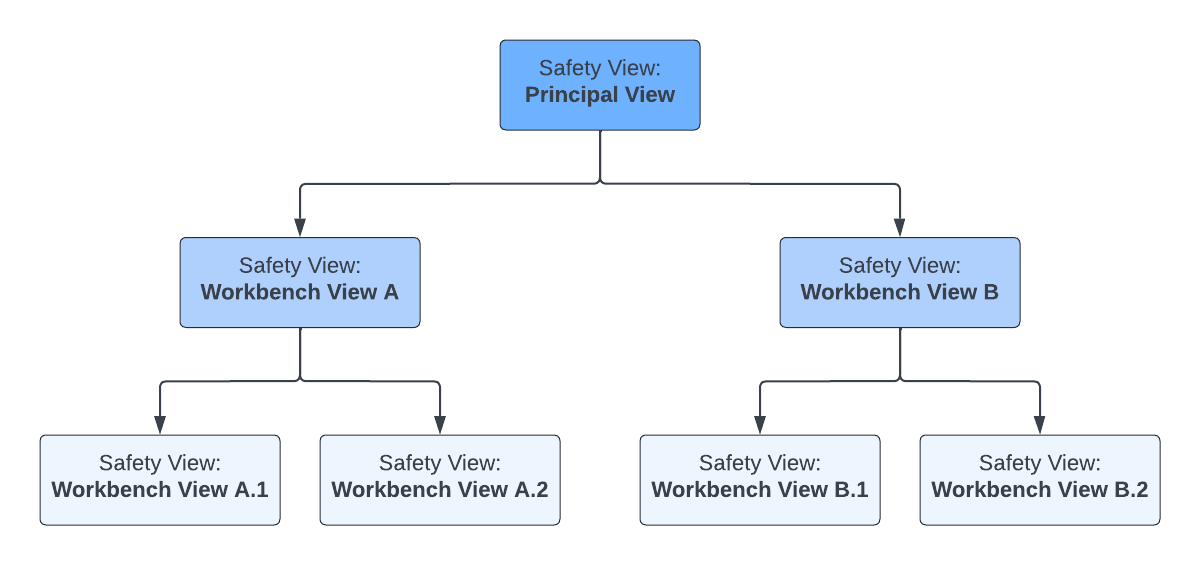 Although a _Workbench View_ may not always include a _Principal View_ in the _Dependent Views_ section, a _Workbench View_ must ultimately be associated with one (1) unique _Principal View_ through other dependent views. In the above example, _Workbench View_ A.1/A.2 is not directly associated with the _Principal View_ but is associated with it through _Workbench View_ A.
Note: If a dependent view is not associated with any or is associated with more than one (1) Principal View, you cannot add filters on the safety view or the Workbench Report.
 ) icon.
The SQL query provides references for the fields specified in the safety view's [_Workbench View Columns_][1] section. If you [run a preview][2] of the safety view without any _Workbench View Columns_, all fields returned by the SQL query will be displayed in the preview.
The safety view can also leverage another safety view by referencing the safety view's _API Name_ in the _SQL Editor_ section, for example, `select * from ${safety_view_api_name__c}`. You must also [create a dependent view][3] for the safety view you are referencing.
Consider the following SQL limitations and restrictions:
* Vault does not perform timeout checks when running SQL. Long-running queries will be terminated by Amazon Redshift. Related performance issues are identified through logged server errors.
* The query size limit is 32,000 characters.
### SQL Editor Search Panel {#search-panel}
Before you can access _SQL Editor_ keyboard shortcuts and the search panel, you must configure _SQL Editor_ enhancements. After performing the necessary configuration, you can open the _SQL Editor_ search panel by using the **Ctrl + f** or **Cmd + f** keyboard shortcut, as applicable.
Using the search panel, you can find or replace specific texts and syntax elements. The panel also includes the following settings:
* _Match case_: Select this checkbox to make your keyword case sensitive.
* _Regexp_: Select this checkbox to use regular expressions.
* _By word_: Select this checkbox to search for whole words only. For example, if your keyword is `filter`, Vault excludes elements such as `filterview`.
## Workbench View Objects {#workbench-view-objects}
The [_Workbench View Column_][1] and the _Workbench View Object_ sections both influence the _Workbench Report_ layout. Where the _Workbench View Columns_ define the fields users can add to the layout, the _Workbench View Objects_ specify the fields you can group by on the _Workbench Report_ layout. If you do not add _Workbench View Objects_ to this safety view, grouping will not be available for _Workbench Reports_ using this view.
The _Workbench View Objects_ section consists of fields and one (1) parent object. The fields in this section correspond to the fields in the _Workbench View Columns_ section.
### Create Workbench View Objects {#create-workbench-view-objects}
To create _Workbench View Objects_:
1. In the _Workbench View Objects_ section, select **Create**.
2. In the _Create Workbench View Object_ window, complete the following information:
* **Name**: Enter the name of the field.
* **API Name**: Enter the API name of the field. This value must end in `__c`.
* **Parent Object**: Select the parent object from the drop-down or use the **Advanced Search** (
) icon.
The SQL query provides references for the fields specified in the safety view's [_Workbench View Columns_][1] section. If you [run a preview][2] of the safety view without any _Workbench View Columns_, all fields returned by the SQL query will be displayed in the preview.
The safety view can also leverage another safety view by referencing the safety view's _API Name_ in the _SQL Editor_ section, for example, `select * from ${safety_view_api_name__c}`. You must also [create a dependent view][3] for the safety view you are referencing.
Consider the following SQL limitations and restrictions:
* Vault does not perform timeout checks when running SQL. Long-running queries will be terminated by Amazon Redshift. Related performance issues are identified through logged server errors.
* The query size limit is 32,000 characters.
### SQL Editor Search Panel {#search-panel}
Before you can access _SQL Editor_ keyboard shortcuts and the search panel, you must configure _SQL Editor_ enhancements. After performing the necessary configuration, you can open the _SQL Editor_ search panel by using the **Ctrl + f** or **Cmd + f** keyboard shortcut, as applicable.
Using the search panel, you can find or replace specific texts and syntax elements. The panel also includes the following settings:
* _Match case_: Select this checkbox to make your keyword case sensitive.
* _Regexp_: Select this checkbox to use regular expressions.
* _By word_: Select this checkbox to search for whole words only. For example, if your keyword is `filter`, Vault excludes elements such as `filterview`.
## Workbench View Objects {#workbench-view-objects}
The [_Workbench View Column_][1] and the _Workbench View Object_ sections both influence the _Workbench Report_ layout. Where the _Workbench View Columns_ define the fields users can add to the layout, the _Workbench View Objects_ specify the fields you can group by on the _Workbench Report_ layout. If you do not add _Workbench View Objects_ to this safety view, grouping will not be available for _Workbench Reports_ using this view.
The _Workbench View Objects_ section consists of fields and one (1) parent object. The fields in this section correspond to the fields in the _Workbench View Columns_ section.
### Create Workbench View Objects {#create-workbench-view-objects}
To create _Workbench View Objects_:
1. In the _Workbench View Objects_ section, select **Create**.
2. In the _Create Workbench View Object_ window, complete the following information:
* **Name**: Enter the name of the field.
* **API Name**: Enter the API name of the field. This value must end in `__c`.
* **Parent Object**: Select the parent object from the drop-down or use the **Advanced Search** ( ) icon to use filters and refine your search. Leave this field blank if you are creating the parent object.
3. Select **Save**.
4. Repeat the steps above to add additional fields.
5. (Optional) To delete a field, select the **Actions** menu next to the field and then select **Delete**.
### Grouping Criteria {#grouping-criteria}
Users can group fields on the _Workbench Report_ layout by the fields you add to the _Workbench View Objects_ section if the following criteria are met:
* In the _Workbench View Objects_ section, the field the user wants to group by is assigned to the [parent object][4].
* In the _Workbench View Columns_ section:
* For the field the user wants to group by, there is a corresponding field in the _Workbench View Column_ section.
* The field must be of the _Object_ or _Picklist_ column type.
* The field's _Workbench View Object_ field must be set to the [parent object][4].
## Workbench View Columns {#workbench-view-columns}
When creating a new safety view, this section appears only after saving.
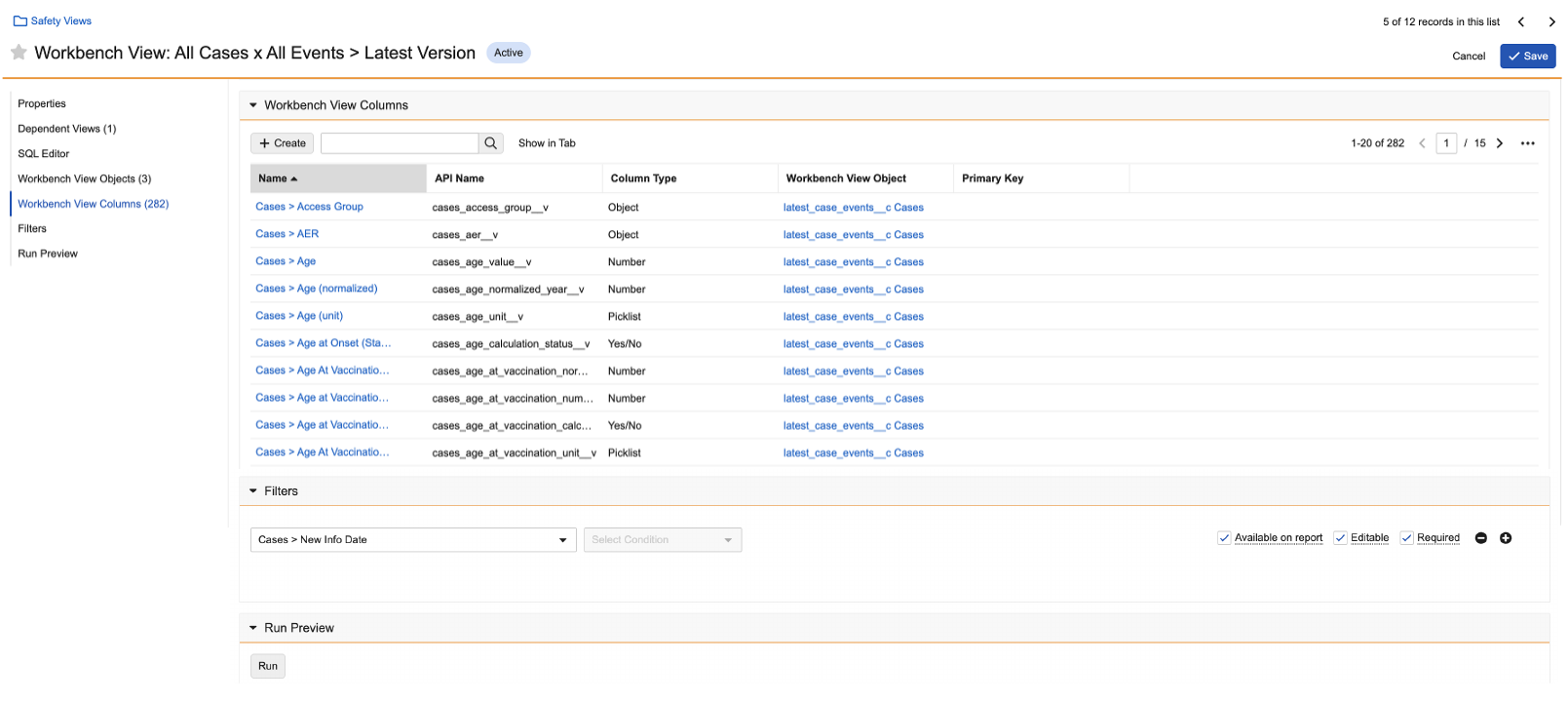
The configuration you perform in a safety view's _Workbench View Columns_ section determines the fields you can add to the _Workbench Report_ layout. Adding fields to the _Workbench View Columns_ also makes them available for _Workbench Report_ filters, if you are creating a _Principal View_.
The _Workbench View Columns_ are also required for the [safety view's SQL][5] to run successfully.
Supported field types include:
* _Text_
* _Date_
* _DateTime_
* _Number_
* _Yes/No_
* _Object_
* _Picklist_
* _Multi-Value Picklist_
* _MedDRA_
### Create Workbench View Columns {#create-workbench-view-columns}
To create the _Workbench View Columns_:
1. In the _Workbench View Columns_ section, select **Create**.
2. In the _Create Workbench View Column_ window, complete the following fields:
* **Name**: Enter the name of the _Workbench View Column_. This value appears to users as a field in the _Workbench Report_ layout.
* **API Name**: Enter the API name of the _Workbench View Column_. This value must match the name of the column returned by the [SQL query][5].
* **Column Type**: Select a field type option from the drop-down. For _Object_ and _MedDRA_ types with a specified _Safety Object Reference_, Vault displays the record name instead of the ID for _Workbench Dashboards_ and _Workbench Report_ outputs.
) icon to use filters and refine your search. Leave this field blank if you are creating the parent object.
3. Select **Save**.
4. Repeat the steps above to add additional fields.
5. (Optional) To delete a field, select the **Actions** menu next to the field and then select **Delete**.
### Grouping Criteria {#grouping-criteria}
Users can group fields on the _Workbench Report_ layout by the fields you add to the _Workbench View Objects_ section if the following criteria are met:
* In the _Workbench View Objects_ section, the field the user wants to group by is assigned to the [parent object][4].
* In the _Workbench View Columns_ section:
* For the field the user wants to group by, there is a corresponding field in the _Workbench View Column_ section.
* The field must be of the _Object_ or _Picklist_ column type.
* The field's _Workbench View Object_ field must be set to the [parent object][4].
## Workbench View Columns {#workbench-view-columns}
When creating a new safety view, this section appears only after saving.
The configuration you perform in a safety view's _Workbench View Columns_ section determines the fields you can add to the _Workbench Report_ layout. Adding fields to the _Workbench View Columns_ also makes them available for _Workbench Report_ filters, if you are creating a _Principal View_.
The _Workbench View Columns_ are also required for the [safety view's SQL][5] to run successfully.
Supported field types include:
* _Text_
* _Date_
* _DateTime_
* _Number_
* _Yes/No_
* _Object_
* _Picklist_
* _Multi-Value Picklist_
* _MedDRA_
### Create Workbench View Columns {#create-workbench-view-columns}
To create the _Workbench View Columns_:
1. In the _Workbench View Columns_ section, select **Create**.
2. In the _Create Workbench View Column_ window, complete the following fields:
* **Name**: Enter the name of the _Workbench View Column_. This value appears to users as a field in the _Workbench Report_ layout.
* **API Name**: Enter the API name of the _Workbench View Column_. This value must match the name of the column returned by the [SQL query][5].
* **Column Type**: Select a field type option from the drop-down. For _Object_ and _MedDRA_ types with a specified _Safety Object Reference_, Vault displays the record name instead of the ID for _Workbench Dashboards_ and _Workbench Report_ outputs.
Note: You cannot add Workbench View Parameters to a Principal View or a Supporting View.
CASE WHEN ${parameter.exclude_followup__c} <SQL>

${parameter.exclude_followup__c} THEN <SQL>
### Update Workbench View Parameters {#update-workbench-view-parameters}
You can edit custom (`__c`) _Workbench View Parameters_:
1. Navigate to **Business Admin > Objects > Workbench View Parameters > [Workbench View Parameter]**.
2. Select **Edit**.
3. Update information as needed.
4. Select **Save**.
## Filters {#filters}
You can configure filters in the _Filters_ section of the safety view. Filters you add to the safety view can also be used to generate an output when users run a _Workbench Report_.
You can add safety view filters only if the [_Workbench View Columns_][1] section is populated. To add safety view filters on a _Workbench View_, you must first define _Workbench View Columns_ on the associated _Principal View_.
For more information, see Add Safety View Filters in Safety Workbench.
## Run Preview {#run-preview}
You can generate a preview of the safety view by selecting **Run** in the _Run Preview_ section.
After you run the preview, Vault executes the SQL for this safety view and returns a list of up to 100 records. Optionally, you can select the column header to sort the records returned by the run preview. The preview output also depends on whether you select the _Use View Columns_ checkbox:
* If you leave the checkbox selected: Vault returns fields that are defined by the [SQL][5] and have a corresponding [_Workbench View Column_][1]. The output is displayed in a table format based on the _Workbench View Columns_'s column type.
* If you clear the checkbox: Vault returns all fields specified in the SQL, regardless of whether the safety view contains _Workbench View Columns_. Clearing the _Use View Columns_ checkbox allows you to preview your SQL changes quickly without having to configure _Workbench View Columns_.
If the SQL is invalid, Vault returns an error. _Run Preview_ also times out after 300 seconds.
Vault inactivates the _Run_ button when you add a [_Workbench View Parameter_][6] to the safety view, as _Workbench View Parameters_ require user input to obtain data.
Note: As Run Preview is optimized for speed and not accuracy, it’s best practice to test your safety view using a report or dashboard. Depending on your SQL, some data may be impacted or may not appear in the preview. For example, when executing SQL with a Group by value on a large dataset, Run Preview may limit the amount of data being aggregated.