 ## Prerequisites
To utilize the Document Intake Highlighter, your Admin must enable the feature.
## Access the Document Intake Highlighter {#access}
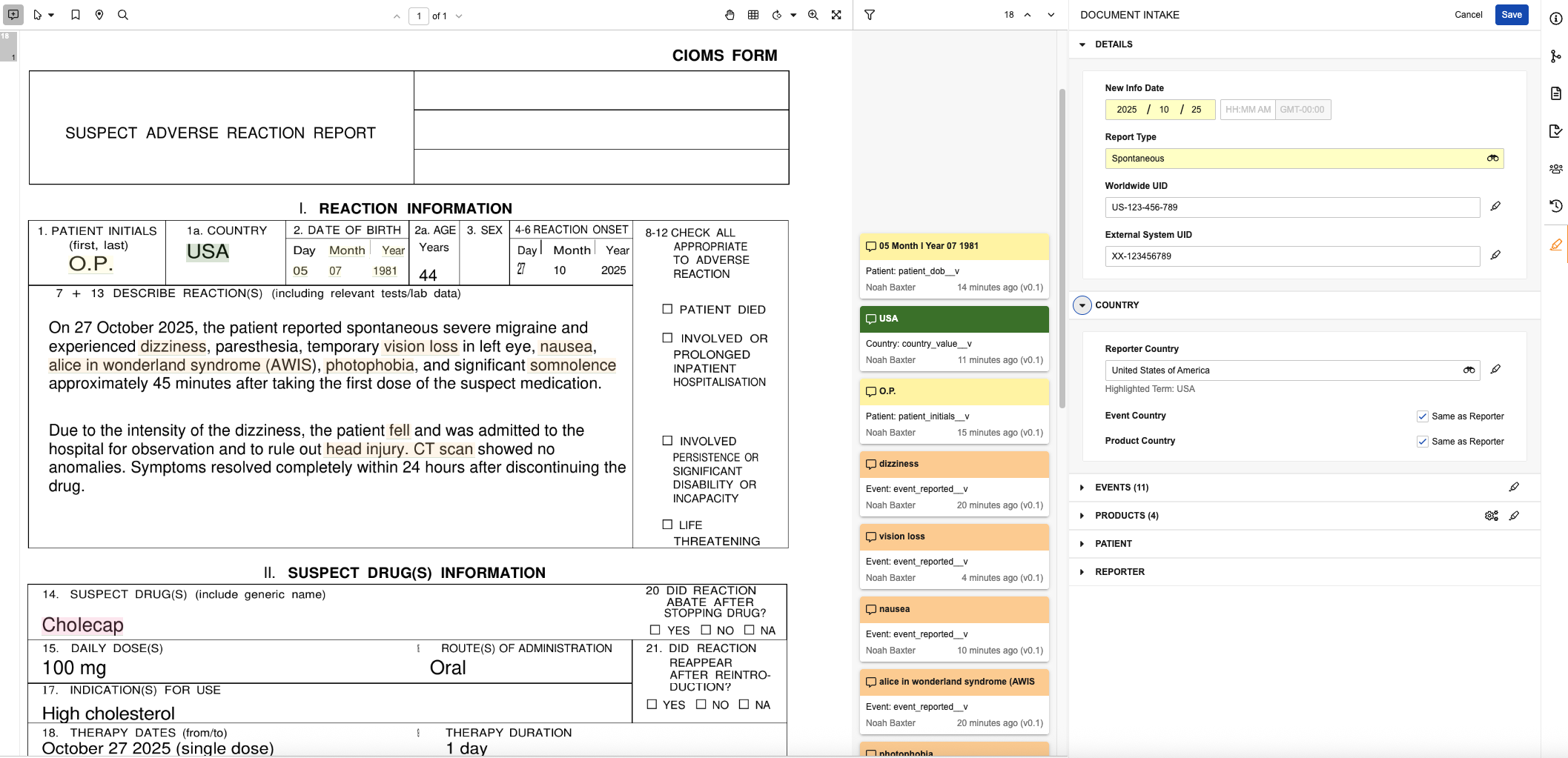
You can access the Document Intake Highlighter on the _Document Intake Highlighter_ panel, which is available on the Doc Info pane of _Adverse Event Report_ classified documents of supported file formats.
## Prerequisites
To utilize the Document Intake Highlighter, your Admin must enable the feature.
## Access the Document Intake Highlighter {#access}
You can access the Document Intake Highlighter on the _Document Intake Highlighter_ panel, which is available on the Doc Info pane of _Adverse Event Report_ classified documents of supported file formats.
Note: The document’s Organization field value must reference a Sponsor type.
 ) icon.
3. Select the edit () icon.
4. Populate fields in the following panel sections as applicable. You can do this manually or by [highlighting and extracting content][5] to map values directly to content in the document.
* **Details**: Specify report details. You must specify _New Info Date_ and _Report Type_, which you cannot populate by [extracting content][5].
* **Country**: [Specify country details][2]. You must specify _Reporter Country_ or _Event Country_.
* **Event**: [Add events][3]. To promote the _Inbox Item_ to a _Case_, you must add a primary _Adverse Event_.
* **Product**: [Add products][4]. To promote the _Inbox Item_ to a _Case_, you must add a primary _Product_.
* **Patient**: Specify patient details.To promote the _Inbox Item_ to a _Case_, you must populate at least one of these fields.
* **Reporter**: Specify reporter details. To promote the _Inbox Item_ to a _Case_, you must populate at least one of these fields.
5. When you're done making changes, select **Save**.
After saving changes, review your entries on the [summary view][6]. If all required fields contain values and Vault finds no validation errors for the populated fields, it generates or updates the applicable _Inbox Item_ based on the values you populated in the panel. You can access the _Inbox Item_ from the _Case_ section of the _Information_ panel to review and update fields, as needed. If you make any changes to fields on the _Inbox Item_, Vault syncs them to the fields displayed in the panel. You can navigate back to the panel from the _Source Document_ field on the _Inbox Item_.
### Specify Country Details {#country}
If country details are known, we recommend populating these fields before adding events and products so that Vault applies the specified countries to those items. When you populate _Reporter Country_, Vault applies the same value for the _Event Country_ and _Product Country_ fields. To specify a different country for either of these fields, clear the applicable **Same as Reporter** checkbox and then populate a different value for that field. If you leave the checkbox selected for either field, Vault applies the same value you populate for _Reporter Country_.
) icon.
3. Select the edit () icon.
4. Populate fields in the following panel sections as applicable. You can do this manually or by [highlighting and extracting content][5] to map values directly to content in the document.
* **Details**: Specify report details. You must specify _New Info Date_ and _Report Type_, which you cannot populate by [extracting content][5].
* **Country**: [Specify country details][2]. You must specify _Reporter Country_ or _Event Country_.
* **Event**: [Add events][3]. To promote the _Inbox Item_ to a _Case_, you must add a primary _Adverse Event_.
* **Product**: [Add products][4]. To promote the _Inbox Item_ to a _Case_, you must add a primary _Product_.
* **Patient**: Specify patient details.To promote the _Inbox Item_ to a _Case_, you must populate at least one of these fields.
* **Reporter**: Specify reporter details. To promote the _Inbox Item_ to a _Case_, you must populate at least one of these fields.
5. When you're done making changes, select **Save**.
After saving changes, review your entries on the [summary view][6]. If all required fields contain values and Vault finds no validation errors for the populated fields, it generates or updates the applicable _Inbox Item_ based on the values you populated in the panel. You can access the _Inbox Item_ from the _Case_ section of the _Information_ panel to review and update fields, as needed. If you make any changes to fields on the _Inbox Item_, Vault syncs them to the fields displayed in the panel. You can navigate back to the panel from the _Source Document_ field on the _Inbox Item_.
### Specify Country Details {#country}
If country details are known, we recommend populating these fields before adding events and products so that Vault applies the specified countries to those items. When you populate _Reporter Country_, Vault applies the same value for the _Event Country_ and _Product Country_ fields. To specify a different country for either of these fields, clear the applicable **Same as Reporter** checkbox and then populate a different value for that field. If you leave the checkbox selected for either field, Vault applies the same value you populate for _Reporter Country_.
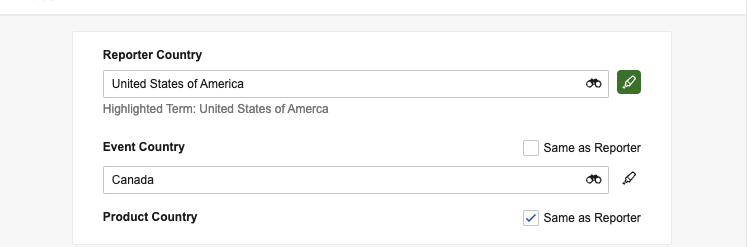 If you add country details after adding [event][3] and [product][4] items and do not clear the corresponding _Same as Reporter_ checkboxes, Vault populates the _Event Country_ of generated _Events_ and the _Country Obtained_ of generated _Products_ with the same value as the _Reporter Country_.
### Add Events {#events}
Manually add events in the panel based on details in the source document. By default, events you add in the panel are of the _Adverse Event_ type. To view and add different types, select the applicable button:
* **Event**: Adds an _Adverse Event_
* **History**: Adds a _Medical History & Concurrent Condition_
* **Complaint**: Adds a _Product Quality Complaint_
Buttons with blue dot () icons indicate types with existing events. To view all events without filtering by type, unselect all buttons. Select the caret icons to expand () or minimize () a section. If an expanded section includes more than ten items, use the **Next Page** (**>**) and **Previous Page** (**<**) icons to move through the pages. You can drag an item to a type section button to change its type. If you move an item to a different type, it sorts at the bottom of the list for that type.
Buttons with blue dot () icons indicate types with existing events. To view all events without filtering by type, unselect all buttons. Select the caret icons to expand () or minimize () a section. If an expanded section includes more than ten items, use the **Next Page** (**>**) and **Previous Page** (**<**) icons to move through the pages. You can drag an item to a type section button to change its type. If you move an item to a different type, it sorts at the bottom of the list for that type.
If you add country details after adding [event][3] and [product][4] items and do not clear the corresponding _Same as Reporter_ checkboxes, Vault populates the _Event Country_ of generated _Events_ and the _Country Obtained_ of generated _Products_ with the same value as the _Reporter Country_.
### Add Events {#events}
Manually add events in the panel based on details in the source document. By default, events you add in the panel are of the _Adverse Event_ type. To view and add different types, select the applicable button:
* **Event**: Adds an _Adverse Event_
* **History**: Adds a _Medical History & Concurrent Condition_
* **Complaint**: Adds a _Product Quality Complaint_
Buttons with blue dot () icons indicate types with existing events. To view all events without filtering by type, unselect all buttons. Select the caret icons to expand () or minimize () a section. If an expanded section includes more than ten items, use the **Next Page** (**>**) and **Previous Page** (**<**) icons to move through the pages. You can drag an item to a type section button to change its type. If you move an item to a different type, it sorts at the bottom of the list for that type.
Buttons with blue dot () icons indicate types with existing events. To view all events without filtering by type, unselect all buttons. Select the caret icons to expand () or minimize () a section. If an expanded section includes more than ten items, use the **Next Page** (**>**) and **Previous Page** (**<**) icons to move through the pages. You can drag an item to a type section button to change its type. If you move an item to a different type, it sorts at the bottom of the list for that type.
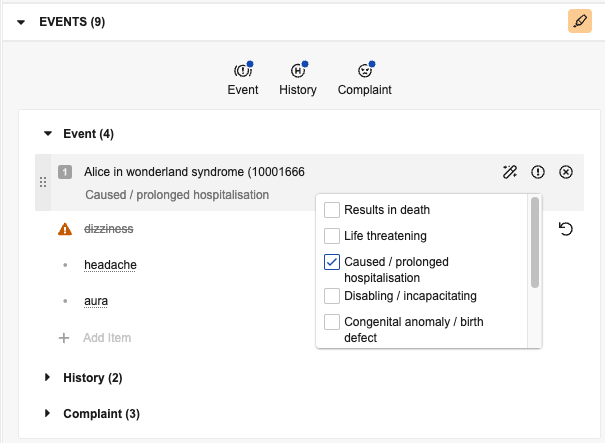
Note: The panel displays up to 500 event items for an intake document. You can view additional items in the Events section of the generated Inbox Item.
 ): Select this to specify an item as the primary adverse event for the report (_Rank_ of _1_). The primary event is denoted with a primary (
 ) icon.
* **Auto-code** (
) icon.
* **Auto-code** ( ): If you update a previously entered term, select this to match and code the MedDRA term. Select the icon again to **Clear Auto-code** (
 ).
* **Assign Seriousness Criteria** (): For _Events_ and _Complaints_, select this to reveal checkboxes you can select to assign seriousness. Vault displays the selected criteria below the item.
* **Delete Record** (): Select this to remove the item before saving changes.
* **Mark for Deletion** (): If the record already exists, select this so Vault does not add the associated record to the _Case_ when you [promote to _Case_][7]. Vault displays an alert () icon to indicate the pending deletion. Once deleted, Vault removes any [associated annotations][5].
* **Undo** (
).
* **Assign Seriousness Criteria** (): For _Events_ and _Complaints_, select this to reveal checkboxes you can select to assign seriousness. Vault displays the selected criteria below the item.
* **Delete Record** (): Select this to remove the item before saving changes.
* **Mark for Deletion** (): If the record already exists, select this so Vault does not add the associated record to the _Case_ when you [promote to _Case_][7]. Vault displays an alert () icon to indicate the pending deletion. Once deleted, Vault removes any [associated annotations][5].
* **Undo** ( ): Select this to unmark a record for deletion before promoting.
### Add Products {#products}
You can [extract][8] products from the document and manually add them based on details from the source document. By default, products you add in the panel are _Case Products_ with a _Drug Role_ of _Suspect_. To view and add different types, select the applicable button:
* **Suspect**: Adds a _Case Product_ with a _Drug Role_ of _Suspect_
* **Interacting**: Adds a _Case Product_ with a _Drug Role_ of _Interacting_
* **DNA**: Adds a _Case Product_ with a _Drug Role_ of _Drug Not Administered_
* **Conmed**: Adds a _Case Product_ with a _Drug Role_ of _Concomitant_
* **Treatment**: Adds a _Case Product_ with a _Drug Role_ of _Treatment_
* **Similar Device**: Adds a _Device_ type of _Case Product_ with a _Drug Role_ of _Similar Device_
* **History**: Adds a _Drug History_
* **Unknown**: Adds a _Case Product_ with a blank _Drug Role_
Buttons with blue dot () icons indicate types with existing products. To view all products without filtering by type, unselect all buttons. Select the caret icons to expand () or minimize () a section. If an expanded section includes more than ten items, use the **Next Page** (**>**) and **Previous Page** (**<**) icons to move through the pages.
): Select this to unmark a record for deletion before promoting.
### Add Products {#products}
You can [extract][8] products from the document and manually add them based on details from the source document. By default, products you add in the panel are _Case Products_ with a _Drug Role_ of _Suspect_. To view and add different types, select the applicable button:
* **Suspect**: Adds a _Case Product_ with a _Drug Role_ of _Suspect_
* **Interacting**: Adds a _Case Product_ with a _Drug Role_ of _Interacting_
* **DNA**: Adds a _Case Product_ with a _Drug Role_ of _Drug Not Administered_
* **Conmed**: Adds a _Case Product_ with a _Drug Role_ of _Concomitant_
* **Treatment**: Adds a _Case Product_ with a _Drug Role_ of _Treatment_
* **Similar Device**: Adds a _Device_ type of _Case Product_ with a _Drug Role_ of _Similar Device_
* **History**: Adds a _Drug History_
* **Unknown**: Adds a _Case Product_ with a blank _Drug Role_
Buttons with blue dot () icons indicate types with existing products. To view all products without filtering by type, unselect all buttons. Select the caret icons to expand () or minimize () a section. If an expanded section includes more than ten items, use the **Next Page** (**>**) and **Previous Page** (**<**) icons to move through the pages.
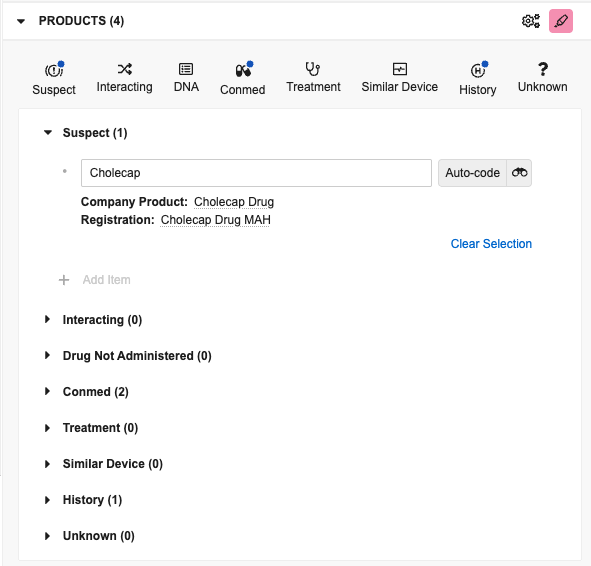
Note: The panel displays up to 500 unique Company Products for an intake document. You can view additional items in the Products section of the generated Inbox Item.
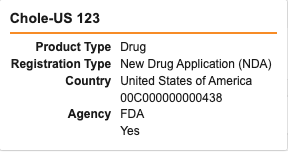
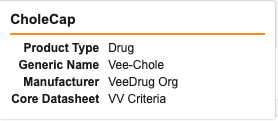 **Registration Hovercard**:
 #### Extract Company Products {#extract}
Select the **Extract Company Products** (
#### Extract Company Products {#extract}
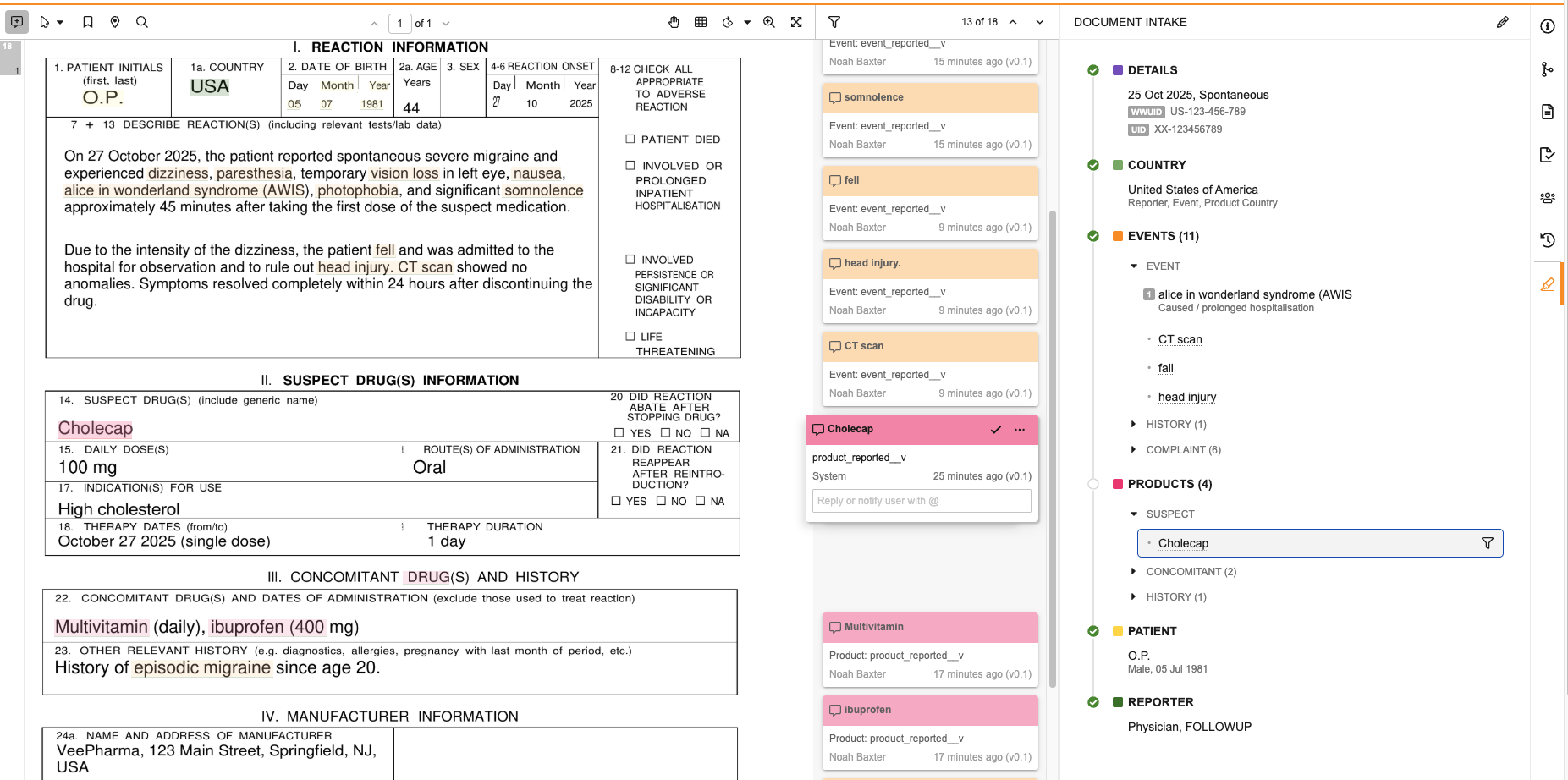
Select the **Extract Company Products** ( ) icon in the _Products_ section header to extract up to 500 unique _Company Products_ from the document based on matches to your _Product_ library. When this action finishes running, Vault adds matches to the _Products_ section as _Suspect_ items, [highlights][5] the associated terms in the document, and adds an annotation info card so you can trace the source of each item. All generated annotations for extracted products display as created by "System". The highlighted terms are the _Product Reported_ of each item. After Vault adds these items, you can [manually update or remove][9] them in the panel, as needed.
Note: You cannot extract products until Vault has generated the document’s viewable rendition.
): Select this to specify an item as the primary product for the report (_Rank_ of _1_). The primary event is denoted with a primary () icon. You cannot mark _Unknown_ items as primary.
* **Auto-code**: If you update a previously entered term, select this to match and code the MedDRA term or select the binoculars ( ) icon to open the _Product Browser_. To remove the code, select **Clear Selection**.
* If you edit the item after it's coded, Vault displays a modified () icon, strikes out the details, and displays a message that the reported term is modified.
* If you select **Save** and your entry causes a validation error, the panel displays a _Validation Errors_ () icon in the type's section header, a number indicating the amount of errors, and a brief description of the error next to each applicable item. You must resolve all errors to save your updates.
* **Delete Record** (): Select this to remove the item before saving changes.
* **Mark for Deletion** (): If the record already exists, select this so Vault does not add the associated record to the _Case_ when you [promote to _Case_][7]. Vault displays an alert () icon to indicate the pending deletion. Once deleted, Vault removes any [associated annotations][5].
* **Undo** (): Select this to unmark a record for deletion before promoting.
## Highlight Annotations {#highlight}
You can highlight and extract content within a document to populate certain fields in the panel, which is similar to annotating documents. When you highlight content in the document, Vault creates an annotation info card with details about the sourced data and maps it to the selected section in the panel. Use _Annotate_ mode to review all annotation info cards, including any added by other users. When you switch to _View_ mode, Vault hides the cards, but the highlighted terms in the document remain visible when the _Document Highlighter Panel_ is open.
Vault uses different highlight colors for each section in the panel so you can visualize the different areas from which you've pulled source data:
* **Details**: Light purple annotations (
) icon to open the _Product Browser_. To remove the code, select **Clear Selection**.
* If you edit the item after it's coded, Vault displays a modified () icon, strikes out the details, and displays a message that the reported term is modified.
* If you select **Save** and your entry causes a validation error, the panel displays a _Validation Errors_ () icon in the type's section header, a number indicating the amount of errors, and a brief description of the error next to each applicable item. You must resolve all errors to save your updates.
* **Delete Record** (): Select this to remove the item before saving changes.
* **Mark for Deletion** (): If the record already exists, select this so Vault does not add the associated record to the _Case_ when you [promote to _Case_][7]. Vault displays an alert () icon to indicate the pending deletion. Once deleted, Vault removes any [associated annotations][5].
* **Undo** (): Select this to unmark a record for deletion before promoting.
## Highlight Annotations {#highlight}
You can highlight and extract content within a document to populate certain fields in the panel, which is similar to annotating documents. When you highlight content in the document, Vault creates an annotation info card with details about the sourced data and maps it to the selected section in the panel. Use _Annotate_ mode to review all annotation info cards, including any added by other users. When you switch to _View_ mode, Vault hides the cards, but the highlighted terms in the document remain visible when the _Document Highlighter Panel_ is open.
Vault uses different highlight colors for each section in the panel so you can visualize the different areas from which you've pulled source data:
* **Details**: Light purple annotations ( )
* **Country**: Dark green annotations (
)
* **Country**: Dark green annotations ( )
* **Event**: Light orange annotations (
)
* **Event**: Light orange annotations ( )
* **Product**: Dark pink annotations (
)
* **Product**: Dark pink annotations ( )
* **Patient**: Light yellow annotations (
)
* **Patient**: Light yellow annotations ( )
* **Reporter**: Light green annotations (
)
* **Reporter**: Light green annotations ( )
)
Note: After adding comment annotations, we recommend that you do not change the color, edit the text style, or perform any actions.
Note: Moving or deleting an annotation info card does not update or remove the mapped field value in the panel. You must manually update the field.
Note: If you exit the panel after populating fields without saving, Vault saves any annotation info cards you added but does not map them to fields in the panel. You can manually delete these as needed.
 ) icon to generate a _Case_.
* If any sections have grey empty () status icons, you must add required details to that section before you can [promote the _Inbox Item_ to a _Case_][7].
* Hover over a status icon to view the identifiable criteria for that section.
* Select a header to collapse () or expand () that section.
* If an expanded section includes more than ten items, use the **Next Page** (**>**) and **Previous Page** (**<**) icons to move through the pages.
* For any [mapped highlighted term][5], select the value to jump to the associated annotation info card in the document viewer.
* For any extracted _Company Products_, hover over the item and select the **Apply Filter** () icon to view only annotations associated with that item. Select the icon again to remove the filter.
* Select the edit () icon to [populate fields][1].
) icon to generate a _Case_.
* If any sections have grey empty () status icons, you must add required details to that section before you can [promote the _Inbox Item_ to a _Case_][7].
* Hover over a status icon to view the identifiable criteria for that section.
* Select a header to collapse () or expand () that section.
* If an expanded section includes more than ten items, use the **Next Page** (**>**) and **Previous Page** (**<**) icons to move through the pages.
* For any [mapped highlighted term][5], select the value to jump to the associated annotation info card in the document viewer.
* For any extracted _Company Products_, hover over the item and select the **Apply Filter** () icon to view only annotations associated with that item. Select the icon again to remove the filter.
* Select the edit () icon to [populate fields][1].
 ### Promote to Case {#promote}
If you've added all details required to promote the _Inbox Item_ to a _Case_, all sections have green checkmark status icons, and you can select the **Promote to Case** () icon at the top of the panel summary view to open the _Potential Matches_ page. You can access the generated record from the _Case_ section of the _Information_ panel to review and update fields, as needed. You can navigate back to the panel from the _Source Document_ field on the generated _Case_.
[1]: #populate
[2]: #country
[3]: #events
[4]: #products
[5]: #highlight
[6]: #summary
[7]: #promote
[8]: #extract
[9]: #products-manage
[10]: #qualification
[11]: #review
### Promote to Case {#promote}
If you've added all details required to promote the _Inbox Item_ to a _Case_, all sections have green checkmark status icons, and you can select the **Promote to Case** () icon at the top of the panel summary view to open the _Potential Matches_ page. You can access the generated record from the _Case_ section of the _Information_ panel to review and update fields, as needed. You can navigate back to the panel from the _Source Document_ field on the generated _Case_.
[1]: #populate
[2]: #country
[3]: #events
[4]: #products
[5]: #highlight
[6]: #summary
[7]: #promote
[8]: #extract
[9]: #products-manage
[10]: #qualification
[11]: #review