# Enable Multi-Agreement Activities
With the 25R3 release, Veeva SafetyDocs supports creating Pharmacovigilance Agreements (PVA) obligation activities that span multiple PV agreements, simplifying configuration and management of activities required by multiple PVAs. With the introduction of _PVA Multi-Agreement Activities_, users can easily see all _PV Agreements_ and _PVA Obligations_ linked to a _Multi-Agreement Activity_, and trigger email distributions to all relevant partner contacts.
After you have enabled this feature, see Manage PVA Multi-Agreement Activities for more information.
## Prerequisites
To enable Multi-Agreement Activities in your Vault, you must enable PVA Management. To allow your users to distribute PVA documents via email, you must enable PVA Document Distribution via Email.
## Overview
Complete the following procedures to enable this feature in your Vault:
* [Update object layouts][1]
* [Configure _PVA Multi-Agreement Activity_ workflows][2]
* [Configure _PVA Multi-Agreement Activity_ actions][19]
* [Create a _Multi-Agreement Activities_ tab][23]
* [Grant _PVA Actions_ permissions][22]
## Update Object Layouts {#update-object-layouts}
To update object layouts:
1. Copy the standard layout for the following objects and ensure the new layout is active:
* _PVA Activity_
* _PVA Multi-Agreement Activity_
* _PVA MAA Document for Distribution_
2. Set the copied layout as the default.
3. Delete any other existing custom layouts.
## Configure PVA Multi-Agreement Activity Workflows {#configure-workflows}
Configure the following workflows for the _PVA Multi-Agreement Activity_ object:
* [_PVA MAA Generate Related Activities_][3]
* [_PVA MAA Distribute Related Documents_][11]
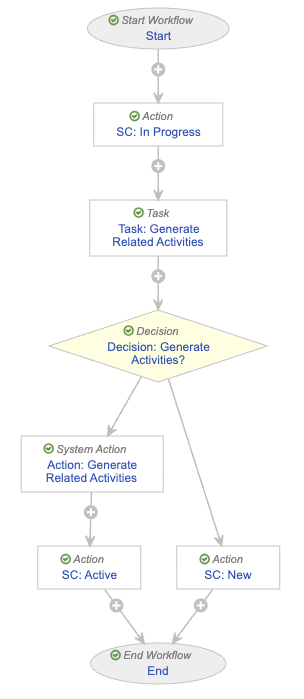
### Configure the PVA MAA Generate Related Activities Workflow {#configure-generate-activities-workflow}
To configure the _PVA MAA Generate Related Activities Workflow_:
1. Navigate to **Admin > Configuration > Workflows**.
2. Select **Create**.
3. In the _Create Workflow_ dialog, select **Object Workflow**, then select **Continue**.
4. On the _Create Workflow_ page, populate the fields as follows:
* **Label**: Enter `PVA MAA Generate Related Activities`
* **Lifecycle**: Select **PVA Multi-Agreement Activity Lifecycle**
5. Select **Save**.
6. Configure the following workflow steps:
* [In Progress state change action][4]
* [Generate Related Activities task][5]
* [Generate Activities decision][6]
* [Generate Related Activities system action][7]
* [Active state change action][8]
* [New state change action][9]
7. [Activate the workflow][10].
 #### Configure the In Progress State Change Action Step {#in-progress-state-change-action-generate-activities}
To configure the In Progress state change action step:
1. In the _Workflow Steps_ section, under the _Start_ step, select **Create Step**.
2. In the _Label_ field, enter `SC: In Progress`, then select **Save**.
3. In the _Details_ section, populate the fields as follows:
* **Type**: Select **Action**
* **Next Steps**
* Remove the **End** step
* Select **Create Step**
* In the **Step Name** field, enter `Task: Generate Related Activities`
* Select **OK**
4. In the _Rules_ section, select **Create Rule** and populate the fields as follows:
* **Condition Type**: Select **Always**
* **perform actions**: Select **Change State**
* **Lifecycle State**: Select **In Progress**
5. Select **Save**.
6. From the _Next Steps_ field, select **Task: Generate Related Activities** to navigate to the next step.
#### Configure the Generate Related Activities Task Step {#generate-related-activities-task}
To configure the Generate Related Activities task step:
1. From the _Task: Generate Related Activities_ step page, select **Edit**.
2. In the _Details_ section, populate the fields as follows:
* **Type**: Select **Task**
* **Next Steps**
* Select **Create Step**
* In the **Step Name** field, enter `Decision: Generate Activities?`
* Select **OK**
3. In the _Task Options_ section, populate the fields as follows:
* **Task Label**: Enter `Generate Related Activities?`
* **Assign Task To**: Select **Workflow Owner**
* **Instructions**: Enter `Activities will be created for all Obligations related to this Multi-Agreement Activity.`
* **Task Requirement**: Select **Required**
4. In the _Prompts_ section, select the **Prompt for Verdicts** checkbox.
* In the _Verdict Label_ field that appears, enter `Generate Activities`
* Select **Add Verdict** and in the _Verdict Label_ field that appears, enter `Cancel`
5. Select **Save**.
6. From the _Next Steps_ field, select **Decision: Generate Activities?** to navigate to the next step.
#### Configure the Generate Activities Decision Step {#generate-activities-decision}
To configure the Generate Activities? decision step:
1. From the _Decision: Generate Activities?_ step page, select **Edit**.
2. In the _Type_ field, select **Decision**.
3. In the _Rules_ section, select **Create Rule** and populate the fields as follows:
* **Condition Type**: Select **All conditions are met**
* **if**: Select **Task** > **Task: Generate Related Activities** > **all labels equal** > **Generate Activities**
* **then**: Select **Create Step**
* In the _Create Step_ dialog, enter `Action: Generate Related Activities`
* Select **OK**
4. In the _then_ field of the _Else_ section, select **Create Step**.
* In the _Create Step_ dialog, enter `SC: New`
* Select **OK**
5. Select **Save**.
6. In the _Rules_ section, select **Action: Generate Related Activities** to navigate to the next step.
#### Configure the Generate Related Activities System Action Step {#generate-activities-system-action}
To configure the Generate Related Activities system action step:
1. From the _Action: Generate Related Activities_ step page, select **Edit**.
2. In the _Details_ section, populate the fields as follows:
* **Type**: Select **System Action**
* **Next Steps**
* Select **Create Step**
* In the _Step Name_ field, enter `SC: Active`
* Select **OK**
3. In the _System Action_ field, select **Generate Related Activities**.
4. Select **Save**.
5. In the _Next Steps_ field, select **SC: Active** to navigate to the next step.
#### Configure the Active State Change Action Step {#active-state-change-action-generate-activities}
To configure the Active state change action step:
1. From the _SC: Active_ step page, select **Edit**.
2. In the _Details_ section, populate the fields as follows:
* **Type**: Select **Action**
* **Next Steps**: Select **End**
3. In the _Rules_ section, select **Create Rule** and populate the fields as follows:
* **Condition Type**: Select **Always**
* **perform actions**: Select **Change State**
* **Lifecycle State**: Select **Active**
4. Select **Save**.
5. Navigate to the main page of the workflow.
#### Configure the New State Change Action Step {#new-state-change-action}
To configure the New state change action step:
1. From the _PVA MAA Generate Related Activities_ workflow page, select the **SC: New** step.
2. From the _SC: New_ step page, select **Edit**.
3. In the _Details_ section, populate the fields as follows:
* **Type**: Select **Action**
* **Next Steps**: Select **End**
4. In the _Rules_ section, select **Create Rule** and populate the fields as follows:
* **Condition Type**: Select **Always**
* **perform actions**: Select **Change State**
* **Lifecycle State**: Select **New**
5. Select **Save**.
#### Activate the Workflow {#activate-generate-activities-workflow}
To activate the _PVA MAA Generate Related Activities_ workflow:
1. Navigate to the main page of the workflow.
2. In the _Status_ field within the _Details_ section, select **Make configuration active**.
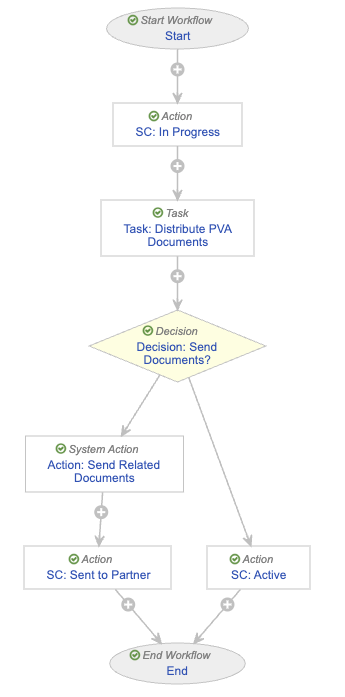
### Configure the PVA MAA Distribute Related Documents Workflow {#configure-distribute-documents-workflow}
To configure the _PVA MAA Distribute Related Documents Workflow_:
1. Navigate to **Admin > Configuration > Workflows**.
2. Select **Create**.
3. In the _Create Workflow_ dialog, select **Object Workflow**, then select **Continue**.
4. On the _Create Workflow_ page, populate the fields as follows:
* **Label**: Enter `PVA MAA Distribute Related Documents Workflow`
* **Lifecycle**: Select **PVA Multi-Agreement Activity Lifecycle**
5. Select **Save**.
6. Configure the following workflow steps:
* [In Progress state change action][12]
* [Distribute PVA Documents task][13]
* [Send Documents decision][14]
* [Send Related Documents system action][15]
* [Sent to Partner state change action][16]
* [Active state change action][17]
7. [Activate the workflow][18].
#### Configure the In Progress State Change Action Step {#in-progress-state-change-action-generate-activities}
To configure the In Progress state change action step:
1. In the _Workflow Steps_ section, under the _Start_ step, select **Create Step**.
2. In the _Label_ field, enter `SC: In Progress`, then select **Save**.
3. In the _Details_ section, populate the fields as follows:
* **Type**: Select **Action**
* **Next Steps**
* Remove the **End** step
* Select **Create Step**
* In the **Step Name** field, enter `Task: Generate Related Activities`
* Select **OK**
4. In the _Rules_ section, select **Create Rule** and populate the fields as follows:
* **Condition Type**: Select **Always**
* **perform actions**: Select **Change State**
* **Lifecycle State**: Select **In Progress**
5. Select **Save**.
6. From the _Next Steps_ field, select **Task: Generate Related Activities** to navigate to the next step.
#### Configure the Generate Related Activities Task Step {#generate-related-activities-task}
To configure the Generate Related Activities task step:
1. From the _Task: Generate Related Activities_ step page, select **Edit**.
2. In the _Details_ section, populate the fields as follows:
* **Type**: Select **Task**
* **Next Steps**
* Select **Create Step**
* In the **Step Name** field, enter `Decision: Generate Activities?`
* Select **OK**
3. In the _Task Options_ section, populate the fields as follows:
* **Task Label**: Enter `Generate Related Activities?`
* **Assign Task To**: Select **Workflow Owner**
* **Instructions**: Enter `Activities will be created for all Obligations related to this Multi-Agreement Activity.`
* **Task Requirement**: Select **Required**
4. In the _Prompts_ section, select the **Prompt for Verdicts** checkbox.
* In the _Verdict Label_ field that appears, enter `Generate Activities`
* Select **Add Verdict** and in the _Verdict Label_ field that appears, enter `Cancel`
5. Select **Save**.
6. From the _Next Steps_ field, select **Decision: Generate Activities?** to navigate to the next step.
#### Configure the Generate Activities Decision Step {#generate-activities-decision}
To configure the Generate Activities? decision step:
1. From the _Decision: Generate Activities?_ step page, select **Edit**.
2. In the _Type_ field, select **Decision**.
3. In the _Rules_ section, select **Create Rule** and populate the fields as follows:
* **Condition Type**: Select **All conditions are met**
* **if**: Select **Task** > **Task: Generate Related Activities** > **all labels equal** > **Generate Activities**
* **then**: Select **Create Step**
* In the _Create Step_ dialog, enter `Action: Generate Related Activities`
* Select **OK**
4. In the _then_ field of the _Else_ section, select **Create Step**.
* In the _Create Step_ dialog, enter `SC: New`
* Select **OK**
5. Select **Save**.
6. In the _Rules_ section, select **Action: Generate Related Activities** to navigate to the next step.
#### Configure the Generate Related Activities System Action Step {#generate-activities-system-action}
To configure the Generate Related Activities system action step:
1. From the _Action: Generate Related Activities_ step page, select **Edit**.
2. In the _Details_ section, populate the fields as follows:
* **Type**: Select **System Action**
* **Next Steps**
* Select **Create Step**
* In the _Step Name_ field, enter `SC: Active`
* Select **OK**
3. In the _System Action_ field, select **Generate Related Activities**.
4. Select **Save**.
5. In the _Next Steps_ field, select **SC: Active** to navigate to the next step.
#### Configure the Active State Change Action Step {#active-state-change-action-generate-activities}
To configure the Active state change action step:
1. From the _SC: Active_ step page, select **Edit**.
2. In the _Details_ section, populate the fields as follows:
* **Type**: Select **Action**
* **Next Steps**: Select **End**
3. In the _Rules_ section, select **Create Rule** and populate the fields as follows:
* **Condition Type**: Select **Always**
* **perform actions**: Select **Change State**
* **Lifecycle State**: Select **Active**
4. Select **Save**.
5. Navigate to the main page of the workflow.
#### Configure the New State Change Action Step {#new-state-change-action}
To configure the New state change action step:
1. From the _PVA MAA Generate Related Activities_ workflow page, select the **SC: New** step.
2. From the _SC: New_ step page, select **Edit**.
3. In the _Details_ section, populate the fields as follows:
* **Type**: Select **Action**
* **Next Steps**: Select **End**
4. In the _Rules_ section, select **Create Rule** and populate the fields as follows:
* **Condition Type**: Select **Always**
* **perform actions**: Select **Change State**
* **Lifecycle State**: Select **New**
5. Select **Save**.
#### Activate the Workflow {#activate-generate-activities-workflow}
To activate the _PVA MAA Generate Related Activities_ workflow:
1. Navigate to the main page of the workflow.
2. In the _Status_ field within the _Details_ section, select **Make configuration active**.
### Configure the PVA MAA Distribute Related Documents Workflow {#configure-distribute-documents-workflow}
To configure the _PVA MAA Distribute Related Documents Workflow_:
1. Navigate to **Admin > Configuration > Workflows**.
2. Select **Create**.
3. In the _Create Workflow_ dialog, select **Object Workflow**, then select **Continue**.
4. On the _Create Workflow_ page, populate the fields as follows:
* **Label**: Enter `PVA MAA Distribute Related Documents Workflow`
* **Lifecycle**: Select **PVA Multi-Agreement Activity Lifecycle**
5. Select **Save**.
6. Configure the following workflow steps:
* [In Progress state change action][12]
* [Distribute PVA Documents task][13]
* [Send Documents decision][14]
* [Send Related Documents system action][15]
* [Sent to Partner state change action][16]
* [Active state change action][17]
7. [Activate the workflow][18].
 #### Configure the In Progress State Change Action Step {#in-progress-state-change-action-distribute-documents}
To configure the In Progress state change action step:
1. In the _Workflow Steps_ section, under the _Start_ step, select **Create Step**.
2. In the _Label_ field, enter `SC: In Progress`, then select **Save**.
3. In the _Details_ section, populate the fields as follows:
* **Type**: Select **Action**
* **Next Steps**
* Remove the **End** step
* Select **Create Step**
* In the **Step Name** field, enter `Task: Distribute PVA Documents`
* Select **OK**
4. In the _Rules_ section, select **Create Rule** and populate the fields as follows:
* **Condition Type**: Select **Always**
* **perform actions**: Select **Change State**
* **Lifecycle State**: Select **In Progress**
5. Select **Save**.
6. From the _Next Steps_ field, select **Task: Distribute PVA Documents** to navigate to the next step.
#### Configure the Distribute PVA Documents Task Step {#distribute-documents-task}
To configure the Distribute PVA Documents task step:
1. From the _Task: Distribute PVA Documents_ step page, select **Edit**.
2. In the _Details_ section, populate the fields as follows:
* **Type**: Select **Task**
* **Next Steps**
* Select **Create Step**
* In the **Step Name** field, enter `Decision: Send Documents?`
* Select **OK**
3. In the _Task Options_ section, populate the fields as follows:
* **Task Label**: Enter `Distribute PVA Documents?`
* **Assign Task To**: Select **Workflow Owner**
* **Instructions**: Enter `All related documents for distribution will be sent to partners.`
* **Task Requirement**: Select **Required**
4. In the _Prompts_ section, select the **Prompt for Verdicts** checkbox.
* In the _Verdict Label_ field that appears, enter `Distribute Documents`
* Select **Add Verdict** and in the _Verdict Label_ field that appears, enter `Cancel`
5. Select **Save**.
6. From the _Next Steps_ field, select **Decision: Send Documents?** to navigate to the next step.
#### Configure the Send Documents Decision Step {#send-documents-decision}
To configure the Send Documents? decision step:
1. From the _Decision: Send Documents?_ step page, select **Edit**.
2. In the _Type_ field, select **Decision**.
3. In the _Rules_ section, select **Create Rule** and populate the fields as follows:
* **Condition Type**: Select **All conditions are met**
* **if**: Select **Task** > **Task: Distribute PVA Documents** > **all labels equal** > **Distribute Documents**
* **then**: Select **Create Step**
* In the _Create Step_ dialog, enter `Action: Send Related Documents`
* Select **OK**
4. In the _then_ field of the _Else_ section, select **Create Step**.
* In the _Create Step_ dialog, enter `SC: Active`
* Select **OK**
5. Select **Save**.
6. In the _Rules_ section, select **Action: Send Related Documents** to navigate to the next step.
#### Configure the Send Related Documents System Action Step {#send-documents-system-action}
To configure the Send Related Documents system action step:
1. From the _Action: Send Related Documents_ step page, select **Edit**.
2. In the _Details_ section, populate the fields as follows:
* **Type**: Select **System Action**
* **Next Steps**
* Select **Create Step**
* In the _Step Name_ field, enter `SC: Sent to Partner`
* Select **OK**
3. In the _System Action_ field, select **Distribute All Related PVA Documents**.
4. Select **Save**.
5. In the _Next Steps_ field, select **SC: Sent to Partner** to navigate to the next step.
#### Configure the Sent to Partner State Change Action Step {#sent-to-partner-state-change-action}
To configure the Sent to Partner state change action step:
1. From the _SC: Sent to Partner_ step page, select **Edit**.
2. In the _Details_ section, populate the fields as follows:
* **Type**: Select **Action**
* **Next Steps**: Select **End**
3. In the _Rules_ section, select **Create Rule** and populate the fields as follows:
* **Condition Type**: Select **Always**
* **perform actions**: Select **Change State**
* **Lifecycle State**: Select **Sent to Partner**
4. Select **Save**.
5. Navigate to the main page of the workflow.
#### Configure the Active State Change Action Step {#active-state-change-action-distribute-documents}
To configure the Active state change action step:
1. From the _PVA MAA Distribute Related Documents_ workflow page, select the **SC: Active** step.
2. From the _SC: Active_ step page, select **Edit**.
3. In the _Details_ section, populate the fields as follows:
* **Type**: Select **Action**
* **Next Steps**: Select **End**
4. In the _Rules_ section, select **Create Rule** and populate the fields as follows:
* **Condition Type**: Select **Always**
* **perform actions**: Select **Change State**
* **Lifecycle State**: Select **Active**
5. Select **Save**.
#### Activate the Workflow {#activate-distribute-documents-workflow}
To activate the _PVA MAA Distribute Related Documents_ workflow:
1. Navigate to the main page of the workflow.
2. In the _Status_ field within the _Details_ section, select **Make configuration active**.
## Configure PVA Multi-Agreement Activity Actions {#configure-actions}
Configure the following on the _PVA Multi-Agreement Activity_ object:
* [Entry actions][20]
* [User actions][21]
### Configure Entry Actions {#configure-entry-actions}
Assign the following actions to the _PVA Multi-Agreement Activity_ object:
* _Distribute All Related PVA Documents_
* _Generate Related Activities_
Then, add the following actions as entry actions on the indicated _PVA Multi-Agreement Activity_ object lifecycle states:
* To the _In Progress_ state, add an entry action and populate the following details:
* **Condition Type**: Select **Always**
* **Perform actions**: Select **Change related object lifecycle state**
* **Related Object**: Select **PVA Activities**
* **Change State To**: Select **In Progress**
* To the _Sent to Partner_ state, add an entry action and populate the following details:
* **Condition Type**: Select **Always**
* **Perform actions**: Select **Change related object lifecycle state**
* **Related Object**: Select **PVA Activities**
* **Change State To**: Select **Sent to Partner**
### Configure User Actions {#configure-user-actions}
Add the following actions as user actions on the indicated _PVA Multi-Agreement Activity_ object lifecycle states:
* To the _New_ state, add the _PVA MAA Generate Related Activities Workflow_ action and populate the following details:
* **Condition Type**: Select **All conditions are met**
* **If**: Under the _PVA MAA-PVA Obligations_ drop-down section, select **PVA Obligation** > **At least one record exists**
* **Allow the following actions**
* Select **Workflow**
* Select **PVA MAA Generate Related Activities**
* **Action Label**: Enter `Generate Related Activities`
* To the _Active_ state, add the _PVA MAA Distribute Related Documents Workflow_ action and populate the following details:
* **Condition Type**: Select **All conditions are met**
* **If**: Under the _PVA MAA Document for Distribution_ drop-down section, select **Name** > **At least one record exists**
* **Allow the following actions**
* Select **Workflow**
* Select **PVA MAA Distribute Related Documents**
* **Action Label**: Enter `Distribute All Related PVA Documents`
## Create a Multi-Agreement Activities Tab {#create-tab}
Create a custom object sub-tab under the _PVAs_ tab collection for the _PVA Multi-Agreement Activities_ object.
## Grant PVA Actions Permissions {#grant-permissions}
Ensure your permission sets are updated to grant the appropriate level of access for users according to your organization's process:
1. Navigate to **Admin > Users & Groups > Permission Sets** and select the custom **PVA Actions** permission set.
2. Navigate to the **Objects** tab and select **Edit**.
3. Add the following permissions:
* _Delete_ permissions for the _PVA MAA-PVA Obligation_ object
* _Read_, _Create_, _Edit_, and _Delete_ permissions for the _PVA Multi-Agreement Activity_ object
4. Select **Save**.
5. Navigate to the **Tabs** tab and select **Edit**.
6. Add _View_ permissions for the _Multi-Agreement Activities_ object sub-tab.
7. Select **Save**.
[1]: #update-object-layouts
[2]: #configure-workflows
[3]: #configure-generate-activities-workflow
[4]: #in-progress-state-change-action-generate-activities
[5]: #generate-related-activities-task
[6]: #generate-activities-decision
[7]: #generate-activities-system-action
[8]: #active-state-change-action-generate-activities
[9]: #new-state-change-action
[10]: #activate-generate-activities-workflow
[11]: #configure-distribute-documents-workflow
[12]: #in-progress-state-change-action-distribute-documents
[13]: #distribute-documents-task
[14]: #send-documents-decision
[15]: #send-documents-system-action
[16]: #sent-to-partner-state-change-action
[17]: #active-state-change-action-distribute-documents
[18]: #activate-distribute-documents-workflow
[19]: #configure-actions
[20]: #configure-entry-actions
[21]: #configure-user-actions
[22]: #grant-permissions
[23]: #create-tab
#### Configure the In Progress State Change Action Step {#in-progress-state-change-action-distribute-documents}
To configure the In Progress state change action step:
1. In the _Workflow Steps_ section, under the _Start_ step, select **Create Step**.
2. In the _Label_ field, enter `SC: In Progress`, then select **Save**.
3. In the _Details_ section, populate the fields as follows:
* **Type**: Select **Action**
* **Next Steps**
* Remove the **End** step
* Select **Create Step**
* In the **Step Name** field, enter `Task: Distribute PVA Documents`
* Select **OK**
4. In the _Rules_ section, select **Create Rule** and populate the fields as follows:
* **Condition Type**: Select **Always**
* **perform actions**: Select **Change State**
* **Lifecycle State**: Select **In Progress**
5. Select **Save**.
6. From the _Next Steps_ field, select **Task: Distribute PVA Documents** to navigate to the next step.
#### Configure the Distribute PVA Documents Task Step {#distribute-documents-task}
To configure the Distribute PVA Documents task step:
1. From the _Task: Distribute PVA Documents_ step page, select **Edit**.
2. In the _Details_ section, populate the fields as follows:
* **Type**: Select **Task**
* **Next Steps**
* Select **Create Step**
* In the **Step Name** field, enter `Decision: Send Documents?`
* Select **OK**
3. In the _Task Options_ section, populate the fields as follows:
* **Task Label**: Enter `Distribute PVA Documents?`
* **Assign Task To**: Select **Workflow Owner**
* **Instructions**: Enter `All related documents for distribution will be sent to partners.`
* **Task Requirement**: Select **Required**
4. In the _Prompts_ section, select the **Prompt for Verdicts** checkbox.
* In the _Verdict Label_ field that appears, enter `Distribute Documents`
* Select **Add Verdict** and in the _Verdict Label_ field that appears, enter `Cancel`
5. Select **Save**.
6. From the _Next Steps_ field, select **Decision: Send Documents?** to navigate to the next step.
#### Configure the Send Documents Decision Step {#send-documents-decision}
To configure the Send Documents? decision step:
1. From the _Decision: Send Documents?_ step page, select **Edit**.
2. In the _Type_ field, select **Decision**.
3. In the _Rules_ section, select **Create Rule** and populate the fields as follows:
* **Condition Type**: Select **All conditions are met**
* **if**: Select **Task** > **Task: Distribute PVA Documents** > **all labels equal** > **Distribute Documents**
* **then**: Select **Create Step**
* In the _Create Step_ dialog, enter `Action: Send Related Documents`
* Select **OK**
4. In the _then_ field of the _Else_ section, select **Create Step**.
* In the _Create Step_ dialog, enter `SC: Active`
* Select **OK**
5. Select **Save**.
6. In the _Rules_ section, select **Action: Send Related Documents** to navigate to the next step.
#### Configure the Send Related Documents System Action Step {#send-documents-system-action}
To configure the Send Related Documents system action step:
1. From the _Action: Send Related Documents_ step page, select **Edit**.
2. In the _Details_ section, populate the fields as follows:
* **Type**: Select **System Action**
* **Next Steps**
* Select **Create Step**
* In the _Step Name_ field, enter `SC: Sent to Partner`
* Select **OK**
3. In the _System Action_ field, select **Distribute All Related PVA Documents**.
4. Select **Save**.
5. In the _Next Steps_ field, select **SC: Sent to Partner** to navigate to the next step.
#### Configure the Sent to Partner State Change Action Step {#sent-to-partner-state-change-action}
To configure the Sent to Partner state change action step:
1. From the _SC: Sent to Partner_ step page, select **Edit**.
2. In the _Details_ section, populate the fields as follows:
* **Type**: Select **Action**
* **Next Steps**: Select **End**
3. In the _Rules_ section, select **Create Rule** and populate the fields as follows:
* **Condition Type**: Select **Always**
* **perform actions**: Select **Change State**
* **Lifecycle State**: Select **Sent to Partner**
4. Select **Save**.
5. Navigate to the main page of the workflow.
#### Configure the Active State Change Action Step {#active-state-change-action-distribute-documents}
To configure the Active state change action step:
1. From the _PVA MAA Distribute Related Documents_ workflow page, select the **SC: Active** step.
2. From the _SC: Active_ step page, select **Edit**.
3. In the _Details_ section, populate the fields as follows:
* **Type**: Select **Action**
* **Next Steps**: Select **End**
4. In the _Rules_ section, select **Create Rule** and populate the fields as follows:
* **Condition Type**: Select **Always**
* **perform actions**: Select **Change State**
* **Lifecycle State**: Select **Active**
5. Select **Save**.
#### Activate the Workflow {#activate-distribute-documents-workflow}
To activate the _PVA MAA Distribute Related Documents_ workflow:
1. Navigate to the main page of the workflow.
2. In the _Status_ field within the _Details_ section, select **Make configuration active**.
## Configure PVA Multi-Agreement Activity Actions {#configure-actions}
Configure the following on the _PVA Multi-Agreement Activity_ object:
* [Entry actions][20]
* [User actions][21]
### Configure Entry Actions {#configure-entry-actions}
Assign the following actions to the _PVA Multi-Agreement Activity_ object:
* _Distribute All Related PVA Documents_
* _Generate Related Activities_
Then, add the following actions as entry actions on the indicated _PVA Multi-Agreement Activity_ object lifecycle states:
* To the _In Progress_ state, add an entry action and populate the following details:
* **Condition Type**: Select **Always**
* **Perform actions**: Select **Change related object lifecycle state**
* **Related Object**: Select **PVA Activities**
* **Change State To**: Select **In Progress**
* To the _Sent to Partner_ state, add an entry action and populate the following details:
* **Condition Type**: Select **Always**
* **Perform actions**: Select **Change related object lifecycle state**
* **Related Object**: Select **PVA Activities**
* **Change State To**: Select **Sent to Partner**
### Configure User Actions {#configure-user-actions}
Add the following actions as user actions on the indicated _PVA Multi-Agreement Activity_ object lifecycle states:
* To the _New_ state, add the _PVA MAA Generate Related Activities Workflow_ action and populate the following details:
* **Condition Type**: Select **All conditions are met**
* **If**: Under the _PVA MAA-PVA Obligations_ drop-down section, select **PVA Obligation** > **At least one record exists**
* **Allow the following actions**
* Select **Workflow**
* Select **PVA MAA Generate Related Activities**
* **Action Label**: Enter `Generate Related Activities`
* To the _Active_ state, add the _PVA MAA Distribute Related Documents Workflow_ action and populate the following details:
* **Condition Type**: Select **All conditions are met**
* **If**: Under the _PVA MAA Document for Distribution_ drop-down section, select **Name** > **At least one record exists**
* **Allow the following actions**
* Select **Workflow**
* Select **PVA MAA Distribute Related Documents**
* **Action Label**: Enter `Distribute All Related PVA Documents`
## Create a Multi-Agreement Activities Tab {#create-tab}
Create a custom object sub-tab under the _PVAs_ tab collection for the _PVA Multi-Agreement Activities_ object.
## Grant PVA Actions Permissions {#grant-permissions}
Ensure your permission sets are updated to grant the appropriate level of access for users according to your organization's process:
1. Navigate to **Admin > Users & Groups > Permission Sets** and select the custom **PVA Actions** permission set.
2. Navigate to the **Objects** tab and select **Edit**.
3. Add the following permissions:
* _Delete_ permissions for the _PVA MAA-PVA Obligation_ object
* _Read_, _Create_, _Edit_, and _Delete_ permissions for the _PVA Multi-Agreement Activity_ object
4. Select **Save**.
5. Navigate to the **Tabs** tab and select **Edit**.
6. Add _View_ permissions for the _Multi-Agreement Activities_ object sub-tab.
7. Select **Save**.
[1]: #update-object-layouts
[2]: #configure-workflows
[3]: #configure-generate-activities-workflow
[4]: #in-progress-state-change-action-generate-activities
[5]: #generate-related-activities-task
[6]: #generate-activities-decision
[7]: #generate-activities-system-action
[8]: #active-state-change-action-generate-activities
[9]: #new-state-change-action
[10]: #activate-generate-activities-workflow
[11]: #configure-distribute-documents-workflow
[12]: #in-progress-state-change-action-distribute-documents
[13]: #distribute-documents-task
[14]: #send-documents-decision
[15]: #send-documents-system-action
[16]: #sent-to-partner-state-change-action
[17]: #active-state-change-action-distribute-documents
[18]: #activate-distribute-documents-workflow
[19]: #configure-actions
[20]: #configure-entry-actions
[21]: #configure-user-actions
[22]: #grant-permissions
[23]: #create-tab