# Manage Studies

Vault stores all internal _Study_ records on the **Business Admin > Objects > Studies** page. View and manage each study that your organization monitors and reports on to the _Study_ library.

Vault references _Studies_ for many features, including:

<table>
    <thead>
        <tr>
            <th>Functionality</th>
            <th>Relationship</th>
        </tr>
    </thead>
    <tbody>
        <tr>
            <td><a href="/en/lr/01145/">E2B Import</a></td>
            <td>During an E2B import for a study case, Vault attempts to match the study in the E2B file to Studies configured in the Study library.</td>
        </tr>
        <tr>
            <td><a href="/en/lr/679350/">Safety-EDC Connection</a></td>
            <td>When your Safety Vault imports SAE data from an EDC Vault, Vault matches the incoming Study and Study Product to Studies configured in the Study library.</td>
        </tr>
        <tr>
            <td><a href="/en/lr/01176/">Case Blinding</a></td>
            <td>When a Study has the Blinded field set to Yes, all Cases linked to that Study are blinded automatically.</td>
        </tr>
        <tr>
            <td><a href="/en/lr/691317/">Clinical Trials: Isolate Blinded Product Information</a></td>
            <td>For Clinical Trial Study Cases, Vault creates blinded and unblinded records that are accessible based on user permissions. Isolating blinded information also supports accurate Transmission generation and reporting.</td>
        </tr>
        <tr>
            <td><a href="/en/lr/01224/">ICSR Report Generation</a></td>
            <td>When Vault generates ICSRs, including E2B, FDA 3500A, and CIOMS I reports, certain fields are mapped from the Study library. These fields are identified in their descriptions below.</td>
        </tr>
        <tr>
            <td><a href="/en/lr/01225/">Masked Safety Reports</a></td>
            <td>While not configured at the Study-level, you can configure Distributions to selectively mask sensitive information on Individual Case Safety Reports (ICSRs), such as unblinded study data.</td>
        </tr>
        <tr>
            <td><a href="/en/lr/01129/">Aggregate Reports</a></td>
            <td>Studies added to an aggregate report <a href="/en/lr/01179/">Reporting Family</a> are used to filter Cases to include in report tabulations. Also, the product role configured on a Study Product is used to classify study products in DSUR reports.</td>
        </tr>
        <tr>
            <td><a href="/en/lr/01256/">Reporting Rules</a></td>
            <td>Vault looks at local Study Registrations for Study Cases to generate Submissions according to reporting rules in your Vault. </td>
        </tr>
        <tr>
            <td><a href="/en/lr/01192/">Watchlists</a></td>
            <td>You can set up Watchlists to monitor Cases linked to a Study and Study Product.</td>
        </tr>
        <tr>
            <td><a href="/en/lr/01198/">Automatic Expectedness and Listedness</a></td>
            <td><p>Set up a Study Datasheet for Vault to automatically determine whether an adverse event is expected or unexpected in the Study. For Studies that include multiple Products, you can set up Study Product Datasheets.</p>
            <p>In Vaults configured to <a href="/en/lr/691317/">isolate blinded clinical trial information</a>, Vault can generate expectedness for blinded <em>Study Products</em> on blinded <em>Cases</em>. This requires you to <a href="/en/lr/01198/#assoc-datasheets">associate <em>Datasheets</em> with <em>Study Product Placeholders</em></a>.</p></td>
        </tr>
        <tr>
            <td><a href="/en/lr/01194/#add-japan-study-information">Japan Study Information</a></td>
            <td>Set up Japan-based Studies so that required information for reporting to the PMDA is populated on Domestic and Localized Study Cases for Japan.</td>
        </tr>
    </tbody>
</table>

## Study Setup Overview

You can capture study information by configuring [studies][1] with [product][5] and [registration][7] details. Vault maps all configured information to related study Cases for more efficient and accurate processing, as well as general, cross, and periodic reporting. Vault also supports:

* Creating [placeholder _Studies_][3] with unspecified _Study Products_ when study information is not available
* Specifying custom [reporting rule timelines][4]
* Adding [study site reporters][10]
* Adding [indication details][11]
* Creating Studies with [Country-Specific Investigational Medicinal Products][13]
* Marking Studies for [end of Study reconciliation][14]

You can add information required by the PMDA to **Study** records for Japan. For more information, see Add Japan Study Information in <a href="/en/lr/01194/#add-japan-study-information">Set Up the Localized Business Admin Library for Japan</a>.

<div class="note-border alert-info">
  <div class="alert alert-info" role="alert">
    <div><i class="far fa-info-circle"></i></div>
    <div class="alert-text">
      <p><strong>Note</strong>: For the latest masking capabilities, ensure your Admin has enabled <a href="/en/lr/01322/">Product Masking Selection for Study Products</a>. Optionally, they can also enable <a href="/en/lr/01420/">Mask Dosage in Blinded Distributions</a>.</p>
    </div>
  </div>
</div>


### Study Setup Procedures

Use the following sections to guide you while you set up Studies in your Vault.

* [Add a Study][1]
  * <a href="/en/lr/840048/">Single Arm Selection on Inbox Setting (formerly labeled Study Has Arms) Setting (Sunset)</a>
  * Optional: [Create a Study with Unspecified Products][3]
  * Optional: [Add Study Submission Rules Fields][4]
* [Add Study Products][5]
* [Add Study Registrations][7]
* [(Optional) Add Study Site and Study Site Reporters][10]
* [(Optional) Add Study Indication][11]

If your organization wants to add Study Arms to Studies, see <a href="/en/lr/840046/">Manage Studies with Study Arms</a>.

## <a id="add-a-study"></a>Add a Study

For each Study that your organization monitors and reports on, add a _Study_ record. When studies are complete, you can [deprecate][15] them.

To create a _Study_:

1. Navigate to **Business Admin > Objects > Studies**.
2. Select **Create**.
3. Complete applicable _Study_ [fields][2].
4. Select **Save**.

### <a id="study-details-fields"></a>Study Details Fields

<table>
   <thead>
      <tr>
         <th>Field</th>
         <th>Description</th>
      </tr>
   </thead>
   <tbody>
      <tr>
         <td><strong>Study Number</strong> <br>(<code>name__v</code>)</td>
         <td>
            <p>Enter the sponsor study number. Vault references the study using the number that you enter in this field.</p>
            <p>Vault maps this field to Cases linked to this Study and uses the Study Number to generate <a href="/en/lr/01275/#naming-conventions-for-clinical-study-cases">Case Names</a>.</p>
            <p>This field is also used in <a href="/en/lr/01288/">E2B</a>, <a href="/en/lr/01280/">DSUR</a>, and <a href="/en/lr/802644/">FDA format</a> report generation.</p>
         </td>
      </tr>
      <tr>
         <td><strong>Development Phase</strong> <br>(<code>development_phase__v</code>)</td>
         <td>
            <p>For Studies reportable to the PMDA (Japan), select the development phase.</p>
            <p>For more information on fields for Japan-based Studies, see Add Japan Study Information in <a href="/en/lr/01194/#add-japan-study-information">Set Up the Localized Business Admin Library for Japan</a>.</p>
         </td>
      </tr>
      <tr>
         <td><strong>Study Type</strong> <a id="study-type"></a><br>(<code>study_type__v</code>)</td>
         <td>
            <p>Select the reason the patient was administered the Study Product. The following options are available, but your Vault may be configured with additional options:</p>
            <ul>
               <li><strong>Clinical Trial</strong>: This option corresponds to E2B code <code>1</code> for data element C.5.4.</li>
               <li><strong>Individual Patient Use</strong>: For example, compassionate use, named patient basis. This option corresponds to E2B code <code>2</code> for data element C.5.4.</li>
               <li><strong>Other Study</strong>: For example, pharmacoepidemiology, pharmacoeconomics, intensive monitoring. This option corresponds to E2B code <code>3</code> for data element C.5.4.</li>
            </ul>
            <p>Vault maps this field to Cases linked to this Study.</p>
            <p>This field is used to define postmarket studies for <a href="/en/lr/01281/">PADER</a>, <a href="/en/lr/01282/">PBRER</a>, <a href="/en/lr/01283/">PSUR</a>, <a href="/en/lr/01222/">CIOMS I</a>, and <a href="/en/lr/802644/">FDA report</a> formats. This field is also used in <a href="/en/lr/01288/">E2B</a> report generation.</p>
            <p>If this field does not appear, your Admin can add it as part of the steps to <a href="/en/lr/01430/">enable post market studies</a>.</p>
         </td>
      </tr>
      <tr>
         <td><strong>Masking</strong> <br>(<code>masking__v</code>)</td>
         <td>
            <p>(Required) Select the masking level required for the study.</p>
            <p>When this field is set to <strong>Double-Blind</strong>, you can use the <strong>Blinded</strong> field to enable blind protection.</p>
            <p>Depending on your Admin's configuration, this field may have a different name.</p>
         </td>
      </tr>
      <tr>
         <td><strong>Start Date</strong> <br>(<code>start_date__v</code>)</td>
         <td>
            <p>Enter the start date for the study.</p>
            <p>This field is for reference only.</p>
         </td>
      </tr>
      <tr>
         <td><strong>Completion Date</strong> <br>(<code>completion_date__v</code>)</td>
         <td>
            <p>Enter the completion date for the study.</p>
            <p>This field is for reference only.</p>
         </td>
      </tr>
      <tr>
         <td><strong>Study Name</strong> <br>(<code>study_name__v</code>)</td>
         <td>
            <p>Enter the study name as registered in the jurisdiction where you will submit case reports.</p>
            <p>Vault maps this field to Cases linked to this Study.</p>
            <p>This field is also used in <a href="/en/lr/01288/">E2B</a> report generation.</p>
         </td>
      </tr>
      <tr>
         <td><strong>Protocol Title</strong> <br>(<code>protocol_title__v</code>)</td>
         <td>
            <p>This field is used by organizations with a Safety-Clinical Operations Connection. When Study records are created or edited in the Clinical Operations Vault, values in the <strong>Protocol Title</strong> field are applied to the associated Study records in the Safety Vault.</p>
            <p>In Safety, this field is for reference only.</p>
         </td>
      </tr>
      <tr>
         <td><strong>Organization</strong> <br>(<code>organization__v</code>)</td>
         <td>
            <p>Select the Organization that sponsors the study.</p>
            <p>When selecting the Study on a Case, the Case must be associated with this organization to allow users to select this study.</p>
         </td>
      </tr>
      <tr>
         <td><strong>MedDRA Version</strong> <br>(<code>meddra_version__v</code>)</td>
         <td>
            <p>Select the MedDRA version for the study.</p>
            <p>This field is for reference only.</p>
            <div class="note-border alert-info">
  <div class="alert alert-info" role="alert">
    <div><i class="far fa-info-circle"></i></div>
    <div class="alert-text">
      <p><strong>Note</strong>: This field does not control the MedDRA Version used by Cases associated with the Study.</p>
    </div>
  </div>
</div>


         </td>
      </tr>
      <!--HIDDEN CONTENT. Hiding because this relates to the Single Arm Selection on Inbox (formerly labeled Study Has Arms prior to 25R3) setting, which is being deprecated. Unhide when a 26R1 feature makes this available again.<tr>
         <td><em>Download Dosage to Case</em> <br>(<code>download_dosage_to_case__v</code>)</td>
         <td>
            <p>This field only appears when the following conditions are true on the Study record:</p>
            <ol>
               <li>Blinded is set to Yes</li>
               <li>Study Has Arms is set to Yes</li>
            </ol>
            <p>Select one of the following options to control how Vault will <a href="/en/lr/01216/#dosage-download">map Study Arm Product Dosage information</a> to Cases involving the Study:</p>
            <ul>
               <li><strong>When Case is Opened</strong>: Dosage information will be populated upon case promotion.</li>
               <li><strong>When Case is Unblinded</strong>: (Default) Dosage information will be populated once the Case has been unblinded.</li>
               <li><strong>Never</strong>: Vault will not map Study Arm Product Dosage information to Cases.</li>
            </ul>
         </td>
      </tr>-->
      <tr>
         <td><strong>Blinded</strong> <br>(<code>study_blinded_control__v</code>)</td>
         <td><p>Select whether the study is Open Label, Unblinded, or Blinded.</p>
            <p>When you select <strong>Blinded</strong>, Vault applies blind protection to this Study and its Cases. Blind protection is activated after unblinding for Case Products and associated assessments.</p>
            <p>Depending on your Admin's configuration, the <strong>Blinded</strong> field on Studies may be named "Blinding Type".</p>
            </td>
      </tr>
      <tr>
         <td><strong>Single Arm Selection on Inbox</strong><br>(<code>study_has_arms__v</code>)</td>
         <td><p>Select <strong>No</strong>.</p>
         <p>The <em>Single Arm Selection on Inbox</em> setting (formerly labeled <em>Study Has Arms</em>) on the <em>Study</em> object is in a sunset period, meaning it will be phased out by the end of 2026.</p>
         <p>Vault has introduced several features that increase the efficiency and flexibility of working with <em>Study Products</em>. These features are independent of this setting.</p>
         <p>For more information or if you have previously configured <em>Studies</em> with this setting, see <a href="/en/lr/840048/">Transition to Multi-Product Selection</a>.</p></td>
      </tr>
      <tr>
         <td><strong>Study Has Unspecified Products</strong> <br>(<code>study_has_unspecified_products__v</code>)</td>
         <td><p>Select this checkbox if you want to create a Study with Unspecified Products.</p>
         <p>This option is mostly for organized data collection of reports from non-clinical trial studies. For example, for Patient Support Programs (PSPs) and Market Research Programs (MRPs) that may not have Study information available, such as Study Products or Study Product Registrations.</p>
         <p>If you select this option, Vault uses Product Registrations when <a href="/en/lr/01256/">evaluating reporting obligations</a> for Cases involving this Study.</p>
         <p>Vault cannot save the Study if you select this checkbox for a Study that has Study Products, Study Arms, or Registrations.</p>
            <p><div class="note-border alert-info">
  <div class="alert alert-info" role="alert">
    <div><i class="far fa-info-circle"></i></div>
    <div class="alert-text">
      <p><strong>Note</strong>: If you do not see this checkbox, your Admin must <a href="/en/lr/01413/">add it to the Study layout</a>.</p>
    </div>
  </div>
</div>

</p>
         </td>
      </tr>
    <tr>
        <td><strong>Core Datasheet</strong> <br>(<code>datasheet__v</code>)</td>
        <td><p>Select the <a href="/en/lr/01198/#core-datasheet">Core Datasheet</a> for the Study.</p>
            <p>Datasheets are used to <a href="/en/lr/01198/">automatically detect expectedness</a> for an adverse event reported for a Study.</p></td>
    </tr>
    <tr>
      <td>
        <strong>Non-Company Sponsored Study</strong><br><a id="non-company-sponsored-study"></a>
        (<code>non_company_sponsored_study__v</code>)
      </td>
      <td>
        <p>If selected, Vault evaluates reporting for the <em>Study</em> as follows:</p>
        <ul>
            <li>If the <em>Study</em> has one or more registrations, Vault evaluates the <em>Study</em> for general reporting only for each registration. Vault does not evaluate the <em>Study</em> for cross reporting.</li>
            <li>If the <em>Study</em> has no registrations, Vault does not evaluate the <em>Study</em> for either general reporting or cross reporting.</li>
        </ul>
      </td>
    </tr>
   <tr>
         <td><strong>API Name</strong> <br>(<code>api_name__v</code>)</td>
         <td>
            <p>Enter a unique identifier that can be used with the Safety Rule "Study" parameter to define a specific Study for a reporting rule.</p>
            <p>To learn more, see <a href="/en/lr/01250/">Reporting Rule Parameter Reference</a>.</p>
         </td>
      </tr>
   </tbody>
</table>

### Create a Study with Unspecified Products {#create-a-study-with-unspecified-products}

You can create _Study_ placeholders for when study information is not available and has unspecified _Products_. An unspecified _Product_ indicates there are no _Study Arms_, _Study Products_, or _Study Product Registrations_. 

1. Navigate to **Business Admin > Objects > Studies**.
2. Select **Create**.
3. Complete the applicable _Study_ [fields][2]. You must select the **Study Has Unspecified Products** checkbox. If you do not see this checkbox, your Admin must <a href="/en/lr/01413/">add it to the object layout</a>.

<div class="note-border alert-info">
  <div class="alert alert-info" role="alert">
    <div><i class="far fa-info-circle"></i></div>
    <div class="alert-text">
      <p><strong>Note</strong>: You cannot save the <em>Study</em> placeholder if you set the <em>Single Arm Selection on Inbox</em> field (formerly labeled <em>Study Has Arms</em>) or the <em>Blinded</em> field to <em>Yes</em>.</p>
    </div>
  </div>
</div>


### Study Submission Rules Fields {#submission-rules}

To override <a href="/en/lr/01252/">reporting rule due dates</a> for _Cases_ linked to this _Study_, you can specify custom reporting rule timelines. When Vault calculates due dates for _Cases_ linked to this _Study_, the due dates follow the Submission Rule Override settings.

<table>
    <thead>
        <tr>
            <th>Field</th>
            <th>Description</th>
        </tr>
    </thead>
    <tbody>
            <tr>
                <td><strong>Due Date Override</strong> <br>(<code>fda_due_date_override__v</code>)</td>
                <td>To override the Due in Days parameter on reporting rules evaluated for Cases associated with this Study, select <strong>Yes</strong>.</td>
            </tr>
            <tr>
                <td><strong>7 Day Override</strong> <br>(<code>fda_7_day_override__v</code>)</td>
                <td><p>To override the Due in Days parameter on reporting rules due in 7 days, enter the number of days in which reports are due.</p> 
                <p>This setting overrides the following FDA and EMA reporting rules:</p> 
                <table>
                    <thead>
                        <tr>
                            <th>Agency</th>
                            <th>Rules</th>
                        </tr>
                    </thead>
                    <tbody>
                        <tr>
                            <td>FDA</td>
                            <td><ul>
                                    <li>SUSAR (Death)</li>
                                    <li>SUSAR (Life Threatening)</li>
                                </ul>
                            </td>
                        </tr>
                        <tr>
                            <td>EMA</td>
                            <td><ul>
                                    <li>SUSAR (Death)</li>
                                    <li>SUSAR (Life Threatening)</li>
                                </ul>
                            </td>
                        </tr>
                    </tbody>
                </table>
                </td>
            </tr>
            <tr>
                <td><strong>15 Day Override</strong> <br>(<code>fda_15_day_override__v</code>)</td>
                <td><p>To override the Due in Days parameter on reporting rules due in 15 days, enter the number of days in which reports are due.</p> 
                <p>This setting overrides the following FDA and EMA reporting rules:</p> 
                <table>
                    <thead>
                        <tr>
                            <th>Agency</th>
                            <th>Rules</th>
                        </tr>
                    </thead>
                    <tbody>
                        <tr>
                            <td>FDA</td>
                            <td><ul>
                                    <li>Downgrade Serious Unexpected to Serious Expected</li>
                                    <li>Downgrade Serious Unexpected to Non-Serious</li>
                                    <li>Downgrade SUSAR to SAE</li>
                                    <li>Downgrade SUSAR to Non-Serious</li>
                                    <li>Serious Unexpected</li>
                                    <li>SUSAR</li>
                                </ul>
                            </td>
                        </tr>
                        <tr>
                            <td>EMA</td>
                            <td><ul>
                                    <li>Downgrade Serious to Non-Serious</li>
                                    <li>Downgrade SUSAR to SAE</li>
                                    <li>Downgrade SUSAR to Non-Serious</li>
                                    <li>Serious</li>
                                    <li>SUSAR</li>
                                </ul>
                            </td>
                        </tr>
                    </tbody>
                </table> 
        </td>
            </tr>
    </tbody>
</table>

### Add Study Number Aliases {#study-number-aliases}

You can add _Study Number Alias_ records with external study numbers to _Studies_. This option is useful, for example, for co-sponsored studies for which you have to process case reports with partner study numbers. During <a href="/en/lr/01135/#source-data-pane">E2B import of cases</a>, Vault uses the aliases to match external study numbers on E2B(R3) and (R2) files to _Studies_ in your _Study_ library. To add a _Study Number Alias_ record, enter the external study number identifier in the **Alias** field and then **Save**.

## Add Study Products {#add-a-study-product}

<div class="note-border alert-info">
  <div class="alert alert-info" role="alert">
    <div><i class="far fa-info-circle"></i></div>
    <div class="alert-text">
      <p><strong>Note</strong>: You must add the <a href="/en/lr/01215/">Product</a> to the <em>Product</em> library before you can add a <em>Study Product</em>.</p>
    </div>
  </div>
</div>


To create a _Study Product_:

1. Navigate to the Study to which you want to add the Study Product. Find Study records on the **Business Admin > Objects > Studies** page.
2. Under **Study Products**, select **Create**.
3. In the **Create Study Product** window, select the product type, and then select **Continue**. Select the same product type that the Product record is set to.
4. Complete applicable _Study Product_ [fields][6].
5. Select **Save**.

### Study Product Fields {#study-product-fields}

<table>
       <thead>
           <tr>
               <th>Field</th>
               <th>Description</th>
           </tr>
       </thead>
       <tbody>
            <tr>
                <td><strong>Organization</strong></td>
                <td><p>Vault automatically populates this field with the Organization the Study is associated with. Products must be linked to the same Organization to be selected on the Study Product.</p></td>
            </tr>
           <tr>
               <td><strong>Study</strong></td>
               <td>Vault automatically populates this field with the parent Study record.</td>
           </tr>
           <tr>
               <td><strong>Name</strong></td>
               <td>Enter a name to identify the Study Product. The name should be consistent with the relevant Product Registration.</td>
           </tr>
           <tr>
               <td><strong>Study Product Role</strong></td>
               <td><p>Select the role of the product in the study. If you leave this field blank, Investigational is used by default. This field is used to classify products in <a href="/en/lr/01280/">DSUR</a> report generation.</p>
            </td>
           </tr>
           <tr>
               <td><strong>Auxiliary Medicinal Product Status</strong></td>
               <td>
                    <p>
                        If you selected <em>Auxiliary</em> for the <em>Study Product Role</em>, specify whether the <a href="/en/lr/01301/#axmp">AxMP</a> is <em>Authorized</em> or <em>Not Authorized</em>.
                    </p>
                    <p>
                        To learn more about using the <em>Auxiliary Medicinal Product Status</em> in Safety Rules, see the <a href="/en/lr/01250/#axmp-status">Reporting Rule Parameter Reference</a>. 
                    </p>
               </td>
           </tr>
           <tr>
               <td><strong>Product</strong></td>
               <td>Select the Product from the <a href="/en/lr/01215/">product library</a>. Start typing the name of the product to live search the product library.</td>
           </tr>
           <tr>
               <td><strong>Product Registration</strong></td>
               <td><p>Select the Product Registration associated with this Study Product. The list of records is filtered by the Product selected in the Product field.</p></td>
           </tr>
           <tr>
               <td><strong>Blinded Name</strong></td>
               <td><p>You can use this field to specify a blinded name to assign descriptive <em>Case Product</em> names while still protecting the blind. To specify a blinded name, select an existing record or create a new record by selecting <strong>Create Study Product Placeholder</strong>.</p>
                <p>This field is hidden for open <em>Study Arms</em>.</p></td>
           </tr>
           <tr>
               <td><strong>Study Product Datasheet</strong></td>
               <td><p>For Studies with multiple products, you can add Study Product-specific Investigator Brochures.</p>
                <p>Select from existing Datasheets, or create a new Datasheet.</p></td>
           </tr>
           <tr>
               <td><strong>Dose</strong></td>
               <td><p>Enter the amount of product that is administered in each dose. In the first field, enter a numeric value. In the second field, select a Unit of Measurement from the picklist or use a custom entry.</p>
                    <p>When a blinded Study Arm Product references this Study Product, Vault maps this field to Cases in accordance with the <em>Download Dosage to Case</em> setting on the Study.</p></td>
           </tr>
           <tr>
               <td><strong>Frequency</strong></td>
               <td><p>Enter a numeric value specifying the frequency of the administered dose.</p>
                    <p>When a blinded Study Arm Product references this Study Product, Vault maps this field to Cases in accordance with the <em>Download Dosage to Case</em> setting on the Study.</p></td>
           </tr>
           <tr>
               <td><strong>Frequency (unit)</strong></td>
               <td><p>Select the unit of measurement specifying the frequency of the administered dose.</p>
                    <p>When a blinded Study Arm Product references this Study Product, Vault maps this field to Cases in accordance with the <em>Download Dosage to Case</em> setting on the Study.</p></td>
           </tr>
           <tr>
               <td><strong>Dose Form</strong></td>
               <td><p>Select the pharmaceutical <a href="/en/lr/01147/#dose-forms">dose form</a> or use a custom entry.</p> 
                    <p>For open-label and single-blinded Studies and Study Arms, Vault maps this field to Cases upon Case promotion. When a blinded Study Arm Product references this Study Product, Vault maps this field to Cases in accordance with the <em>Download Dosage to Case</em> setting on the Study.</p></td>
           </tr>
           <tr>
               <td><strong>RoA</strong></td>
               <td><p>Select the Route of Administration of the product from the picklist or use a custom entry.</p>
                    <p>For open-label and single-blinded Studies and Study Arms, Vault maps this field to Cases upon Case promotion.</p>
                    <p>When a blinded Study Arm Product references this Study Product, Vault maps this field to Cases in accordance with the <em>Download Dosage to Case</em> setting on the Study.</p></td>
           </tr>
           <tr>
               <td><strong>Dosage Notes</strong></td>
               <td><p>(Optional) Enter any additional notes about the dose.</p>
                    <p>This field is for reference only.</p></td>
         </tr>
        <tr>
         <td><strong>Market Segment</strong></td>
         <td><p>Select a Market Segment from the picklist.</p>
         <p>This field does not appear on layouts by default. Depending on your organization's security configuration, it may be added by your Admin.</p></td>
      </tr>
        <tr>
         <td><a id="cta-number"></a><strong>CTA Approval Numbers</strong></td>
         <td><p>Enter the Clinical Trial Application approval number. This field is used for clinical trial study <em>Case</em> submissions to the NMPA.</p>
         <p>Vault exports this value to the G.k.CN.4 Approval Number/ Acceptance Number 批准文号/受理号 data element of NMPA E2B(R3) files.</p></td>
      </tr>
     </tbody>
</table>

## Blinded Names in Study Products

You can set up blinded product names for _Study Products_ using the _Study Product Placeholder_ object. When a _Blinded Name_ is specified on a _Study Product_, Vault generates descriptive _Case Product_ names while maintaining the blind on the _Study_. Depending on your Admin's configuration, for double-blinded clinical trial _Studies_ without _Study Arms_, you can also associate _Study Product Placeholders_ with <a href="/en/lr/01198/#assoc-datasheets">_Datasheets_</a>. This enables Vault to generate expectedness for blinded _Study Products_ on blinded _Cases_.

### How Dosage is Downloaded to a Case {#dosage-download}

The dosage information that is automatically downloaded to a _Case_ depends on the blinding settings on the _Study_.  

<!--HIDDEN CONTENT For Cases with blinded Study Arms, you can set the **Download Dosage to Case** field to automatically download information about Dosage information from a Study to the Case at the appropriate time.-->

#### Open-Label and Single-Blinded Studies

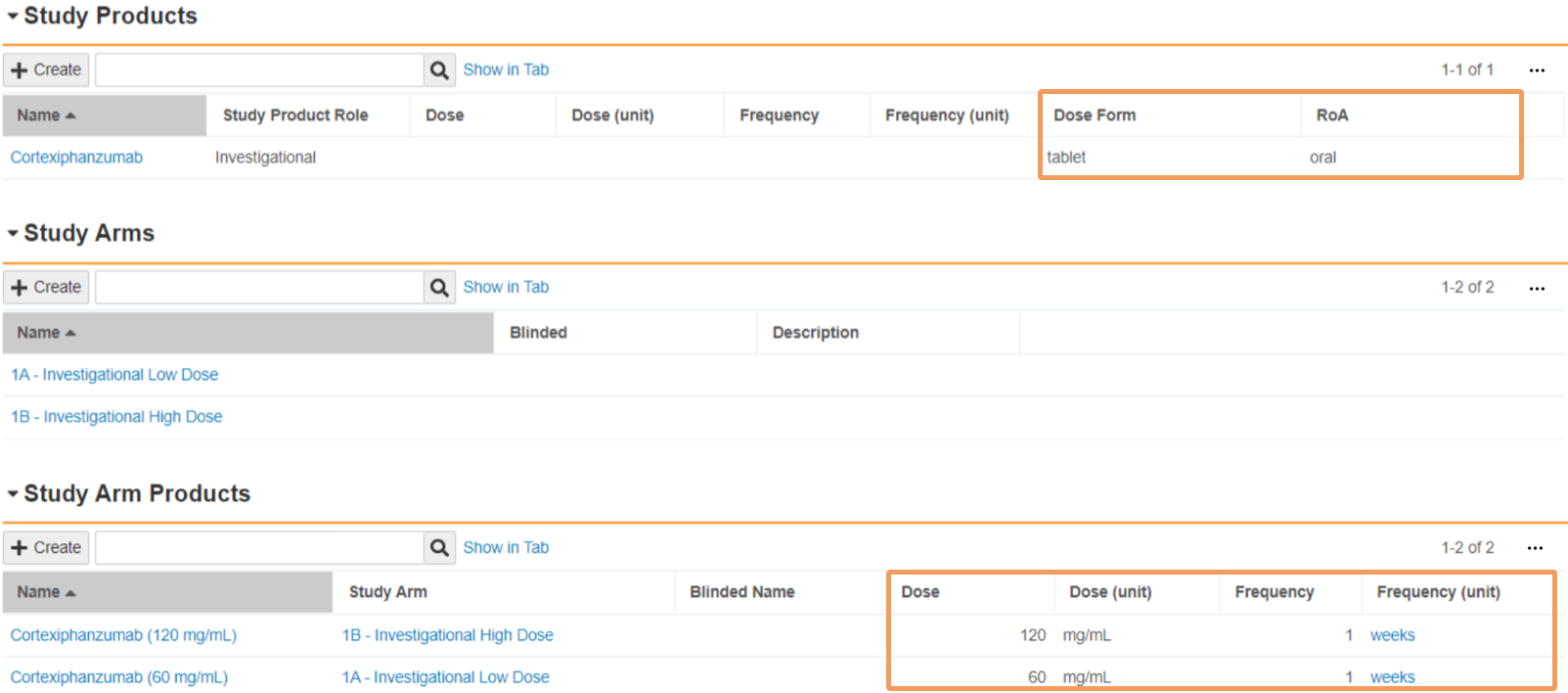
For open-label and single-blinded Studies, the following fields are automatically downloaded to a Case from the Study Product record:
    
* _Dose Form_
* _RoA_

Vault maps the following fields to a _Case_ from the _Study Arm Product_ record:

* _Dose_
* _Dose (unit)_
* _Frequency_
* _Frequency (unit)_

<a href="https://platform.veevavault.help/assets/images/saf-download-single-fields.png" data-lightbox="saf-download-single-fields.png" data-title="" data-alt="Study Products and Study Arm Products on a Open-Label Studies.">
  <img class="docimage" src="https://platform.veevavault.help/assets/images/saf-download-single-fields.png" alt="Study Products and Study Arm Products on a Open-Label Studies." style="max-width: 80%;"  />
</a>

#### Double-Blinded Studies

For double-blinded studies, Vault maps the following fields from the _Study Product_ record associated with the study arm selected during unblinding:

* _Dose_
* _Dose (unit)_
* _Frequency_
* _Frequency (unit)_
* _Dose Form_
* _RoA_

<a href="https://platform.veevavault.help/assets/images/saf-download-db-fields.png" data-lightbox="saf-download-db-fields.png" data-title="" data-alt="Study Products on a Double-Blind Study.">
  <img class="docimage" src="https://platform.veevavault.help/assets/images/saf-download-db-fields.png" alt="Study Products on a Double-Blind Study." style=""  />
</a>

## Add a Study Registration {#add-a-study-registration}

Add a _Study Registration_ for each country the study is registered in. When _Study Registrations_ become inactive, you can [deprecate][14] them.

When a _Case Report Type_ is _Study_, Vault looks at the _Study Registration Countries_ to generate _Submissions_ according to reporting rules in your Vault. <a href="/en/lr/01256/">Understand the Reporting Rules Engine</a> provides more information. 

To create a _Study Registration_:

1. Go to the **Study** record. Find **Study** records on the **Business Admin > Objects > Studies** page.
2. Under **Registrations**, select **Create**.
3. Complete applicable _Study Registration_ [fields][8].
4. Select **Save**.

### Study Registration Fields {#reg-fields}

<table>
    <thead>
        <tr>
            <th>Field</th>
            <th>Description</th>
        </tr>
    </thead>
    <tbody>
        <tr>
            <td><em>Organization</em></td>
            <td>Vault populates a link to the <em>Organization</em> on the parent <em>Product</em>. Vault maps this value to the <em>Registration Holder</em> field on <em>Case Products</em>.</td>
        </tr>
        <tr>
            <td><em>Study</em></td>
            <td>Vault populates a link to the parent <em>Study</em>.</td>
        </tr>
        <tr>
            <td><em>Registration Number</em></td>
            <td><p>Enter the study identifier assigned by the registry.</p></td>
        </tr>
        <tr>
            <td><em>Country</em></td>
            <td><p>Select the country where the product is registered and authorized.</p></td>
        </tr>
        <tr>
            <td><em>Reporting Organization</em></td>
            <td><p>If you have a Marketing Authorization Holder (MAH) that manages your ICSR reporting obligations for this registration, select the Organization. Selecting an Organization in this field creates an <a href="/en/lr/01255/">MAH Distribution List</a>, and thereby a reporting obligation, for this registration.</p>
                <div class="note-border alert-warning">
  <div class="alert alert-warning" role="alert">
    <div><i class="far fa-exclamation-triangle"></i></div>
    <div class="alert-text">
      <p><strong>Warning</strong>: Use caution when setting this field. Reporting Obligations are for Distributions only and override agency submission rules. Do not select an Agency such as the FDA or EMA.</p>
    </div>
  </div>
</div>


            <p>Depending on your Admin's configuration, this field's label may be <em>MAH</em>.</p>
                </td>
        </tr>
        <tr>
            <td><em>Registration Type</em></td>
            <td><p>Select the registration type. This field is used in report generation for <a href="/en/lr/802644/">FDA</a> and <a href="/en/lr/01281/">PADER</a> formats.</p>
                <p>Vault uses this value to match <a href="/en/lr/01202/#transmission-profile-matching-for-submission-rules">Transmission Profile Scope</a> records for any <em>Organization</em> with multiple <em>Transmission Profiles</em> for the same destination <em>Agency</em>.
                </p>
            </td>
        </tr>
        <tr>
            <td><em>Transmission Profile</em></td>
            <td><p>Select the <em>Transmission Profile</em> for Vault to use when generating submissions for this registration. We recommend populating a value when you have created a <em>Transmission Profile</em> for the applicable reporting destination and report type.</p></td>
        </tr>
        <tr>
            <td><em>Transmission Product Type</em></td>
            <td>Select the product type for this registration. During transmission generation, Vault uses the value to determine whether to <a href="/en/lr/01214/#exclude-device-constituents-from-e2b-exports">export device constituents of <em>Combination Products</em></a> in E2B files.</td>
        </tr>
        <tr>
            <td><em>Clinical Compound Number</em></td>
            <td><p>Enter the Japanese Clinical Compound Number (CCN) of the investigational drug. This field appears only if the <em>Country</em> field is set to Japan.</p>
            <p>For more information on fields for Japan-based studies, see <a href="/en/lr/01194/#add-japan-study-information">Set Up the Localized Business Admin Library for Japan</a>.</p></td>
        </tr>
        <tr>
            <td><a id="fda-ind-primary"></a><em>FDA Primary IND</em></td>
            <td>Select whether this is the primary study registration for the study. When generating FDA FAERS E2B(R3) files for cross reporting, Vault uses this field to determine which <em>Study Registration Number</em> to export to the <a href="/en/lr/725757/#fda-ind">FDA.C.5.5a data element</a>.</td>
        </tr>
    </tbody>
</table>

## Set Up Study Site Reporters {#about-study-contacts}

You can configure study contacts across your study sites to be entered as site reporters during _Inbox Item_ intake of study cases. Configuring a study site reporter enables more efficient and accurate entry of the reporter details for a _Case_. Upon _Case_ promotion, the selected reporter and their study site are used to auto-generate the primary _Reporter_ type of _Case Contact_, including name, address, and contact information. To set up study site reporters, you must first add a _Study Site_, and then add _Study Persons_ under the site. 

### Prerequisite

Ensure that your Vault has the <a href="/en/lr/01338/">Study Site Reporter feature enabled</a>.

Contact your Veeva Representative to enable using <a href="/en/lr/760903/#report-localization">Site Reporters during Inbox Item intake</a> for _Study Cases_.

### Add a Study Site
For multisite clinical studies, create a _Study Site_ record for each site. _Study Sites_ are linked with _Site_ type of _Organization_ records. To add a _Study Site_:

1. Navigate to **Business Admin > Objects > Studies**.
2. Select the _Study_ to which you want to add a _Study Site_.
3. Under _Study Sites_, select **Create**.
4. Complete the fields on the _Create Study Site_ page using the table below.
5. Select **Save**.

#### Study Site Fields

<table>
    <thead>
        <tr>
            <th>Field</th>
            <th>Description</th>
        </tr>
    </thead>
    <tbody>
        <tr>
            <td><strong>Organization</strong> <br>(<code>organization__v</code>)</td>
            <td><p>Vault automatically populates this field with a reference link to the Organization on the Product parent record.</p>
                <p>Vault maps this field to the Registration Holder field on a Case Product.</p></td>
        </tr>
        <tr>
            <td><strong>Study</strong> <br>(<code>study__v</code>)</td>
            <td>Vault automatically populates this field with a reference link to the Study parent record.</td>
        </tr>
        <tr>
            <td><strong>Study Site Number</strong> <br>(<code>name__v</code>)</td>
            <td>Select the Study Site with which this Study Person should be associated. When performing intake, users must select this Study Site to be able to select this Study Person on an Inbox Item (if enabled by Veeva Support and your Admin).</td>
        </tr>
        <tr>
            <td><strong>Registration</strong> <br>(<code>registration__v</code>)</td>
            <td>Select the Study Registration associated with this Study Site. </td>
        </tr>
        <tr>
            <td><strong>Site</strong> <br>(<code >site__v</code>)</td>
            <td><p>To specify the site, perform one of the following actions:</p>
            <ul>
                <li>If the Site-type Organization has already been added, select the record from the list or select the binoculars to open the browser.</li>
                <li>If a Site-type Organization has not been added, create one:
                    <ol>
                        <li>Click into the field, and then select <strong>Create Organization</strong> from the drop-down.</li>
                        <li>In the <strong>Create Organization</strong> window, select <strong>Site</strong> as the Organization Type, and then select <strong>Continue</strong>.</li>
                        <li>In the <strong>Create Site</strong> window, enter the name and address of the Study Site.</li>
                        <li>Select <strong>Save</strong>.</li>
                    </ol>
                </li>
            </ul></td>
        </tr>
    </tbody>
</table>

### Add a Study Contact

Use the _Study Person_ object to add study contacts for each site.

1. Navigate to **Business Admin > Objects > Studies**.
2. Select the _Study_ to which you want to add a _Study Contact_.
3. Under _Study Contacts_, select **Create**.
4. Complete the fields on the _Create Study Person_ page using the table below.
5. Select **Save**.

#### Study Person Fields

<table>
    <thead>
        <tr>
            <th>Field</th>
            <th>Description</th>
        </tr>
    </thead>
    <tbody>
        <tr>
            <td><strong>Organization</strong> <br>(<code>organization__v</code>)</td>
            <td><p>Vault automatically populates this field with a reference link to the Organization on the Product parent record.</p>
                <p>Vault maps this field to the Registration Holder field on a Case Product.</p></td>
        </tr>
        <tr>
            <td><strong>Study</strong> <br>(<code>study__v</code>)</td>
            <td>Vault automatically populates this field with a reference link to the Study parent record.</td>
        </tr>
        <tr>
            <td><strong>Study Site</strong> <br>(<code>study_site__v</code>)</td>
            <td>Enter the identification number for the Study Site. Vault references the Study Site using the ID that you enter in this field.</td>
        </tr>
        <tr>
            <td><strong>Person</strong> <br>(<code>registration__v</code>)</td>
            <td><p>(Required) To specify the site, perform one of the following actions:</p>
            <ul>
                <li>If the Person has already been added, select the record from the list or select the binoculars to open the browser.</li>
                <li>If the Person has not been added, create one:
                    <ol>
                        <li>Click into the field, and then select <strong>Create Person</strong> from the drop-down.</li>
                        <li>In the <strong>Create Person</strong> window, select <strong>Study Person</strong> as the Person Type, and then select <strong>Continue</strong>.</li>
                        <li>In the <strong>Create Study Person</strong> window, enter the name, contact information, and language.</li>
                        <li>Select <strong>Save</strong>.</li>
                    </ol>
                </li>
            </ul>
            <p>When this contact is selected on an Inbox Item (if enabled by Veeva Support and your Admin) during intake, Vault maps the pre-configured contact information on the Study Person to generate a Reporter-type Case Contact upon Case promotion.</p> 
            </td>
        </tr>
        <tr>
            <td><strong>Name</strong> <br>(<code>name__v</code>)</td>
            <td><p>(Required) Enter a name to identify the Study Person. Vault references the Study Person using the name that you enter in this field.</p></td>
        </tr>
    </tbody>
</table>

## <a id="add-a-study-indication"></a>Add a Study Indication

<div class="note-border alert-info">
  <div class="alert alert-info" role="alert">
    <div><i class="far fa-info-circle"></i></div>
    <div class="alert-text">
      <p><strong>Note</strong>: For Studies with study arms, you can code the Indication at the Study Arm level instead, which Vault can map to Case Products.</p>
    </div>
  </div>
</div>


Add a _Study Indication_ to code the MedDRA term for the medical condition relevant to the study.

1. Navigate to **Business Admin > Objects > Studies**.
2. Select the _Study_ to which you want to add an indication.
2. Under _Indications_, select **Create**.
3. Specify the indication on the _Create Study Indication_ page.
4. Select **Save**.

### <a id="study-indication-field"></a>Study Indication Field

<table>
        <thead>
            <tr>
                <th>Field</th>
                <th>Description</th>
            </tr>
        </thead>
        <tbody>
        <tr>
          <td><strong>Indication</strong> <br>(<code>indication_meddra__v</code>)</td>
          <td><p>Enter the Study Indication at the LLT or PT level in the text field to <a href="/en/lr/01164/">code the MedDRA term</a>.</p></td>
        </tr>
    </tbody>
</table>

## <a id="studies-with-country-specific-imps"></a>Studies with Country-Specific Investigational Medicinal Products

If you have Investigational Medicinal Products (IMPs) that are used exclusively in a particular country, you can create a _Study Product Country_ record for each _Study Product_ and _Study Registration_ pair. When determining the ICSR eligibility for a _Case_ containing a _Study Product_ with an associated _Study Product Country_ record, Vault considers the _Case_ as reportable only to the country on the _Study Registration_ specified by the _Study Product Country_ record.


<div class="note-border alert-info">
  <div class="alert alert-info" role="alert">
    <div><i class="far fa-info-circle"></i></div>
    <div class="alert-text">
      <p><strong>Note</strong>: 
Adding <em>Study Product Country</em> records changes the way the Vault Rule Engine functions as described in
<a href="/en/lr/01256/">Understand the Reporting Rules Engine</a>
and
<a href="/en/lr/01249/">Reporting Rules Product Selection</a>.
Create <em>Study Product Country</em> records only if you have a requirement to report country-specific IMPs.</p>
    </div>
  </div>
</div>


To create a _Study Country Product_ record for a _Study Product_:

1. Navigate to **Business Admin > Objects > Study Products**.
2. Select the _Study Product_ to which you want to add a country.
4. Expand the **Study Product Countries** section and select **Create**.
5. Complete the fields on the _Create Study Product Country_ page.
6. Select **Save**.

<div class="note-border alert-info">
  <div class="alert alert-info" role="alert">
    <div><i class="far fa-info-circle"></i></div>
    <div class="alert-text">
      <p><strong>Note</strong>: You can have only one <em>Study Product Country</em> record per <em>Study Product</em> and <em>Study Registration</em> pair.</p>
    </div>
  </div>
</div>


### Study Product Country Fields

<table>
    <thead>
        <tr>
            <th>Field</th>
            <th>Description</th>
        </tr>
    </thead>
    <tbody>
        <tr>
            <td>Study Registration</td>
            <td>
                <p>
                    Select the <em>Study Registration</em> for this <em>Study Product Country</em> record.
                </p>
                <p>
                    When evaluating this <em>Study Registration</em> for General Reporting, Vault considers only those <em>Case Products</em> that are of object type <em>Study Product</em> that are linked with a <em>Study Product </em>record with an associated <em>Study Product Country</em> record as eligible for evaluation for that registration agency regardless of <em>Study Product Role</em>.
                </p>
                <p>
                    When evaluating this <em>Study Registration</em> for Marketing-to-Investigational (M>I) and Investigational-to-Investigational (I>I) cross reporting, Vault follows the <a href="/en/lr/01249/#most-reportable-product-selection-for-cross-reporting">standard cross reporting logic to find potentially cross reportable products</a>. Using that <em>Product</em>, Vault finds any <em>Product Registration</em> linked to that <em>Product</em> by <em>Study Product Country</em> where the <em>Study Product Role</em> is <em>Investigational</em> or <em>Comparator</em>. Vault then looks for any <em>Study Registrations</em> that do not have an associated <em>Study Product Country</em>. Vault then evaluates the rule for the respective registrations. 
                </p>
            </td>
        </tr>
        <tr>
            <td><a id="study-product-role-override"></a>Study Product Role Override</td>
            <td>
                <p>
                    Select the <em>Study Product Role</em> that applies to this <em>Study Product Country</em> record. Any value you select here overrides the <em>Study Product Role</em> on the <em>Study Product</em>.
                </p>
            </td>
        </tr>
        <tr>
            <td><a id="axmp-status-override"></a>AxMP Status Override</td>
            <td>
                <p>
                    Specify if the Auxiliary Medicinal Product (AxMP) is authorized, if applicable.
                </p>
            </td>
        </tr>
    </tbody>
</table>

## <a id="mark-study"></a>Mark Study for End of Study Reconciliation

At the end of a study, change the _Study_ record state to _End of Study Reconciliation_ to indicate that you can reconcile medical coding. For example, if a long–term study uses multiple versions of the MedDRA dictionary, reconcile the coding to use a consistent dictionary version across the study _Cases_.

If your _Study_ is blinded, you can <a href="/en/lr/01181/">bulk unblind the _Study_</a>, which changes the record state to _End of Study Reconciliation_.

Refer to your organization's standard operating procedures for information about end of study reconciliation. 

### Manually Mark Study for End of Study Reconciliation

1. Navigate to **Business Admin > Objects > Studies**.
2. Select the study number for the study that you want to unblind. The _Study:{number}_ page appears.
3. From the **All Actions** menu, select **Change State to End of Study Reconciliation**.

**Result**

The _Study_ record enters the _End of Study Reconciliation_ lifecycle state.

## Inactivate Studies and Study Registrations

You can set _Study_ and _Study Registration_ records to the _Deprecated_ state so that the Safety Rule Engine no longer considers them when determining the reportability of a _Case_. Depending on your configuration, when you deprecate a _Study_, Vault automatically sets all of the related _Study Registration_ records to the _Deprecated_ state as well. For existing _Inbox Items_ for that _Study_, a _Deprecated_ tag appears next to the _Study_ field. _Studies_ and _Study Registrations_ in the _Deprecated_ state remain available for follow-up scenarios.

To use this feature, you must enable: 

* <a href="/en/lr/808064/">Inactivate Products and Studies</a> 
* <a href="/en/lr/672883/">Inactivate Product & Study Registrations</a>

To manage _Studies_ and _Study Registrations_, navigate to **Business Admin > Objects > Studies**.

### <a id="deprecate-a-study"></a>Deprecate Studies

To deprecate a _Study_:

1. From the _Studies_ page, select the **Study** record.
2. Select the **State** button and select **Deprecated** from the picklist. Depending on your configuration, the _Deprecated_ state may have a different label.
3. In the _Change Object Status_ dialog, select **Yes**.

To reactivate the record, complete the steps above, but select **Active** from the **State** picklist.

### <a id="sr-inactive"></a>Deprecate a Study Registration

To deprecate a _Study Registration_:

1. Navigate to the associated **Study** record, expand the **Registrations** section and then select the **Study Registration** record.
2. Select the **State** button and select **Deprecated** from the picklist. Depending on your Admin's configuration, the inactive state may have a different label.
3. In the _Change Object Status_ dialog, select **Yes**.

To reactivate the record, complete the steps above, but select **Active** from the **State** picklist.

[1]: #add-a-study
[2]: #study-details-fields
[3]: #create-a-study-with-unspecified-products
[4]: #submission-rules
[5]: #add-a-study-product
[6]: #study-product-fields
[7]: #add-a-study-registration
[8]: #reg-fields
[9]: #sr-inactive
[10]: #about-study-contacts
[11]: #add-a-study-indication
[12]: #study-indication-field
[13]: #studies-with-country-specific-imps
[14]: #mark-study
[15]: #deprecate-a-study
