Vault matches study and product data in cases imported from structured source files (E2B, JSON, or CSV) to the relevant Studies and Products in your Vault associated with the Organization specified in the source file. When Vault finds a match, it populates the Company Product field on the generated Inbox Item and, when applicable, auto-codes the product. When configured by your Admin, Vault considers confidence criteria to determine the threshold at which Vault performs Product matching and populates the Product Match Confidence and Product Match Criteria fields.
The following flowchart shows how Vault matches during import:
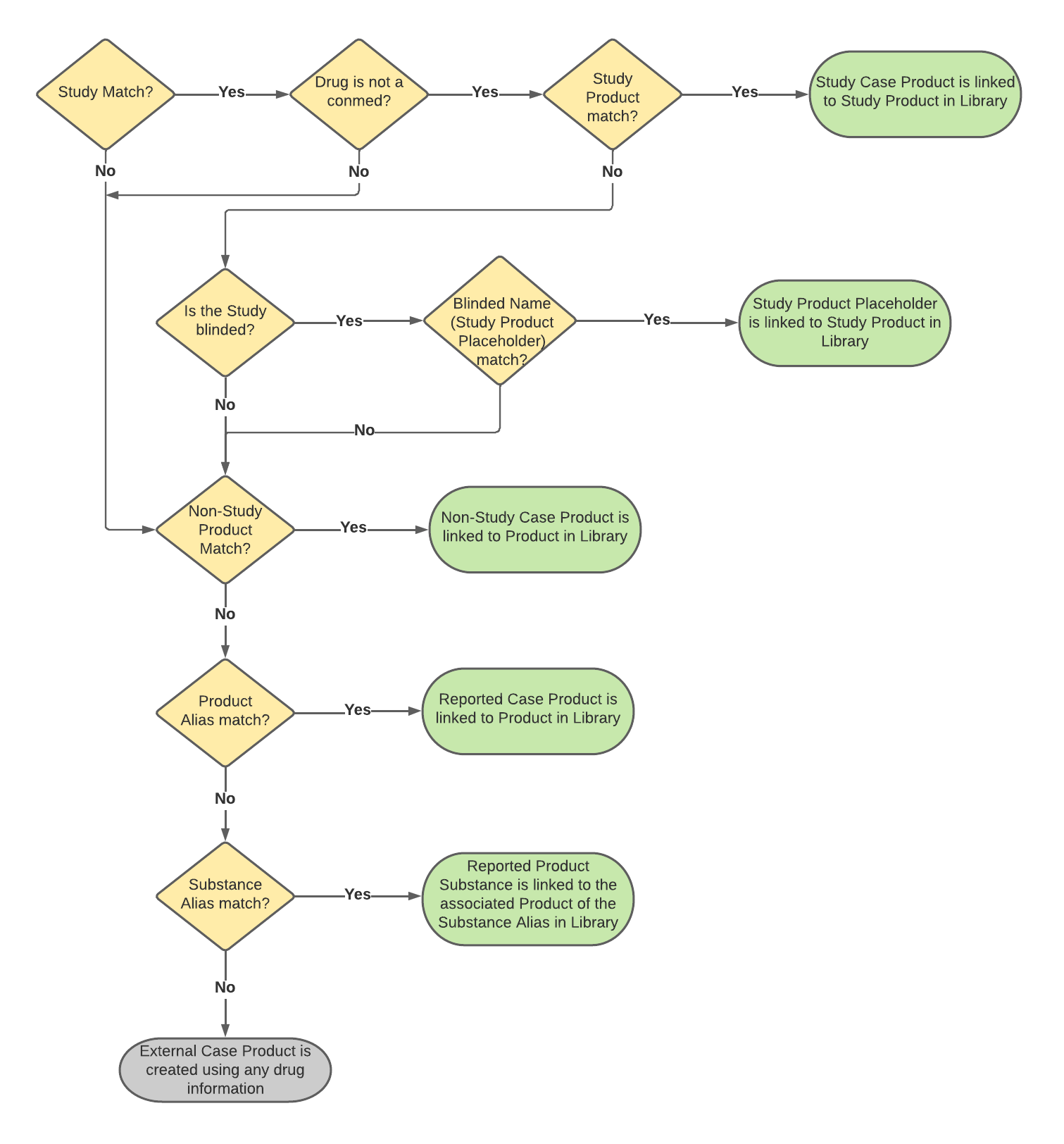
Study Matching
Vault matches Studies and Study Registrations using the following scenarios in priority order:
- Scenario 1: For E2B(R3) and JSON, if the E2B or JSON file contains at least one valid Study Registration, Vault matches the Study using the Registration Number and Country on Study Registrations.
- E2B(R3): Study Registration must contain valid C.5.1.r.1 Study Registration Number and C.5.1.r.2 Study Registration Country values.
- JSON: Study Registration must contain Registration (
registration_number__v) and Country (country__v) fields.
- Scenario 2: For E2B(R3), E2B(R2), and JSON, Vault matches the Study using the Study Number.
- Scenario 3: For E2B(R3) and E2B(R2), Vault matches the Study using the Study Number Alias.
The Study record must contain all registrations contained in an E2B(R3) file for Vault to consider it a match. Vault does not match if any E2B C.5.1.r.1 Study Registration Number or C.5.1.r.2 Study Registration Country conflict with the Registration Numbers and Countries values of the Study in your Vault. For E2B(R3) imports, if multiple Studies contain a matching Study Registration, Vault uses C.5.3 Study Number to find the correct Study. If the C.5.3 Study Number value does not match any Study in your library, Vault does not match any Studies and the E2B notification logs a warning.
The following table describes Vault’s matching logic:
| Scenario | Matching | Result | ||||
|---|---|---|---|---|---|---|
| E2B(R3) | E2B(R2) | JSON | Vault Object | Vault Field | ||
| 1 | C.5.1.r.1 | N/A | registration_number__v |
Study > Study Registration | Registration Number (registration_number__v) |
|
| C.5.1.r.2 | N/A | country__v |
Study > Study Registration | Country (country__v) |
||
| 2 | C.5.3 | A.2.3.2 | name__v |
Study | Name (name__v) |
|
| 3 | C.5.3 | A.2.3.2 | N/A |
Study Number Alias | Name (name__v) |
|
Study Product Matching
Vault matches Study Products when the following conditions are met:
- The study matches a Study in your Vault.
- The related Product has a Product Use Type of Company Use or is blank.
- The Product is not blinded (G.k.2.5 Investigational Product Blinded or
blinded_protection__v). - The Drug Role (G.k.1/B.4.k.1 Characterisation of Drug Role or
drug_role__v) must be Suspect, Interacting, Drug Not Administered, or unspecified (null). If unspecified, Vault sets the Drug Role to Suspect on import.
Vault assigns the Rank of 1 (primary) to the first matched Case Product with a Drug Role of Suspect. If there are no Case Products with a Drug Role of Suspect, Vault assigns the Rank of 1 (primary) to the first imported Study Product. If Vault can’t find a match, Vault generates a Case Product as an External Product type.
The following table describes Vault’s matching logic:
| Scenario | Matching | Result | ||||
|---|---|---|---|---|---|---|
| E2B(R3) | E2B(R2) | JSON | Vault Object | Vault Field | ||
| 1 | G.k.2.1.1b | N/A | mpid__v |
Study Product > Product Registration | MPID (mpid__v) |
|
| 2 | G.k.2.1.2b | N/A | phpid__v |
Study Product > Product Registration | PhPID (phpid__v) |
|
| 3 | G.k.2.3.r.2b | N/A | term_id__v |
Study Product > (all) Study Product Substances | Substance TermID (term_id__v) |
|
| 4 | G.k.3.1 | B.4.k.4.1 | registration_number__v |
Study Product > Product Registration | Registration Number (registration_number__v) |
|
| 5 | G.k.2.2 | N/A | name__v |
Study Product | Name (name__v) |
|
If none of the above scenarios identify a match, Vault attempts to match the Study Product using the Blinded Name (for example, “Placebo” instead of “Cholecap”). If no match is found, Vault attempts non-Study matching.
Product Matching (Non-Study)
Vault matches the imported product to unblinded Products in your Vault. To match, the Product must have a Product Use Type of Company Use or blank. Vault assigns the Rank of 1 (primary) to the first matched Case Product with a Drug Role of Suspect. If there are no Case Products with a Drug Role of Suspect, Vault assigns the Rank of 1 (primary) to the first imported Case Product. If Vault can’t find a match, Vault generates a Case Product as an External Product type.
The following table describes Vault’s matching logic:
| Scenario | Matching | Result | ||||
|---|---|---|---|---|---|---|
| E2B(R3) | E2B(R2) | JSON | Vault Object | Vault Field | ||
| 1 | G.k.2.1.1b | N/A | mpid__v |
Product > Product Registration | MPID (mpid__v) |
|
| 2 | G.k.2.1.2b | N/A | phpid__v |
Product > Product Registration | PhPID (phpid__v) |
|
| 3 | G.k.3.1 | B.4.k.4.1 | registration_number_v |
Product > Product Registration | Registration Number (registration_number_v) |
|
| 4 | G.k.2.2 | B.4.k.2.1 | name__v |
Product | Name (name__v) |
|
If none of the above scenarios identify a match, Vault attempts product and substance alias matching.
Product and Substance Alias Matching
Vault matches the reported Case Product to a Product Alias and links the reported Case Product to the existing Product. If this does not identify a match, Vault matches the reported Product Substance to a Substance Alias and links the reported Product Substance to the Product associated with the Substance Alias. If Vault can’t find a match, Vault generates a Case Product as an External Product type.
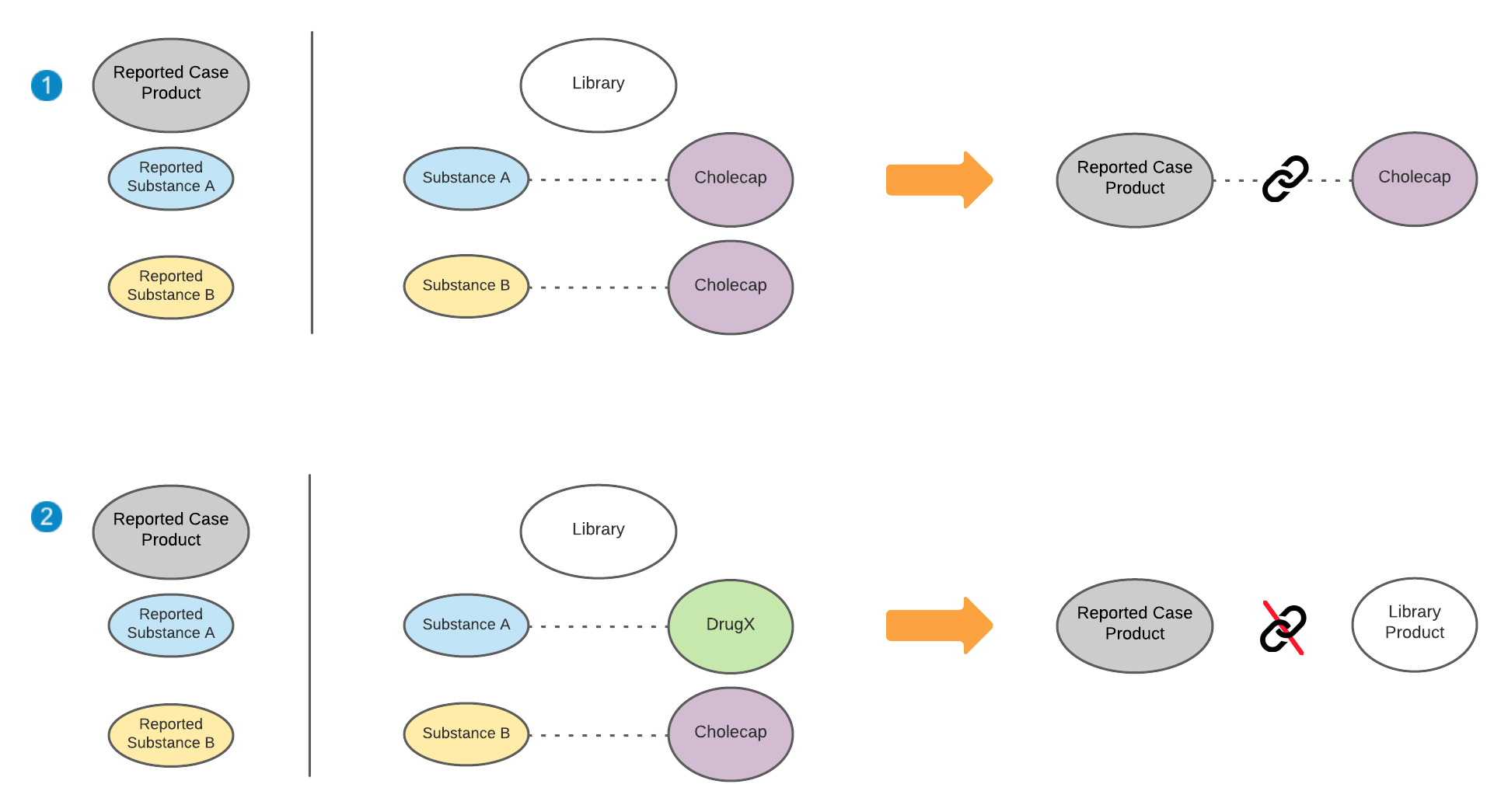
There must be an absolute match for Vault to match the reported Case Product to an existing Product:
- Absolute Match: If there are multiple reported substances that match one Product in your library, Vault links the reported Case Product to the respective Product. In the following example, the reported Case Product matches “Cholecap”.
- No Match: If the reported substances match to different Products in your library, Vault does not match a Product. Similarly, if a reported substance matches multiple Products in your library, Vault does not match the associated Product for the reported substance. In the following example, the reported Case Product does not match to either “DrugX” or “Cholecap”.
The following diagram shows an example of an absolute match and no match:
When your Admin updates or creates a new Product Registration, Vault adds the Registration Name (Trade Name) as a new Product Alias, if it does not already exist.
Study Product Blinded Name Matching
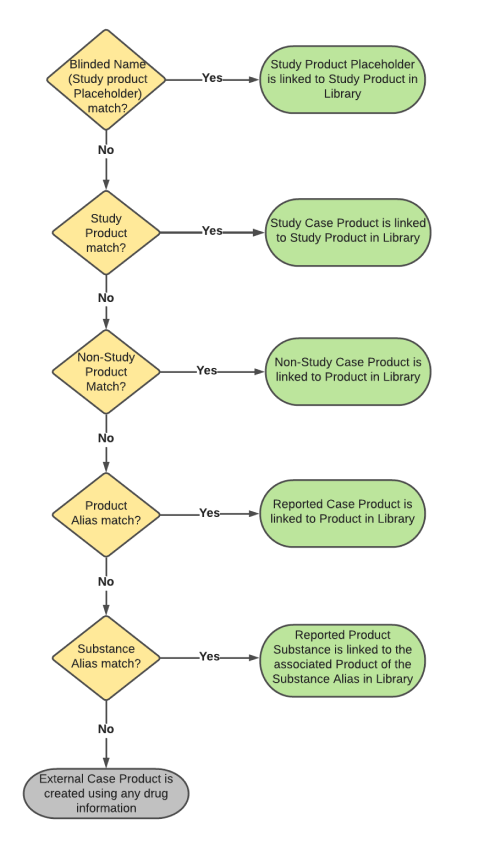
Vault matches blinded Study Products. For E2B(R3) or JSON files containing a blinded Study, Vault first attempts to match the Blinded Name (Study Product Placeholder) on the Study Product. If no match is found or if the Blinded Name is blank, Vault attempts to match the Study Product, followed by the Company Product, and then the aliases. Vault assigns the Rank of 1 (primary) to the Blinded Name of the first matching Study Product.
The following diagram shows how Vault performs Blinded Name (Study Product Placeholder) matching for an E2B or JSON with blinded Studies:
Company Product Match Verification
When configured by your Admin, Vault considers advanced criteria when matching products on generated Inbox Items. Vault populates the following fields for each evaluated company product to indicate the confidence assessment and match criteria:
- Product Match Confidence: Indicates the confidence score of the match:
- 1 - Exact Match (ID Match)
- 2 - Confident Match
- 3 - Likely Match
- 4 - Unlikely Match
- 5 - Unknown
- 6 - No ID or Name Match
- Product Match Criteria: Indicates which fields Vault evaluated to identify a match:
- Country
- Dose Form
- Route of Administration
If Vault does not identify a match within the intake settings defined by your Admin, the Company Product field remains blank. You can override the assigned value if the confidence criteria are not met.
During matching, Vault prioritizes active Product Registrations and populates a Product Match Confidence based on your Admin’s configured confidence criteria. However, when the best match is a deprecated Product Registration, Vault populates 4-Unlikely Match as the Product Match Confidence, regardless of other criteria.
Note: Advanced company product match verification does not apply to Study Products.
Unknown Formulation Product Matching
Vault can code reported products that are missing dose form information to company products with unknown formulations. When verifying a coded Product with an unknown formulation, Vault performs matching against all Product Registrations for the Product Family, instead of only those for the coded Product.
When importing cases from structured source files that include any ID (MPID, PhPID, or Registration Number), Vault does not attempt to match to unknown formulation products.