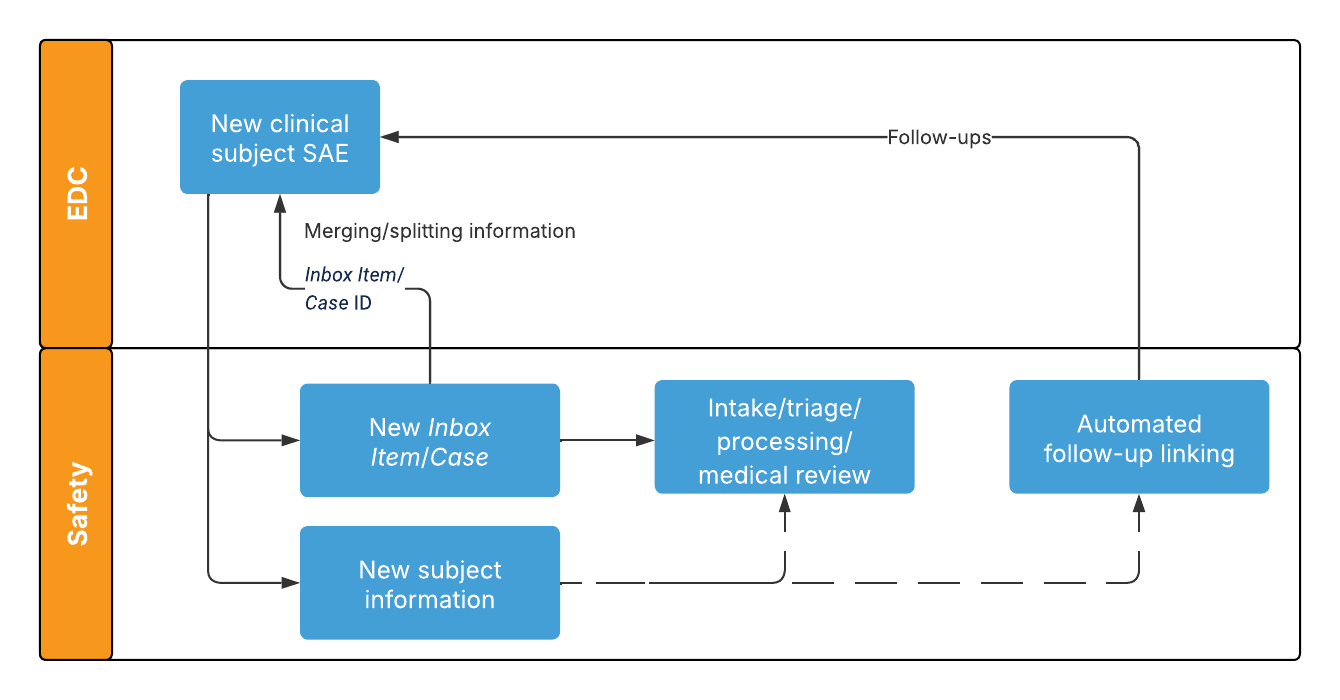
 For more information, see Configuring Safety-EDC Connection Studies in Veeva Clinical Data Help.
## Configuration Overview
You must complete the following steps in your Safety and EDC Vaults to configure the standard connection:
1. Establish the Vault to Vault connection.
2. Review the [connection components][1] and adjust as needed to fit your organization's business processes.
3. [Configure your Vaults][2].
4. [Establish the Connection][3] between your Safety and EDC Vaults.
## Safety-EDC Connection Components {#safety-edc-connection-components}
The components in the following sections support the standard Safety-EDC Connection.
### Connections {#connections}
The following _Connection_ records are available from **Admin > Connections**:
* _Safety-EDC Connection_ (`safety_cdms_connection__v`) is available in your Safety Vault.
* _Safety-EDC Connection_ (`safety_cdms_connection__v`) is available in your EDC Vault..
In your Safety Vault, you can update the _Connections_ object layout to include the following fields in the _Connection Stats_ section:
* _EDC: Inbox Items created_
* _EDC: Cases Promoted_
* _EDC: Case Updated_
### Integrations & Integration Points
The _Integration_ and _Integration Point_ objects enable Vault to manage the message queues and define what documents and data the connection maps from one (1) Vault to another. These records are read-only and are used by Vault to manage the connection and track any connection errors.
|Integration Name|Integration Point Name(s)|Sent From|Sent To|Included Data
|--- |--- |--- |--- |--- |
|Safety-EDC: Serious Adverse Events|Safety-EDC: Safety Case Outbound|EDC|Safety|SAE and Subject information|
|Safety-EDC: Serious Adverse Events|Safety-EDC: CDMS Safety Case Inbound|Safety|EDC|SAE and Subject information|
|Safety-EDC: Serious Adverse Events|Safety-EDC: Case Information|EDC|Safety|SAE Case information|
|Safety-EDC: Serious Adverse Events|Safety-EDC: Case Information|Safety|EDC|SAE Case information|
|Safety-EDC: Serious Adverse Events|Safety-EDC: Safety Inbox and Case IDs|Safety|EDC|Inbox IDs and Case IDs|
### Queues
This feature includes four (4) standard message processing queues: two (2) in the Safety Vault and two (2) in the EDC Vault. You can access and manage these queues from **Admin > Connections > Spark Queues**.
In the Safety Vault:
* _Safety-EDC SAE Inbound_ (`cdms_to_safety_sae_inbound_queue__v`)
* _Safety Outbound Messaging Queue_ (`cdms_to_safety_sae_outbound_queue__v`)
In the EDC Vault:
* _Safety-EDC SAE Outbound_ (`cdms_to_safety_sae_outbound_queue__v`)
* _Safety-EDC SAE Inbound_ (`cdms_to_safety_sae_inbound_queue__v`)
### User Exception Objects
Vault includes the _User Exception Message_ object and its child object, _User Exception Item_, to help you track and resolve any errors that occur with your Safety-EDC Connection. If your Safety Vault integration can't process an incoming message, Vault creates a _User Exception Message_ record to capture the failure. Vault also creates individual _User Exception Item_ records, with _Study Numbers_, for each item that failed on the related _Integration Point_ record in the outbound Vault.
You can view and manage these messages from **Admin > Connections > User Exception Messages**. If you want specific users or groups to receive notifications when Vault creates _User Exception Message_ records, you must create a custom lifecycle for the _User Exception Message_ object and configure a notification entry action.
A _User Exception Message_ means that you need to update your configuration. After you update the configuration, Vault attempts to resolve any errors the next time the connection runs. You can also select the **Reprocess Request** action to run the connection and resolve errors.
## Configuring Your Vaults {#configuring-your-vaults}
To configure your Safety and EDC Vaults to support the Safety-EDC Connection:
1. Follow the steps in Veeva Clinical Data Help.
2. [Configure your Safety Vault][5].
3. [Configure _Study_ and _Study Product_ matching][4].
### Configuring Your Safety Vault
After completing all the required configurations in Veeva Clinical Data Help, complete the following in your Safety Vault:
1. Enable the Safety-EDC Connection.
* To receive all available data mappings from EDC, ensure you have copied the latest standard layouts for all EDC subject information objects, activated them, and set them as the defaults.
2. Optional: [Configure custom field mappings][6] to populate mapped fields with data from the EDC Vault on the corresponding subject information and case objects in your Safety Vault.
3. Create the appropriate sponsor _Organization_ to which you will assign the applicable [_Studies_, _Products_, and _Study Products_][4]. This record must be a _Sponsor_ type of organization.
4. Configure _Case Access Group_ Security to control user access to subject information on SAE data received from EDC Vaults.
* For the applicable _Case Access Groups_, create a _Case Assignment Rule_ with an _Intake Method_ for the _Safety-EDC Connection_.
* For the applicable _Case Access Group Assignments_, update the _Subject Information Review_ field to _Subject Information Review_.
5. Optional: Enable Automated Classification of Inbox Item Significance and configure _Significance Criteria_ rules to assign _Significance_ values to _Inbox Items_ generated by the connection.
6. Optional: Configure the _Copy to new_ action on the applicable states of the _Connection_ object lifecycle to connect to [multiple EDC Vaults][9].
7. Optional: Configure Merge to In-Flight Case.
8. Optional: Configure Automated Case Promotion.
* Configure Intake Settings.
* For the _Safety-EDC Connection_ transmission profile, ensure the _Enable Auto Promote_ field is _Yes_.
9. Optional: To preserve dechallenge values from EDC, enable Assessment Dechallenge Calculation and ensure the _Reset Dechallenge Override on Dechallenge recalculation_ setting is clear.
For more information, see Configuring Safety-EDC Connection Studies in Veeva Clinical Data Help.
## Configuration Overview
You must complete the following steps in your Safety and EDC Vaults to configure the standard connection:
1. Establish the Vault to Vault connection.
2. Review the [connection components][1] and adjust as needed to fit your organization's business processes.
3. [Configure your Vaults][2].
4. [Establish the Connection][3] between your Safety and EDC Vaults.
## Safety-EDC Connection Components {#safety-edc-connection-components}
The components in the following sections support the standard Safety-EDC Connection.
### Connections {#connections}
The following _Connection_ records are available from **Admin > Connections**:
* _Safety-EDC Connection_ (`safety_cdms_connection__v`) is available in your Safety Vault.
* _Safety-EDC Connection_ (`safety_cdms_connection__v`) is available in your EDC Vault..
In your Safety Vault, you can update the _Connections_ object layout to include the following fields in the _Connection Stats_ section:
* _EDC: Inbox Items created_
* _EDC: Cases Promoted_
* _EDC: Case Updated_
### Integrations & Integration Points
The _Integration_ and _Integration Point_ objects enable Vault to manage the message queues and define what documents and data the connection maps from one (1) Vault to another. These records are read-only and are used by Vault to manage the connection and track any connection errors.
|Integration Name|Integration Point Name(s)|Sent From|Sent To|Included Data
|--- |--- |--- |--- |--- |
|Safety-EDC: Serious Adverse Events|Safety-EDC: Safety Case Outbound|EDC|Safety|SAE and Subject information|
|Safety-EDC: Serious Adverse Events|Safety-EDC: CDMS Safety Case Inbound|Safety|EDC|SAE and Subject information|
|Safety-EDC: Serious Adverse Events|Safety-EDC: Case Information|EDC|Safety|SAE Case information|
|Safety-EDC: Serious Adverse Events|Safety-EDC: Case Information|Safety|EDC|SAE Case information|
|Safety-EDC: Serious Adverse Events|Safety-EDC: Safety Inbox and Case IDs|Safety|EDC|Inbox IDs and Case IDs|
### Queues
This feature includes four (4) standard message processing queues: two (2) in the Safety Vault and two (2) in the EDC Vault. You can access and manage these queues from **Admin > Connections > Spark Queues**.
In the Safety Vault:
* _Safety-EDC SAE Inbound_ (`cdms_to_safety_sae_inbound_queue__v`)
* _Safety Outbound Messaging Queue_ (`cdms_to_safety_sae_outbound_queue__v`)
In the EDC Vault:
* _Safety-EDC SAE Outbound_ (`cdms_to_safety_sae_outbound_queue__v`)
* _Safety-EDC SAE Inbound_ (`cdms_to_safety_sae_inbound_queue__v`)
### User Exception Objects
Vault includes the _User Exception Message_ object and its child object, _User Exception Item_, to help you track and resolve any errors that occur with your Safety-EDC Connection. If your Safety Vault integration can't process an incoming message, Vault creates a _User Exception Message_ record to capture the failure. Vault also creates individual _User Exception Item_ records, with _Study Numbers_, for each item that failed on the related _Integration Point_ record in the outbound Vault.
You can view and manage these messages from **Admin > Connections > User Exception Messages**. If you want specific users or groups to receive notifications when Vault creates _User Exception Message_ records, you must create a custom lifecycle for the _User Exception Message_ object and configure a notification entry action.
A _User Exception Message_ means that you need to update your configuration. After you update the configuration, Vault attempts to resolve any errors the next time the connection runs. You can also select the **Reprocess Request** action to run the connection and resolve errors.
## Configuring Your Vaults {#configuring-your-vaults}
To configure your Safety and EDC Vaults to support the Safety-EDC Connection:
1. Follow the steps in Veeva Clinical Data Help.
2. [Configure your Safety Vault][5].
3. [Configure _Study_ and _Study Product_ matching][4].
### Configuring Your Safety Vault
After completing all the required configurations in Veeva Clinical Data Help, complete the following in your Safety Vault:
1. Enable the Safety-EDC Connection.
* To receive all available data mappings from EDC, ensure you have copied the latest standard layouts for all EDC subject information objects, activated them, and set them as the defaults.
2. Optional: [Configure custom field mappings][6] to populate mapped fields with data from the EDC Vault on the corresponding subject information and case objects in your Safety Vault.
3. Create the appropriate sponsor _Organization_ to which you will assign the applicable [_Studies_, _Products_, and _Study Products_][4]. This record must be a _Sponsor_ type of organization.
4. Configure _Case Access Group_ Security to control user access to subject information on SAE data received from EDC Vaults.
* For the applicable _Case Access Groups_, create a _Case Assignment Rule_ with an _Intake Method_ for the _Safety-EDC Connection_.
* For the applicable _Case Access Group Assignments_, update the _Subject Information Review_ field to _Subject Information Review_.
5. Optional: Enable Automated Classification of Inbox Item Significance and configure _Significance Criteria_ rules to assign _Significance_ values to _Inbox Items_ generated by the connection.
6. Optional: Configure the _Copy to new_ action on the applicable states of the _Connection_ object lifecycle to connect to [multiple EDC Vaults][9].
7. Optional: Configure Merge to In-Flight Case.
8. Optional: Configure Automated Case Promotion.
* Configure Intake Settings.
* For the _Safety-EDC Connection_ transmission profile, ensure the _Enable Auto Promote_ field is _Yes_.
9. Optional: To preserve dechallenge values from EDC, enable Assessment Dechallenge Calculation and ensure the _Reset Dechallenge Override on Dechallenge recalculation_ setting is clear.
Note: Vault does not support the Promote to Multiple Cases action for Inbox Items generated by the Safety-EDC Connection. We recommend that you configure the action to perform conditionally so that it cannot run on Inbox Items with an Intake Method value of Safety-EDC Connection.
Note: If you previously configured mapping to custom fields on case objects in your Safety Vault and would like to map to the equivalent standard field instead, unmap your custom mapping in your EDC Vault and add the applicable replacement mapping.
Note: If these fields are not mapped correctly, users cannot select the related subject in the Add Relevant Subject Information dialog after running the Add Relevant Subject Information action.
Note: Vault supports up to ten (10) EDC connections in a Safety Vault. Contact your Veeva Representative if you require additional connections.