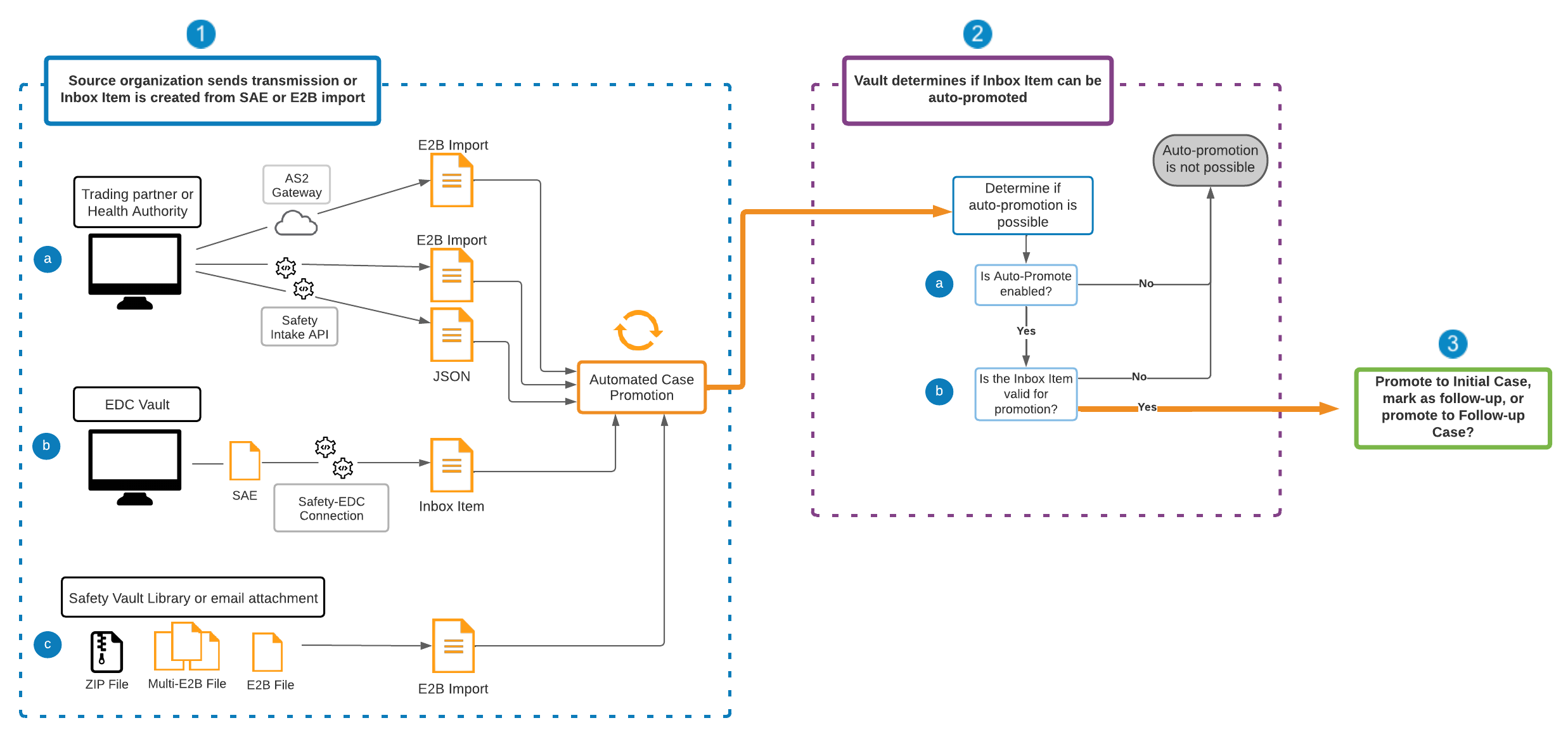
Note: Automated Case Promotion and Duplicate E2B XML File Detection are not compatible. You can enable both features in your Vault but you can use only one for an inbound source.
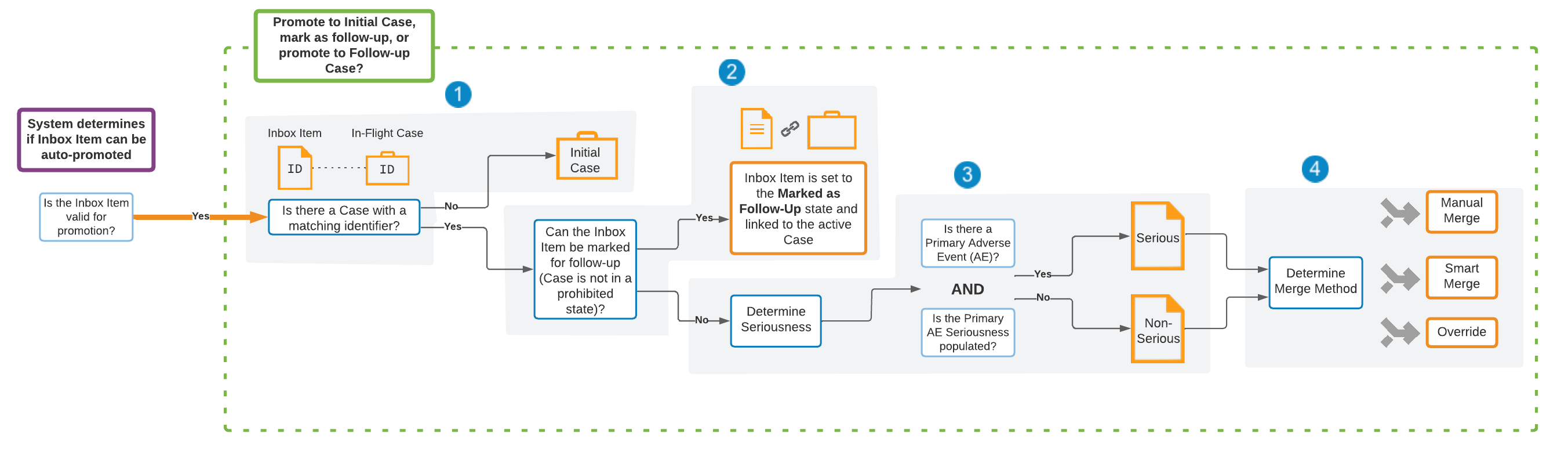
After confirming automatic promotion is possible, the _Inbox Item_ state changes to _Processing_ and Vault determines whether the _Inbox Item_ can be promoted to an initial _Case_, marked as a follow-up for merge into an in-flight _Case_, or promoted to a follow-up _Case_.
1. Vault performs duplicate detection and checks whether there is a _Case_ with a matching _Case Identifier_. If there is no matching _Case Identifier_, Vault promotes the _Inbox Item_ to an initial _Case_.
2. If there is a _Case_ with a matching _Case Identifier_, Vault determines whether the _Inbox Item_ can be marked as follow-up. The matching _Case_ cannot be in a prohibited state based on the _Allow Mark Follow-up_ application settings. If the _Inbox Item_ can merge to the matching in-flight _Case_, Vault indicates this by setting the _Inbox Item_ state to _Marked as Follow-Up_ and linking it to the _Case_.
3. If the _Inbox Item_ cannot be marked as a follow-up, Vault determines if it can be promoted to a follow-up _Case_. First, it determines whether to treat the _Case_ as serious or non-serious using the following criteria:
* **Serious**: If the _Inbox Item_ has a primary _Adverse Event_ with a _Seriousness_ value. The primary _Adverse Event_ for E2B files is the first entry in the Reaction(s)/Event(s) section, which is E.I in E2B(R3) files and B.2 in E2B(R2) files.
* **Non-serious**: If the _Inbox Item_ does not have a primary _Adverse Event_ or the _Seriousness_ of the primary _Adverse Event_ is blank.
4. Vault determines if the _Inbox Item_ can be created as a follow-up _Case_. The matching _Case_ cannot be in a prohibited state based on the _Follow-Up Options_ application settings. If the matching _Case_ is in a prohibited state, Vault moves the _Inbox Item_ to the _Promotion Failed_ state and links it to the _Case_.
5. Vault proceeds with the [merge method][5] specified on the applicable _Transmission Profile_ (if sent from a source organization or Veeva EDC) or on the source document. Your Admin can configure the merge method to use for each _Transmission Profile_ and you can configure the merge method to use for each uploaded source document, depending on whether the _Case_ is serious or non-serious.
 ## Merge Methods {#merge-methods}
Vault includes the following merge methods for automatically promoting _Inbox Items_ to follow-up _Cases_:
* [**Manual**][2]: After _Inbox Item_ import, you must manually merge the _Inbox Item_ into a follow-up _Case_.
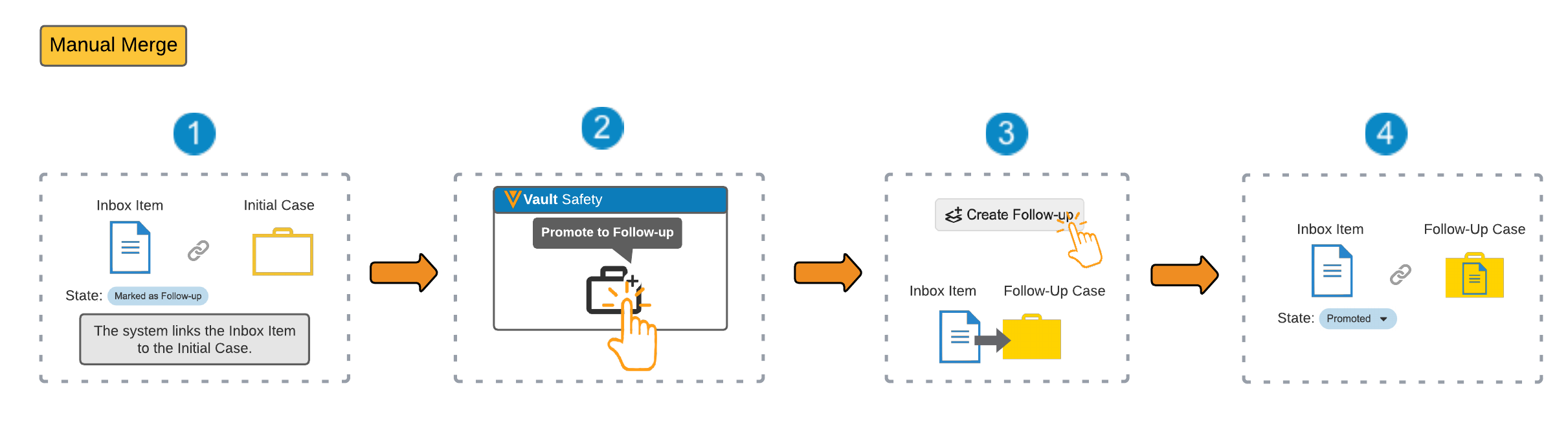
* [**Smart**][3]: Vault creates a follow-up _Case_ from both the _Inbox Item_ and initial _Case_ data using default merging behavior.
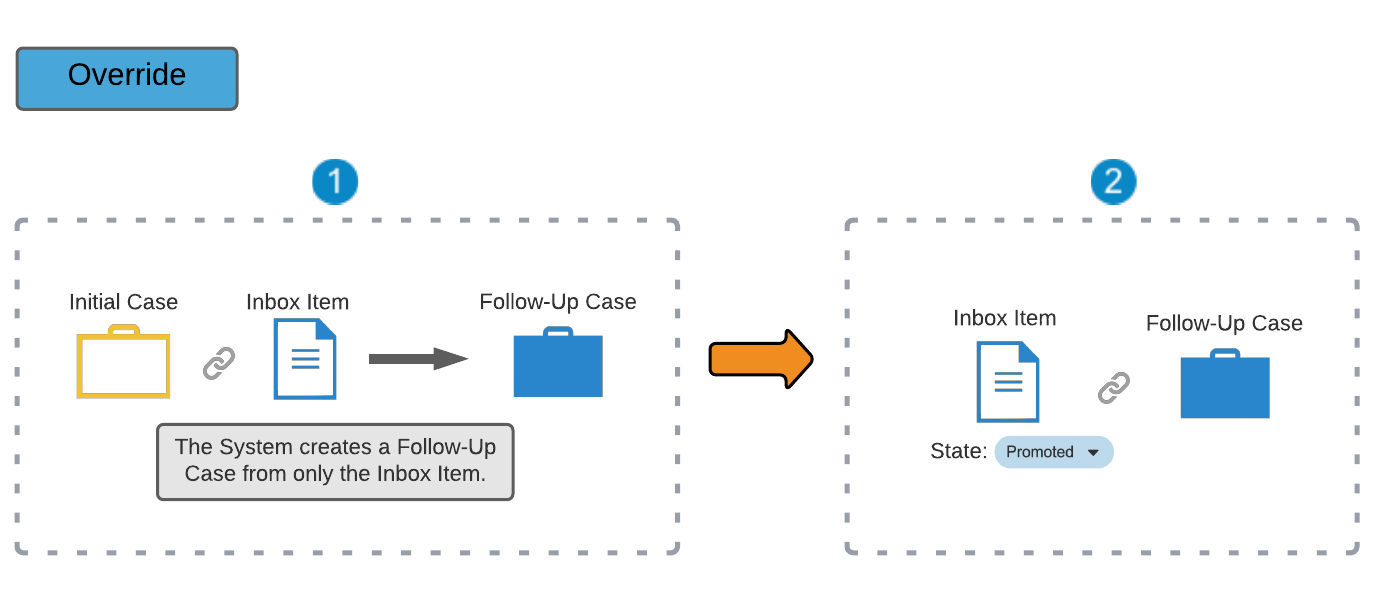
* [**Override**][4]: Vault creates a follow-up _Case_ from only the _Inbox Item_ data.
### Manual Merge {#manual-merge}
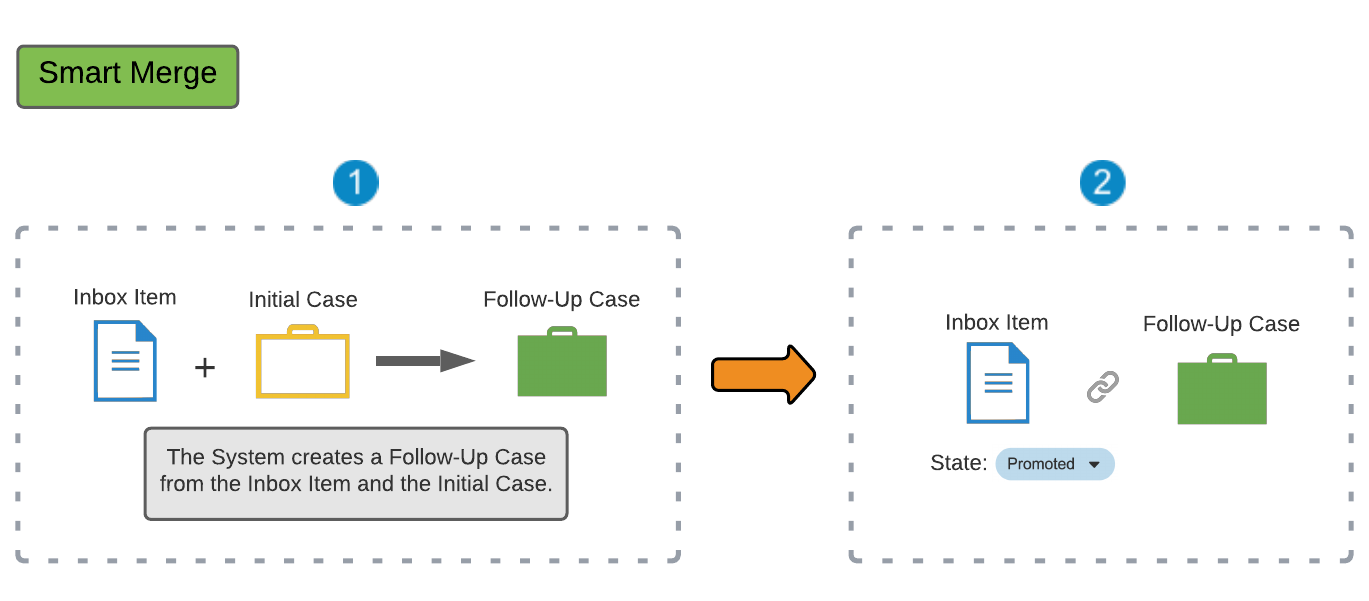
The following steps describe the manual merge method:
1. Vault sets the _Inbox Item_ state to _Marked as Follow-Up_ and links it to the initial _Case_ to indicate they are related.
2. Once the _Inbox Item_ has been imported into your Vault, you must go to the _Inbox Item_ and select **Promote to Follow-up**. Since the _Inbox Item_ is in the _Marked as Follow-Up_ state and is linked to the initial _Case_, Vault directs you to the _Inbox Item to Case Compare_ page.
3. Prior to creating a follow-up _Case_, you can compare the two _Cases_ and select any changes you want to make. Your Admin can turn off auto-calculation during _Inbox Item_ promotion.
4. Vault moves the _Inbox Item_ to the _Promoted_ state and links to this follow-up _Case_.
## Merge Methods {#merge-methods}
Vault includes the following merge methods for automatically promoting _Inbox Items_ to follow-up _Cases_:
* [**Manual**][2]: After _Inbox Item_ import, you must manually merge the _Inbox Item_ into a follow-up _Case_.
* [**Smart**][3]: Vault creates a follow-up _Case_ from both the _Inbox Item_ and initial _Case_ data using default merging behavior.
* [**Override**][4]: Vault creates a follow-up _Case_ from only the _Inbox Item_ data.
### Manual Merge {#manual-merge}
The following steps describe the manual merge method:
1. Vault sets the _Inbox Item_ state to _Marked as Follow-Up_ and links it to the initial _Case_ to indicate they are related.
2. Once the _Inbox Item_ has been imported into your Vault, you must go to the _Inbox Item_ and select **Promote to Follow-up**. Since the _Inbox Item_ is in the _Marked as Follow-Up_ state and is linked to the initial _Case_, Vault directs you to the _Inbox Item to Case Compare_ page.
3. Prior to creating a follow-up _Case_, you can compare the two _Cases_ and select any changes you want to make. Your Admin can turn off auto-calculation during _Inbox Item_ promotion.
4. Vault moves the _Inbox Item_ to the _Promoted_ state and links to this follow-up _Case_.
 ### Smart Merge {#smart-merge}
The following steps describe the smart merge method:
1. Vault creates a follow-up _Case_ from the _Inbox Item_ information and the initial _Case_ using the default merge behavior.
2. Vault moves the _Inbox Item_ to the _Promoted_ state and links to this follow-up _Case_.
### Smart Merge {#smart-merge}
The following steps describe the smart merge method:
1. Vault creates a follow-up _Case_ from the _Inbox Item_ information and the initial _Case_ using the default merge behavior.
2. Vault moves the _Inbox Item_ to the _Promoted_ state and links to this follow-up _Case_.
 ### Override Merge {#override-merge}
The following steps describe the override merge method:
1. Vault creates a follow-up _Case_ using only the _Inbox Item_ information, meaning the follow-up _Case_ is identical to the _Inbox Item_. If the initial _Case_ has any narrative documents, Vault appends them to the generated narratives on the follow-up _Case_. Vault combines document references from the initial _Case_ and _Inbox Item_ on the follow-up _Case_.
2. Vault moves the _Inbox Item_ to the _Promoted_ state and links to this follow-up _Case_.
### Override Merge {#override-merge}
The following steps describe the override merge method:
1. Vault creates a follow-up _Case_ using only the _Inbox Item_ information, meaning the follow-up _Case_ is identical to the _Inbox Item_. If the initial _Case_ has any narrative documents, Vault appends them to the generated narratives on the follow-up _Case_. Vault combines document references from the initial _Case_ and _Inbox Item_ on the follow-up _Case_.
2. Vault moves the _Inbox Item_ to the _Promoted_ state and links to this follow-up _Case_.
Note: When promoting a Global type Inbox Item matching a domestic Case using the override merge method, Vault carries over only the Inbox Item’s data, including the Localization. The override merge method creates a global follow-up Case instead of a domestic Case in this scenario. For more information about promoting a Global type Inbox Item to a domestic Case on the Inbox Item to Case Compare page, see Inbox Item Follow-Up.
Note: If an Inbox Item in the Promotion Failed state exists and a user imports a new Inbox Item that is eligible for automatic case promotion, Vault does not re-attempt to promote the existing Inbox Item in the Promotion Failed state.