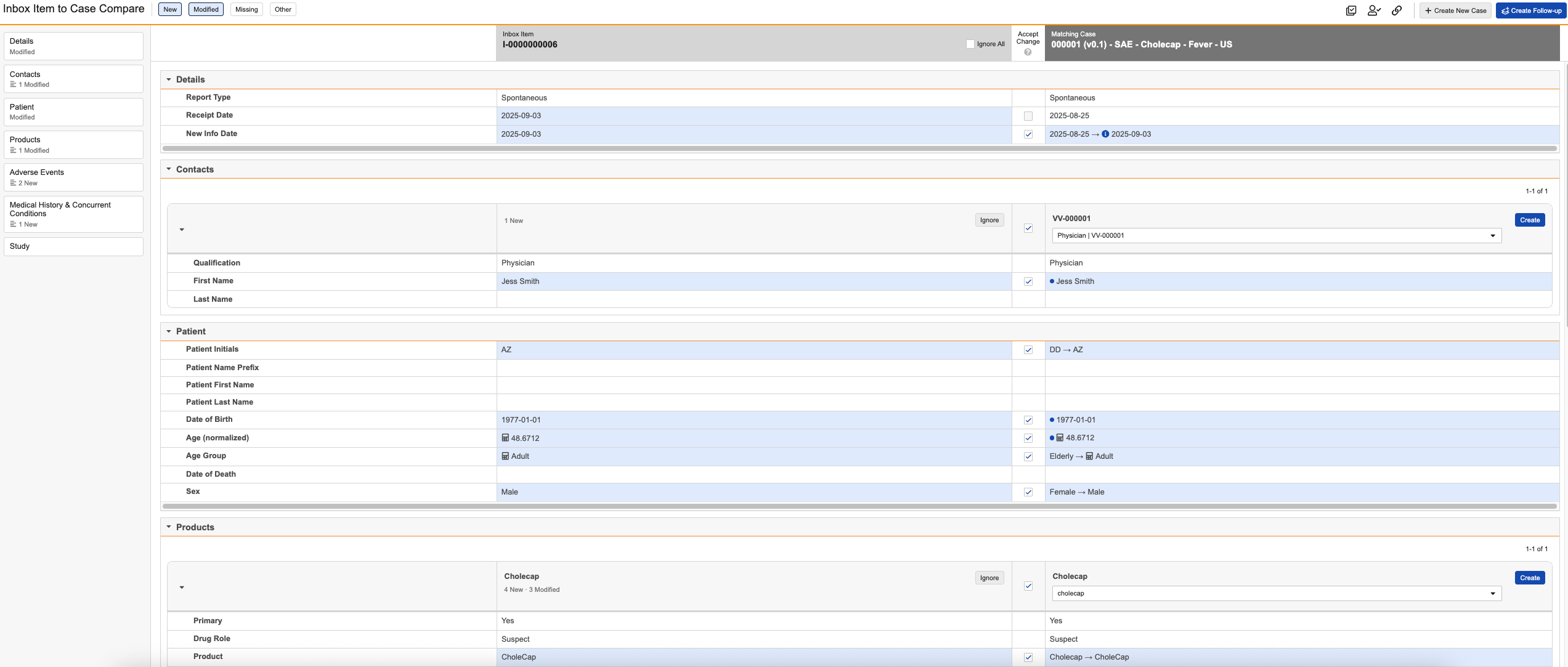
The Inbox Item to Case Compare page allows you to compare data on an Inbox Item with data on a matching Case, including details on the child records related to the Case. While reviewing the data, you can select which data to merge into the matching Case or create a new Case. This page opens when you select Compare Details on the Potential Matches page.
Prerequisites
To use this feature, your Admin must enable the page.
About the Inbox Item to Case Compare Page
The Inbox Item to Case Compare page uses the following conventions and behaviors to display data:
- Vault displays records on each section on the Inbox Item or matching Case, depending on filter selections. Within each section, if a parent record includes child records, Vault displays each child record as a separate nested table within the table for the parent record.
- Each section on the page displays up to ten records and up to 500 paginated records.
- Vault displays the total number of records in the left section and promotes all records using the default merge behavior.
- If a section includes more than ten records, you can use the pagination arrows to navigate through the pages of records.
- If the content of a field exceeds 150 characters, Vault truncates the text. You can select Show more to see the full text in a dialog. In the dialog, you can select the checkbox to accept the change and the Close button when you’re done reviewing.
- Select caret icons in any section header to expand () or minimize () that section.
- Hover over an information (
 ) icon to display relevant details in a tooltip.
 - If your Vault isolates blinded clinical trial information:
- For blinded Cases, the page displays blinded records.
- For unblinded Cases with blind protection, the page displays records with a Blinding Type of Open, Blinded, or blank. If at least one record is Unblinded, the page displays those unblinded records only if you have permission to view unblinded data.
- For unblinded Cases without blind protection, the page displays records with any Blinding Type.
Vault does not display the following data on the page:
- Parent information.
- Custom child records. Instead, Vault copies these records to the new Case version. If the matching Case contains a child record that is not displayed on the Inbox Item, Vault promotes that child record to the follow-up Case with no changes.
- Certain localized fields.
- Any hidden fields configured by your Admin. For these fields, Vault maps the undisplayed source data to the Case. After merging or promotion, you can review any hidden source data in the log file.
Sections
The page displays data in the following sections:
- Summary: This section lists the visible Inbox Item and Case sections based on filter selections. For each section, the summary indicates the number of changed data elements, if any. Select a section in the summary to navigate to the corresponding section of the records.
- Inbox Item: This section displays Inbox Item data, with changes highlighted.
- Matching Case: This section displays an existing Case with matched child records, merged with the new data from the Inbox Item for which you are accepting changes. This section previews how Vault will update the in-flight or follow-up Case. Vault highlights cells based on the changes you make.
Highlights
Vault highlights cells to help visualize different types of changes displayed on the page, which correspond with related tags and filters, as well as the changes you’re making:
- Blue: Indicates new and modified data.
- Orange: Indicates missing data.
Tags & Icons
The page displays the following tags to indicate different types of data:
- New (
 ): New data on the Inbox Item that doesn’t exist on the matching Case. Vault also displays a blue dot (
 ) icon beside new data in the Matching Case section.
 - Connections Record Match (): For records generated by the Safety-EDC Connection, an exact match based on the Link value. Vault locks exact matches and you cannot manually match them.
- Unmatched (
 ): Multiple field values conflict with existing record data. The tag shows how many unmatched records you can select. You can manually match these records or create a new record on the Case.
 - Delete (
 ): Appears when you delete data.
 - Reason Omitted (
 ): The field value is Reason Omitted. Vault does not promote these field values over fields with existing data.
 - Hidden (
 ): You do not have permission to view the hidden data.
 - Calculated (
 ): A calculated field value based on other field values.
 - Combination (
 ): Combination product details in a section header or row.
 - Constituent (
 ): A combination product constituent.
 - Unknown Formulation (
 ): A Product with an unknown formulation.
 - Study (
 ): Vault calculated study-related data.
 - LLT (
 ): The level of the MedDRA hierarchy for MedDRA-coded terms.
Filters
When you open the page, the selected filter buttons at the top indicate which data displays. When you change filter selections, Vault displays a message confirming when all sections are loaded. Clear all filter selections to display all available field data. Select and unselect the following filter buttons to update the data displayed on the page:
- New: Data on the Inbox Item that is not on the matching Case, including any new Case child records.
- Modified: Data that has changed between the matching Case and the Inbox Item, including any modified Case child records.
- Missing: Data on the matching Case that is not present on the Inbox Item, including any Case child and grandchild records.
- Other: Data that is unchanged between the Inbox Item and matching Case and empty rows for fields that are blank on either record.
Non-Filterable Fields
The Inbox Item to Case Compare page always displays the following Case-related fields regardless of filter selections so you can confirm accurate matches:
- Details
- Receipt Date
- New Info Date
- Report Type
- Contacts
- Qualification
- First Name
- Last Name
- Patient
- Patient Name Prefix
- Patient First Name
- Patient Last Name
- Gender
- Date of Birth
- Date of Death
- Products
- Primary
- Drug Role
- Product (Coded)
- Name
- Product (Reported)
- Registration Number
- Study Arm Product
- Blinded Name (Placeholder)
- Dosages
- Dose (number)
- Dose (unit)
- Frequency (number)
- Frequency (unit)
- First Administration
- Last Administration
- Indications
- Name (MedDRA)
- Substances
- Substance Name
- Adverse Event
- Event (Reported)
- Event (LLT)
- Event Country
- Onset (normalized)
- Cessation (normalized)
- Seriousness
- Diagnoses
- Name (Reported)
- Name (MedDRA)
- Medical Assessments
- Case Assessments
- Product
- Product Name
- Event (LLT)
- Event (LLT) - MedDRA
- Case Assessment Results
- Source Type
- Source (text)
- Source
- Case Assessments
- Causes of Death
- Cause of Death (LLT)
- Cause of Death (Reported)
- Medical History & Concurrent Conditions
- Condition / Procedure
- Condition / Procedure (LLT)
- Drug History
- Drug Name (Reported)
- Drug (Coded)
- Test Results
- Test Name (Reported)
- Test Name (LLT)
- Study
- Study Name
- Study Number (Reported)
- Study Registrations
- Registration Number
- Linked Cases
- Related Case Identifier
- Reference Numbers
- Case Identifier
Matched Records
Vault evaluates certain fields to identify matching records. If a record contains a matching Link or if the Link matches the Global ID, Vault considers it an exact match. Otherwise, Vault evaluates the following match fields and, if multiple records share the same match values, tie-breaker fields to determine the best match:
| Related Case Object | Match Fields | Tie-Breaker Fields |
|---|---|---|
| Case Adverse Event |
|
|
| Case Product 1
(matches must be of the same object type and Blinding Type) |
|
|
| Case Product Dosage |
|
|
| Case Product Substance |
|
|
| Case Product Indication |
|
|
| Case Contact 2
(matches must be of the same object type) |
|
|
| Case Assessment Result |
|
|
| Case Relationship |
|
|
| Case Study Registration |
|
|
| Case Test Result |
|
|
| Case Identifier 3 |
|
|
| Case Cause of Death |
|
|
| Case Diagnosis |
|
|
| Case Drug History |
|
|
| Case Medical History |
|
|
1. When matching Case Products:
| ||
| 2. When the Inbox Item and matched Case both have a single Case Contact, Vault considers it a match unless multiple populated Case Contact match field values conflict. | ||
3. When an Inbox Item contains Case Identifiers with leading or trailing spaces, for example, NN-ABCD-123 , although the values appear identical to the original Case, Vault treats the data as an update rather than an exact match. | ||
| 4. Vault considers PT Codes only if your Admin has enabled the Allow PT level matching for MedDRA coded objects application setting. | ||
Combination Products
For combination products, Vault matches Products using the following priority:
- Those with the same Combination Product on the Case Combination Product record
- Those with the same Combination Product on the Case Product.
For non-matching Combination Products with Products that share the same Product Family, Vault attempts to match constituent Products that are common to both Combination Products. Vault never matches constituent Products to Case Products with no Combination Product value. For any constituent Products that Vault cannot match to a common Combination Product, Vault retains the Case Product on the updated Case. You can manage and recode combination Case Products using the Case Combination Product record.
Review Changes
Review the page and decide which change to make before you complete the page. You can accept or ignore incoming data and determine which child records to delete or promote to the new Case version. Vault may automatically select the options to accept, ignore, remove, or delete certain child records and fields based on existing and incoming data. You can undo these selections, if needed. As you make selections, Vault applies the applicable highlight and strikes out data that will not be included on the new Case version.
Depending on your Admin’s configuration, you may not have permission to view certain fields or child records (for example, on unblinded Cases). Vault hides this data and displays hidden () tags and you cannot accept changes for these fields. In these scenarios, Vault applies default behaviors based on the change type. If needed, another user with greater permissions can complete the page so you can modify these fields.
Accept Changes
Select or clear checkboxes in the Accept Change column to specify which incoming values Vault will populate on the new Case version. To accept all of the new data within a child record, select the checkbox in the record’s section header and if applicable, clear checkboxes for rows you want to exclude. For the Special Situation and Invalid Reason fields, you can select the checkbox twice to display the Concatenate (+) icon in the checkbox, indicating that you want to combine the incoming data from the Inbox Item with the existing value on the matching Case. For accepted changes, the original and updated values display in the Matching Case section. When you complete the page, Vault populates the updated value on the new Case version.
When accepting changes, consider the following:
- If an Inbox Item field is blank but populated on the matching Case, Vault clears the checkbox to retain the existing Case data.
- You can select the checkbox for the Narrative Preview field only if the narrative was not generated from a template.
- Checkboxes for Combination Product Registration records inherit the Combination Product field checkbox selection.
- If you clear a checkbox for a calculated () field, Vault does not promote the auto-calculation value.
- If you clear the Invalid Reason checkbox and then complete the page by running the Mark as Follow-Up, Merge to Current, or Create Follow-up action, Vault removes the Invalid Reason value on the matching Case.
- You cannot modify automatically applied checkbox selections for Link fields.
Ignore Changes
Select Ignore to ignore incoming data on the Inbox Item and prevent Vault from applying it to the new Case version when you complete the page. Select Undo Ignore to retain the data. Ignoring a parent record also ignores all related child records. To accept changes from a child record, you must first select Undo Ignore for the parent record. For Inbox Items generated by the Safety-EDC Connection, Vault displays an alert when you ignore a new incoming child record, informing you that Vault will not process future follow-ups for that record.
If configured by your Admin for the associated data source, you can select Ignore All to ignore all incoming data. This preserves previous Case Processor cleanup on initial Cases to ensure data accuracy for submissions and reporting. You can then selectively choose which new changes to accept by selecting the applicable Undo Ignore buttons. Vault never ignores certain fields, including:
- Case-level fields without selectable checkboxes
- Combination products
- ID
- Global ID
- Link
- MedDRA Version
- New Info Date
- Receipt Date
- Session Store ID
Delete Data
Select Delete to delete existing Case data and prevent Vault from applying it to the new Case version when you complete the page. When you delete data, Vault highlights the cell in orange. Select Undo Delete to retain the data. When you delete a parent record, Vault also deletes all related child records. To accept changes from a child record, you must first undo deletion of the parent record.
Select Child Records
Vault matches child records by comparing key field values across both the Inbox Item and the matching Case. You can review these matched records in the Matching Case section. If Vault did not map a child record to the matching Case correctly, you can perform one of the following, as applicable:
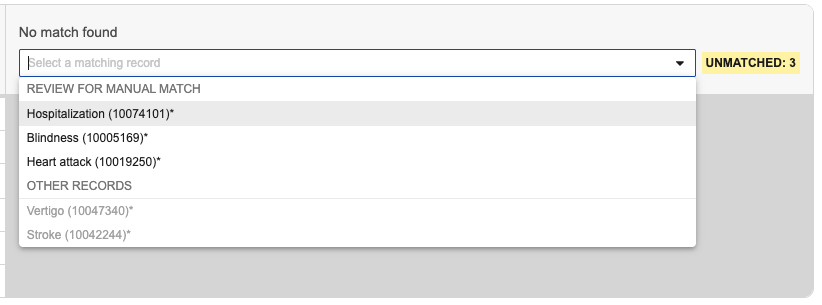
- Manually Match: Select a different record from the drop-down list on the matching Case to manually match to the record on the Inbox Item.
- Create: Select this button to add incoming data as a new child record on the new Case version. To undo creation, select a record from the drop-down to manually match.
- Delete: Select this button to remove an existing child record based on data removed from the incoming Inbox Item. To undo a deletion, select Undo Delete. Deleting a parent record also deletes all related child records. To accept a child record, you must first undo the deletion of its parent record.
Manually Match
When Vault finds similar child records without an exact match, you can manually match them by selecting the appropriate record from the drop-down in the unmatched section. The drop-down displays an alphabetized list of available, unmatched records first, followed by reference records that are already matched to the Inbox Item. Certain records in the drop-down include details in parentheses indicating why Vault excluded them from exact matches (for example, a type mismatch). If you do not manually match an unmatched record, Vault creates a new record on the Case.
Complete the Inbox Item to Case Compare Page
After reviewing the page and making your selections, run one of the following actions:
- Mark as Duplicate (
 ): Select this action if the Inbox Item is an exact match to the Inbox Item or Case. Vault updates the Inbox Item as Duplicate and does not create a Case. If the matching record is a Case, Vault links the duplicate record to the Initial Case field of the matching Case. If the matching record is an Inbox Item, Vault links the original Inbox Item to the Linked Inbox Item field on the duplicate Inbox Item.
 - New Case - Copy Patient Information (
 ): Select this action if the current Inbox Item includes a patient with an existing Case. In the New Case - Copy Patient Information dialog, you can specify other data to copy in addition to creating a Case that includes the patient details. Vault does not link the new Case to the original Case. However, the audit trail includes details about the copied data. To run this action, ensure the following:
- Adverse Events and Products must not have identical names.
- The Inbox Item must not be in Marked as Follow-up state (you can navigate back to the Inbox Item and run the Unmark Follow-Up action).
- For Inbox Items generated by the Safety-EDC Connection, no existing Cases have an identical Link value.
- Mark as Follow-Up (
 ): Select this action to link the Inbox Item to an in-flight Case and indicate it should be merged with the Case. Vault updates the state to Marked as Follow-up and the Inbox Item has been marked as a follow-up section appears on the Inbox Item with a link to the associated Case, which alerts Case Processors to new data to merge into the in-flight Case. To run this action, ensure the following:
- The Case must have completed processing and cannot be in an Admin-defined prohibited state, or in Void, Nullified, Voiding, or Nullifying state (or any state in the Deleted state type).
- Adverse Events and Products must not have identical names.
- No sections on the page can exceed 10,000 matching records.
- Merge to Current (
 ): Select this action to merge the Inbox Item to an in-flight Case. To run this action, ensure the following:
- The Case must not be in Void, Nullified, Voiding, or Nullifying state (or any state in the Deleted state type).
- For non-PMDA domestic Inbox Items, the Case must not be a PMDA domestic Case.
- No sections on the page can exceed 10,000 matching records.
- Create Follow-Up: Select this action to merge the data from the Inbox Item with the data on the matching Case into a follow-up Case.
- To run this action for non-PMDA domestic Inbox Items, the Case must not be a PMDA domestic Case.
- Create New Case: Select this action to promote the Inbox Item to a new initial Case. Vault creates the Case and an Inbound Transmission. If you no longer want to promote this Inbox Item, select Back to Potential Matches to choose another Inbox Item to compare. To run this action, ensure the following:
- Adverse Events and Products must not have identical names.
- The Inbox Item must not be in Marked as Follow-up state (you can navigate back to the Inbox Item and run the Unmark Follow-Up action).
- For Inbox Items generated by the Safety-EDC Connection, no existing Cases have an identical Link value.
If your Admin has configured strict Case locking, Vault locks the Case when you navigate to the Inbox Item to Case Compare page. If another user locks and updates the matching Case while you are on the page, Vault does not reflect their changes until you refresh the page. When you complete the page, Vault may display an alert message to indicate those changes are still in progress.
Note: After you run the Merge to Current or Create Follow-Up action, Vault prevents you from running either action again on that Inbox Item until Case creation completes, which may take up to six hours. This prevents the creation of duplicate Cases.
Log File
After your selected action completes, Vault generates a CSV log file detailing the potential matches results, which you can access from the Attachments section of the associated Inbound Transmission.
Promote and Merge Inbox Item Data
The following sections describe how Vault promotes and merges Inbox Item data to Cases. For more information about how Vault promotes and merges data, see Promote to Case.
Significance
When you promote an Inbox Item to a Case or merge the latest data to an in-flight Case, Vault populates the Significance value of the Case based on the Inbox Item’s specified value. The following mapping prevents Vault from downgrading the Significance value when merging data into an in-flight Case:
| Inbox Item | Promoted to Case | Merged to In-Flight Case |
|---|---|---|
| Initial Case | Significant | N/A |
| Non-Significant Follow Up | Non-Significant | Retains existing value |
| Significant Follow Up | Significant | Significant |
| Urgent-Significant Follow Up | Significant | Significant |
Updating Parent Information
After completing the page, Vault applies new and changed information from the Inbox Item and retains unchanged information from the matched or existing Parent Information record. If applicable, Vault also generates or updates Localized Case Parent Information. When promoting an Inbox Item to a follow-up Case or merging the latest data into an in-flight Case, Vault updates related Parent Information when applicable. For follow-up Cases, Vault generates a new version of the Parent Information. For in-flight Cases, Vault merges changes into the existing Parent Information.
Localized Data
When promoting a local Inbox Item to a domestic follow-up Case, Vault copies all global and localized data along with all related child records to the new or follow-up Case. When promoting a Global type Inbox Item (the Localization field value is blank or Global) to a domestic follow-up Case, Vault copies all global data with all related child records to the new or follow-up Case. This includes Localized Case fields not displayed on the page, even if you select Ignore for the global record. When you run an action to complete the page, Vault copies and merges localized data depending on the type of Inbox Item:
- Create New Case
- Local: Vault copies all localized data to the new initial Case.
- Global: Vault copies all global data to the new initial Case.
- Create Follow-Up
- Local: Vault merges all localized data from the Inbox Item and matching Case and copies it to a new domestic follow-up Case. Any new localized fields on the Inbox Item that did not exist in the matching Case are copied to the new follow-up Case. Similarly, any localized fields in the matching Case that do not exist in the Inbox Item are also copied to the new follow-up Case.
- Global: Vault merges all global data from the Inbox Item and localized data from the matching Case and copies it to a new domestic follow-up Case. Vault sets the follow-up Case’s Localization value using the localization of the matching Case.
- Merge to Current
- Local: Vault copies all localized data from the Inbox Item to the in-flight domestic Case based on your merge decisions on the page. If you add, edit, ignore, or delete a global record, Vault makes the same updates to the corresponding localized records on the in-flight domestic Case. However, if a specific global field within a record is ignored or deleted, and the corresponding localized field is populated on the Inbox Item, then the localized data is copied to the in-flight domestic Case.
- Global: Vault copies all global data from the Inbox Item to the in-flight domestic Case based on your merge decisions. The Localization value of the domestic Case does not change.
Japan
When you create a follow-up Case or merge an Inbox Item into a domestic Case for Japan, Vault copies any changes made to the Case Products or Adverse Events to the follow-up Case. The impact that these changes have on the Case Product Registrations, Localized Case Assessments, and Localized Reporting Details, such as regeneration or deletion, also takes place during follow-up creation. For information on how Vault maps Japan-specific objects and fields when creating a Follow-up Case from an imported file, see PMDA E2B(R3) Case Import.
Limitations
The Inbox Item to Case Compare page has the following limitations:
- You cannot promote to follow-up Case or merge to an in-flight Case if an object on either the Inbox Item or matching Case exceeds 10,000 records.
- Each section displays up to 500 paginated records. Although the page does not display more than 500 records in any section, Vault displays the number of records in the left section and promotes those records using the default merge behavior.