With the 24R3 release, SafetyDocs allows you to track the authoring, approval, and distribution of global and local risk management plans (RMPs) and additional risk minimization measures (aRMMs), as well as categorize and track identified risks with measures to be taken globally and by market.
After you have configured this feature, see the following articles for more information:
25R1 Update: Risk Management Enhancements
With the 25R1 release, SafetyDocs introduces the ability to set the Name field to a system-managed value for the following objects:
- RMP Core Implementation Strategy
- RMP Local Implementation Strategy
Overview
To configure risk management in your Vault:
- Configure security
- Configure objects
- Configure document workflows
- Configure the Master Risk Lifecycle document lifecycle
Configure Security
To configure risk management security:
- Create a copy of the standard Risk Actions permission set
- Create a security profile with the label
Risk Management - Create a group with the label
Risk Usersand add the following security profiles1 as included security profiles:- Risk Management
- All SafetyDocs
- All Case & All SafetyDocs
Note: 1. If your Vault does not contain custom security profiles for All SafetyDocs and All Case & All SafetyDocs, create these security profiles.
Configure Objects
To configure objects:
- Configure the RMP Risk Measure default object type and Name
- Configure object layouts
- Configure object lifecycles
- Optional: Update object record naming conventions
Configure the RMP Risk Measure Default Object Type & Name
To set the default object type for the RMP Risk Measure object:
- Navigate to Admin > Configuration > Objects > RMP Risk Measure.
- Select Edit.
- In the Options section, from the Default Object Type drop-down, select Core Risk Measure.
- Select Save.
- Navigate to the Fields tab and select the Name field.
- Select Edit.
- In the Value Format field, enter the following formula:
{measure_category__v} - {measure_sub_category__v} - v{version__v} {market__vr.abbreviation_2__v} - {#} - Select Save.
Note: The {#} in the formula provided in step 7 above is required to ensure the record name is unique. Failure to include this may result in unexpected failures in your Vault.
Configure Object Layouts
To configure object layouts to support risk management:
- Configure object layouts for all risk management objects
- Add the RMP Required field to the Country object
Configure the Object Layouts for All Risk Management Objects
To support risk management, configure the following object layouts using the process below:
- Core Risk Management Plan
- Core Risk Management Plan Version
- Local Risk Management Plan
- Local Risk Management Plan Version
- RMP Risk
- Local RMP Risk
- RMP Core Implementation Strategy
- RMP Local Implementation Strategy
- RMP Risk Measure object types:
- Core Risk Measure
- Local Risk Measure
- RMP Risk Measure Tracking
To configure an object layout:
- Copy the standard object layout.
- (Optional) Configure the custom object layout to your organization’s requirements.
- Set the custom layout as the default.
Add the RMP Required Field to the Country Object
To the Country object layout, add the RMP Required field.
Configure Object Lifecycles
To configure risk management object lifecycles:
Configure the Complete State Type
To set the Complete state type for each of the risk management object lifecycles in the table below:
- Navigate to Admin > Configuration > Object Lifecycles and select an object lifecycle from the table below.
- In the State Types section, select the Complete State.
- Select Edit.
- From the State drop-down, select the state that corresponds to the object lifecycle shown in the table below.
- Select Save.
| Object Lifecycle | Complete State |
|---|---|
| Core RMP Lifecycle | Effective |
| Core RMP Version Lifecycle | Complete |
| Local RMP Lifecycle | Effective |
| Local RMP Version Lifecycle | Complete |
| RMP Core Implementation Strategy LC | Approved |
| RMP Local Implementation Strategy LC | Approved |
| RMP Risk Measure Lifecycle | Complete |
| RMP Risk Measure Tracking Lifecycle | Complete |
Configure User & Entry Actions
Add the user actions and entry actions for each of the risk management object lifecycles and states as follows:
| Object Lifecycle | State | User Actions | Entry Actions |
|---|---|---|---|
| Core RMP Lifecycle | Planned | Always allow the following actions:
|
N/A |
| Effective |
Always allow the following actions:
|
N/A | |
| Core RMP Version Lifecycle | Planned | Always allow the following actions:
|
N/A |
| Complete | Always allow the following actions:
|
Always perform actions:
|
|
| Local RMP Lifecycle | Planned | Always allow the following actions:
|
N/A |
| Effective |
Always allow the following actions:
|
N/A | |
| Local RMP Version Lifecycle | Planned | Always allow the following actions:
|
N/A |
| In Progress | Always allow the following actions:
|
Always perform actions:
|
|
| Complete | Always allow the following actions:
|
Always perform actions:
|
|
| RMP Core Implementation Strategy LC | Planned | Always allow the following actions:
|
N/A |
| In Development |
Always allow the following actions:
|
N/A | |
| Approved | Always perform actions:
|
Always perform actions:
|
|
| RMP Local Implementation Strategy LC | Planned | Always allow the following actions:
|
N/A |
| In Development | Always allow the following actions:
|
N/A | |
| Approved | Always allow the following actions:
|
Always perform actions:
|
|
| RMP Risk Measure Lifecycle | Planned |
Always allow the following actions:
|
N/A |
| In Progress |
Always allow the following actions:
|
N/A | |
| Complete |
Always allow the following actions:
|
N/A | |
| RMP Risk Measure Tracking Lifecycle | Targeted | Always allow the following actions:
|
N/A |
Optional: Update Object Record Naming Conventions
To configure object record naming conventions for the RMP Core Implementation Strategy object or the RMP Local Implementation Strategy object, configure the Name field as a system-managed value.
Configure Document Workflows
Configure the following document workflows:
Configure the Authoring - Risk Workflow
To create a risk authoring workflow:
- Navigate to Admin > Configuration > Workflows.
- Select Create.
- In the Create Workflow window, select Document Workflow.
- Select Continue.
- On the Create Workflow page, populate the fields as follows:
- Label: Enter
Authoring - Risk - Lifecycle: Select Master Risk Lifecycle
- In the Options section, select the Workflow cancellation comment checkbox
- Label: Enter
- Select Save.
- In the Workflow Steps section, configure the workflow to include the steps defined in the following table.
- In the Status field, select Make configuration active.
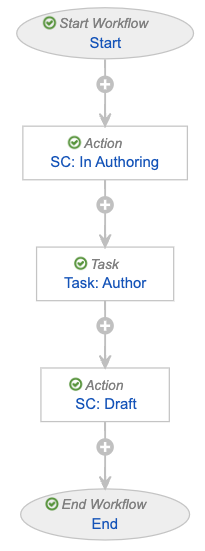
| Step Type | Step Label | Next Steps | Step Settings |
|---|---|---|---|
| Start step | Start |
SC: In Authoring |
Start Options
|
| State change action step | SC: In Authoring |
Task: Author |
Rules Always: Change State to In Authoring |
| Task step | Task: Author |
SC: Draft |
Task Options
Due Date
Update Sharing Settings
|
| State change action step | SC: Draft |
End |
Rules Always: Change State to Draft |
| End step | End |
N/A | End Type: End Workflow |
Configure the Review - Risk Workflow
To create a risk review workflow:
- Navigate to Admin > Configuration > Workflows.
- Select Create.
- In the Create Workflow window, select Document Workflow.
- Select Continue.
- On the Create Workflow page, populate the fields as follows:
- Label: Enter
Review - Risk - Lifecycle: Select Master Risk Lifecycle
- In the Options section, select the Workflow cancellation comment checkbox
- Label: Enter
- Select Save.
- In the Workflow Steps section, configure the workflow to include the steps defined in the following table.
- In the Status field, select Make configuration active.
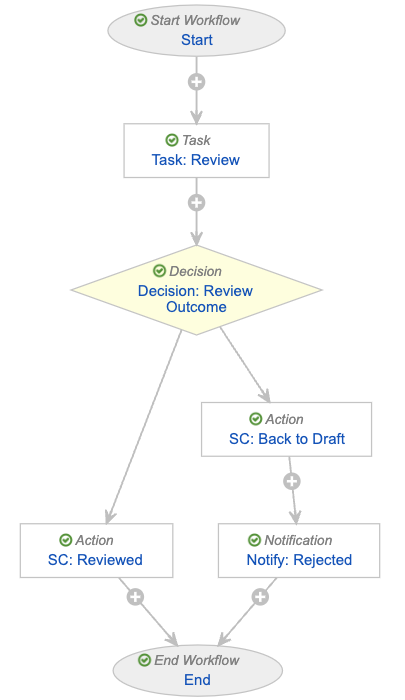
| Step Type | Step Label | Next Steps | Step Settings |
|---|---|---|---|
| Start step | Start |
Task: Review |
Start Options
|
| Task step | Task: Review |
Decision: Review Outcome |
Task Options
Due Date
Update Sharing Settings
Prompts
Verdicts
Notification
|
| Decision step | Decision: Review Outcome |
Determined by the step rules |
Rules
|
| State change action step | SC: Reviewed |
End |
Rules Always: Change State to Reviewed |
| State change action step | SC: Back to Draft |
Notify: Rejected |
Rules Always: Change State to Draft |
| Notification step | Notify: Rejected |
End |
Notification Options
|
| End step | End |
N/A | End Type: End Workflow |
Configure the Approval - Risk Workflow
To create a risk approval workflow:
- Navigate to Admin > Configuration > Workflows.
- Select Create.
- In the Create Workflow window, select Document Workflow.
- Select Continue.
- On the Create Workflow page, populate the fields as follows:
- Label: Enter
Approval - Risk - Lifecycle: Select Master Risk Lifecycle
- In the Options section, select the Workflow cancellation comment checkbox
- Label: Enter
- Select Save.
- In the Workflow Steps section, configure the workflow to include the steps defined in the following table.
- In the Status field, select Make configuration active.
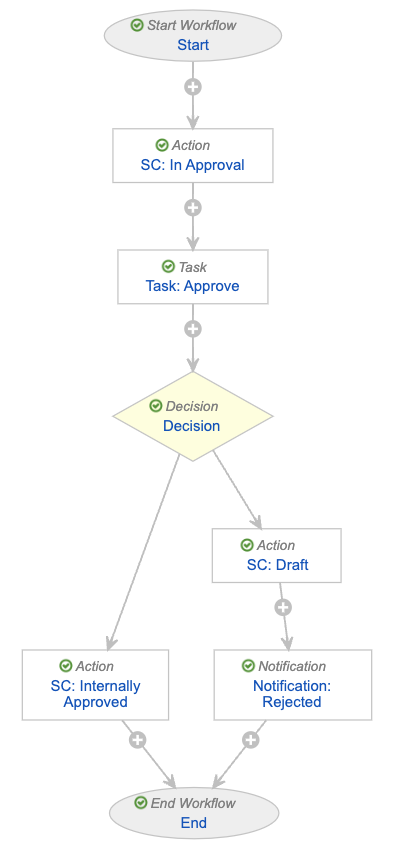
| Step Type | Step Label | Next Steps | Step Settings |
|---|---|---|---|
| Start step | Start |
SC: In Approval |
Start Options
|
| State change action step | SC: In Approval |
Task: Approve |
Rules Always: Change State to In Approval |
| Task step | Task: Approve |
Decision |
Task Options
Due Date
Update Sharing Settings
Prompts
Verdicts
Notification
|
| Decision step | Decision |
Determined by the step rules |
Rules
|
| State change action step | SC: Internally Approved |
End |
Rules Always: Change State to Internally Approved |
| State change action step | SC: Draft |
Notification: Rejected |
Rules Always:
|
| Notification step | Notification: Rejected |
End |
Notification Options
|
| End step | End |
N/A | End Type: End Workflow |
Configure the Master Risk Lifecycle Document Lifecycle
To configure the Master Risk Lifecycle document lifecycle:
Configure Security Settings
Update document lifecycle state security settings for the following states on the Master Risk Lifecycle:
- Draft
- In Authoring
- In Review
- Reviewed
- In Approval
- Internally Approved
- Approved for Use
- Current in Use
- Superseded
- Historical
- Planned
Note: We recommend these security settings based on the workflow and lifecycle configurations provided in this article. Depending on your business processes, you may require different settings.
Configure Draft State Security Settings
Update lifecycle state security settings on the Draft state of the Master Risk Lifecycle as follows:
| Role | Security Settings |
|---|---|
| Owner |
|
| Coordinator |
|
| Editor |
|
| Viewer |
|
| Reviewer |
|
| Approver |
|
Configure In Authoring State Security Settings
Update lifecycle state security settings on the In Authoring state of the Master Risk Lifecycle as follows:
| Role | Security Settings |
|---|---|
| Owner |
|
| Coordinator |
|
| Editor |
|
| Viewer |
|
| Reviewer |
|
| Approver |
|
Configure In Review State Security Settings
Update lifecycle state security settings on the In Review state of the Master Risk Lifecycle as follows:
| Role | Security Settings |
|---|---|
| Owner |
|
| Coordinator |
|
| Editor |
|
| Viewer |
|
| Reviewer |
|
| Approver |
|
Configure Reviewed State Security Settings
Update lifecycle state security settings on the Reviewed state of the Master Risk Lifecycle as follows:
| Role | Security Settings |
|---|---|
| Owner |
|
| Coordinator |
|
| Editor |
|
| Viewer |
|
| Reviewer |
|
| Approver |
|
Configure In Approval State Security Settings
Update lifecycle state security settings on the In Approval state of the Master Risk Lifecycle as follows:
| Role | Security Settings |
|---|---|
| Owner |
|
| Coordinator |
|
| Editor |
|
| Viewer |
|
| Consumer |
|
| Reviewer |
|
| Approver |
|
Configure Internally Approved State Security Settings
Update lifecycle state security settings on the Internally Approved state of the Master Risk Lifecycle as follows:
| Role | Security Settings |
|---|---|
| Owner |
|
| Coordinator |
|
| Editor |
|
| Viewer |
|
| Consumer |
|
| Reviewer |
|
| Approver |
|
Configure Approved for Use State Security Settings
Update lifecycle state security settings on the Approved for Use state of the Master Risk Lifecycle as follows:
| Role | Security Settings |
|---|---|
| Owner |
|
| Coordinator |
|
| Editor |
|
| Viewer |
|
| Consumer |
|
| Approver |
|
Configure Current in Use State Security Settings
Update lifecycle state security settings on the Current in Use state of the Master Risk Lifecycle as follows:
| Role | Security Settings |
|---|---|
| Owner |
|
| Coordinator |
|
| Editor |
|
| Viewer |
|
| Consumer |
|
| Reviewer |
|
| Approver |
|
Configure Superseded State Security Settings
Update lifecycle state security settings on the Superseded state of the Master Risk Lifecycle as follows:
| Role | Security Settings |
|---|---|
| Owner |
|
| Coordinator |
|
| Editor |
|
| Viewer |
|
| Reviewer |
|
| Approver |
|
Configure Historical State Security Settings
Update lifecycle state security settings on the Historical state of the Master Risk Lifecycle as follows:
| Role | Security Settings |
|---|---|
| Owner |
|
| Coordinator |
|
| Editor |
|
| Viewer |
|
Configure Planned State Security Settings
Update lifecycle state security settings on the Planned state of the Master Risk Lifecycle as follows:
| Role | Security Settings |
|---|---|
| Owner |
|
| Coordinator |
|
| Editor |
|
Configure the Editor Role
To configure the Editor role on the Master Risk Lifecycle:
- From the Master Risk Lifecycle, select the Roles tab.
- Select the Editor role.
- Select Edit.
- In the Options section under Add Default Users When, select the Creating a document checkbox.
- Select Save.
- To define allowed and default users, add the Risk Users group, then select the Default User checkbox.
Configure User & Entry Actions
Create entry actions and user actions on the following states of the Master Risk Lifecycle:
| State | User Actions | Entry Actions |
|---|---|---|
| Planned | Always allow the following actions:
|
N/A |
| Draft | Always allow the following actions:
|
N/A |
| Reviewed | Always allow the following actions:
|
N/A |
| Internally Approved | Always allow the following actions:
|
Always perform actions:
|
| Approved for Use | Always allow the following actions:
|
N/A |
| Current in Use | Always allow the following actions:
|
N/A |