
Note: Automated Case promotion is possible if Enable Auto Promote is on for the applicable gateway or E2B document. User intervention, such as Inbox Item data entry and selecting the Promote to Case action, is not required for this process.
Note: If the ZIP file contains any non-E2B files, only the E2Bs are imported and Vault will log a warning for the non-E2B files. If Vault is unable to process the ZIP file, an error message appears with the error details and the appropriate next steps. You can manually resolve the issues and upload the file again
 ) panel on the file's Doc Info pane in your Vault Library
The CSV file contains E2B source data in a readable format. The following is an example snippet of a CSV file:
The following considerations apply to CSV renditions:
* The file does not include elements that do not exist in the ICH E2B(R2) or (R3) guidelines.
* Vault does not support embedded files for E2B(R2).
* If CSV rendition generation fails, E2B file import fails.
* When viewing the rendition using your web browser, long blocks of text (such as case narratives) may be truncated. The complete text block is available in the downloaded CSV file.
### Case Access Groups
When you create an _Inbox Item_ from an E2B file, Vault populates the document's _Case Access Group_ field on the document based on the value on the generated _Inbox Item_. You cannot modify this value.
### Manage Automated Case Promotion for E2B Imported Inbox Items
You can enable Automated Case Promotion when you upload E2B documents, whether it's a single file, multi-E2B file, or a ZIP file containing multiple E2Bs. On the right panel in the _General_ section, you must specify the following fields:
* **Enable Auto Promote**: _Yes_
* **Non-Serious Merge Method**: Select a merge method for _Non-Serious Cases_
* **Serious Merge Method**: Select a merge method for _Serious Cases_
## Non-E2B File Import {#non-e2b-import}
You can create an _Inbox Item_ from a non-E2B file classified as _Case > Source > Literature_ and in the _Imported_ state. Vault creates a blank _Inbox Item_ that you can use for manual intake. You can also generate an _Inbox Item_ from a document placeholder and capture the citation in the _Reference_ field of the document metadata.
## Import an Inbox Item {#import-an-e2b-inbox-item}
In Vaults using Veeva AI for Safety, Vault may automatically generate an _Inbox Item_ for each _Case > Source > Adverse Event Report_ classified document uploaded to your _Library_. To import an E2B or non-E2B file to an _Inbox Item_ from a source document:
1. Navigate to the latest document version or placeholder in your Vault Library.
* For E2B files, the file must be classified as _Case > Source > Adverse Event Report_ and in _New_ state.
* For non-E2B files, the file must be classified as _Case > Source > Literature_ and in _Imported_ state.
2. Complete applicable document fields:
* **Organization**: Select the organization that will process the _Inbox Item_ and _Case_. The _Organization Type_ must be _Sponsor_.
* **Receipt Date**: Optional: Select the receipt date.
* For non-E2B files, Vault maps this field to the _New Info Date_ field on the _Inbox Item_. If blank, Vault populates the current date.
* For E2B files, Vault does not consider this field. Vault populates a date based on the E2B data elements.
* **Report Type**: Optional: Select the report type. For non-E2B files and E2B files that do not specify the report type, if you leave this blank, Vault sets the _Report Type_ of the _Inbox Item_ to _Spontaneous_.
* **Reference**: For documents or placeholders with the _Case > Source > Literature_ classification, enter the citation for a literature article.
3. From the **All Actions** menu, select **Create Inbox Item From Document**. For E2B files, ensure Vault has generated a viewable rendition of the document before running the action.
### Case Assessment Result Generation {#case-ar}
When assessments in source files include assessment results, Vault:
* Imports the data as received and generates a _Case Assessment Result_ for each assessment result in the source file.
* Does not generate additional _Case Assessment Results_ during _Case_ promotion.
* Populates the _Source (text)_ field based on information in the source file.
When assessments in source files do not contain any assessment results, Vault:
* Generates two _Case Assessment Results_ for each assessment in the source file upon _Case_ promotion.
* Populates the _Source Type_ field for each _Case Assessment Result_.
* If applicable, Vault references the reporter's qualification to determine whether the _Source Type_ is _Health Care Professional_ or _Non-Health Care Professional_.
For example, if a source file includes two assessments, one with a single assessment result and the other with no assessment results, after _Case_ promotion, the _Case_ includes three _Case Assessment Results_:
* One from the source file assessment result
* Two Vault-generated records for the assessment without an assessment result, one each for the sponsor and investigator
For information about generating missing _Case Assessment Results_, see Generate Assessments.
## Multi-Case Tabular Data Import {#about-multi-case-tabular-data-import}
You can extract multiple _Cases_ and child records from CSV files to create multiple _Inbox Items_ at once using the _Create Inbox Item_ action. Vault supports the following tabular data import options using pre-defined mapping:
* Import a multi-Case CSV file
* Import a ZIP file with multiple CSV or TXT files
) panel on the file's Doc Info pane in your Vault Library
The CSV file contains E2B source data in a readable format. The following is an example snippet of a CSV file:
The following considerations apply to CSV renditions:
* The file does not include elements that do not exist in the ICH E2B(R2) or (R3) guidelines.
* Vault does not support embedded files for E2B(R2).
* If CSV rendition generation fails, E2B file import fails.
* When viewing the rendition using your web browser, long blocks of text (such as case narratives) may be truncated. The complete text block is available in the downloaded CSV file.
### Case Access Groups
When you create an _Inbox Item_ from an E2B file, Vault populates the document's _Case Access Group_ field on the document based on the value on the generated _Inbox Item_. You cannot modify this value.
### Manage Automated Case Promotion for E2B Imported Inbox Items
You can enable Automated Case Promotion when you upload E2B documents, whether it's a single file, multi-E2B file, or a ZIP file containing multiple E2Bs. On the right panel in the _General_ section, you must specify the following fields:
* **Enable Auto Promote**: _Yes_
* **Non-Serious Merge Method**: Select a merge method for _Non-Serious Cases_
* **Serious Merge Method**: Select a merge method for _Serious Cases_
## Non-E2B File Import {#non-e2b-import}
You can create an _Inbox Item_ from a non-E2B file classified as _Case > Source > Literature_ and in the _Imported_ state. Vault creates a blank _Inbox Item_ that you can use for manual intake. You can also generate an _Inbox Item_ from a document placeholder and capture the citation in the _Reference_ field of the document metadata.
## Import an Inbox Item {#import-an-e2b-inbox-item}
In Vaults using Veeva AI for Safety, Vault may automatically generate an _Inbox Item_ for each _Case > Source > Adverse Event Report_ classified document uploaded to your _Library_. To import an E2B or non-E2B file to an _Inbox Item_ from a source document:
1. Navigate to the latest document version or placeholder in your Vault Library.
* For E2B files, the file must be classified as _Case > Source > Adverse Event Report_ and in _New_ state.
* For non-E2B files, the file must be classified as _Case > Source > Literature_ and in _Imported_ state.
2. Complete applicable document fields:
* **Organization**: Select the organization that will process the _Inbox Item_ and _Case_. The _Organization Type_ must be _Sponsor_.
* **Receipt Date**: Optional: Select the receipt date.
* For non-E2B files, Vault maps this field to the _New Info Date_ field on the _Inbox Item_. If blank, Vault populates the current date.
* For E2B files, Vault does not consider this field. Vault populates a date based on the E2B data elements.
* **Report Type**: Optional: Select the report type. For non-E2B files and E2B files that do not specify the report type, if you leave this blank, Vault sets the _Report Type_ of the _Inbox Item_ to _Spontaneous_.
* **Reference**: For documents or placeholders with the _Case > Source > Literature_ classification, enter the citation for a literature article.
3. From the **All Actions** menu, select **Create Inbox Item From Document**. For E2B files, ensure Vault has generated a viewable rendition of the document before running the action.
### Case Assessment Result Generation {#case-ar}
When assessments in source files include assessment results, Vault:
* Imports the data as received and generates a _Case Assessment Result_ for each assessment result in the source file.
* Does not generate additional _Case Assessment Results_ during _Case_ promotion.
* Populates the _Source (text)_ field based on information in the source file.
When assessments in source files do not contain any assessment results, Vault:
* Generates two _Case Assessment Results_ for each assessment in the source file upon _Case_ promotion.
* Populates the _Source Type_ field for each _Case Assessment Result_.
* If applicable, Vault references the reporter's qualification to determine whether the _Source Type_ is _Health Care Professional_ or _Non-Health Care Professional_.
For example, if a source file includes two assessments, one with a single assessment result and the other with no assessment results, after _Case_ promotion, the _Case_ includes three _Case Assessment Results_:
* One from the source file assessment result
* Two Vault-generated records for the assessment without an assessment result, one each for the sponsor and investigator
For information about generating missing _Case Assessment Results_, see Generate Assessments.
## Multi-Case Tabular Data Import {#about-multi-case-tabular-data-import}
You can extract multiple _Cases_ and child records from CSV files to create multiple _Inbox Items_ at once using the _Create Inbox Item_ action. Vault supports the following tabular data import options using pre-defined mapping:
* Import a multi-Case CSV file
* Import a ZIP file with multiple CSV or TXT files
Note: To import multiple CSV files with overlapping Cases, we recommend importing multiple CSV files individually. Vault promotes Inbox Items asynchronously rather than in sequence, which may cause promotion failures.
 #### Prepare a Multi-Case File with Assessments
In addition to the criteria to [prepare a multi-Case file][10], a multi-Case CSV file with assessments and [assessment results][12] must follow a specific format:
* Adverse events and assessments/assessment results must be on different rows.
* There must be an `Adverse Event ID` column to map assessments and assessment results to the corresponding _Adverse Event_.
### Create Inbox Items from a Multi-Case File {#create-inbox-item}
To create _Inbox Items_ from a multi-Case file:
1. Upload the file to your Vault Library.
2. Ensure the document type is _Case > Source > Adverse Event Report_, and the _Tabular Data Format_ field is populated.
3. Optional: Populate the **Receipt Date** document field to specify the _New Info Date_ value on all _Inbox Items_ generated from the document. If your Admin has defined an _Import Code Mapping_ with a field mapping for the _New Info Date_, Vault populates the _Receipt Date_ based on the mapping regardless of the _Receipt Date_ document field value.
4. From the **All Actions** menu, select **Create Inbox Item**.
If any of the [criteria][10] are not met, an error message appears and the document moves to the _Error_ state. When uploading a ZIP file, Vault unzips the file into individual CSV documents and performs validation on each.
#### Multi-Case File Import Validation
After running the _Create Inbox Item_ action, Vault validates the following:
* The files' encoding matches the Tabular Data Format's _Encoding_ field value, if specified. If the encoding differs or is blank, Vault defaults to UTF-8.
* If the _Case Contact_ type is not specified, Vault imports the _Case Contact_ data to the _Reporter_ object type.
* If the _Country_ on the selected Tabular Data Format is specified, Vault maps to the _Event Country_ and _Reporter Country_ fields on the _Inbox Item_. Otherwise, these fields are populated with the source file data based on the mapping.
The following requirements apply to ZIP file import:
* The selected Tabular Data Format must contain a source file mapping to the _Case_ (`case_version__v`) object. Otherwise, Vault does not import the Vault document and moves it to the _Error_ state.
* If a CSV file is specified as a source file for the selected Tabular Data Format, it must exist in the ZIP file being imported. Otherwise, Vault does not import the Vault document and moves it to the _Error_ state.
* If CSV files are specified as source files for the selected Tabular Data Format, Vault only validates these files during ZIP import and will ignore all other files present. If unspecified CSV files are present in the ZIP being imported, Vault logs this as a [global warning in the import log][3].
Vault also detects any duplicate records (rows) for _Case Products_, _Dosages_, _Indications_, and _Adverse Events_ for a given _Case ID_ and keeps only one copy.
#### Multi-Case File Import Mapping
If validation is successful, Vault creates a Vault document for each unique _Case ID_ with the _Case > Source > Adverse Event Report_ classification. When importing a ZIP file, if multiple column headers across different CSV files have the same record ID and are mapped to the same object and field, Vault groups this data in the same record (if not duplicates). Similarly, Vault groups parent and child record data together if the parent ID column header is mapped to the parent object and field as well as to the child object.
For each single-Case document, Vault creates an _Inbox Item_ and imports the data to the _Inbox Item_ fields based on the selected _Tabular Data Format_. Imported data includes standard fields and the following supported objects:
* _Case_
* _Case Adverse Event_
* _Case Assessment_
* _Case Assessment Result_
* _Case Drug History_ (includes support for _Parent Information_ types of _Cases_)
* _Case Drug History Substance_ (includes support for _Parent Information_ types of _Cases_)
* _Case Medical History_ (includes support for _Parent Information_ types of _Cases_)
* _Case Product_
* _Case Product Device Code_
* _Case Product Dosage_
* _Case Product Indication_
* _Case Product Substance_
* _Case Test Results_
* _Reporter Case Contact_
On the _Inbox Item_, Vault sets the _Intake Method_ to _Import_ and the _Intake Format_ to _Tabular Data_. Upon import completion, Vault attaches [an import log][3] to each multi-Case CSV source file and you receive a Vault notification and an email. Vault also links the single-Case Vault documents in the parent multi-Case files under the _Relationship > Single-Case Document_ section and the parent multi-Case file under the _Relationship > Multi-Case Document_ section in each single-Case Vault document.
#### Prepare a Multi-Case File with Assessments
In addition to the criteria to [prepare a multi-Case file][10], a multi-Case CSV file with assessments and [assessment results][12] must follow a specific format:
* Adverse events and assessments/assessment results must be on different rows.
* There must be an `Adverse Event ID` column to map assessments and assessment results to the corresponding _Adverse Event_.
### Create Inbox Items from a Multi-Case File {#create-inbox-item}
To create _Inbox Items_ from a multi-Case file:
1. Upload the file to your Vault Library.
2. Ensure the document type is _Case > Source > Adverse Event Report_, and the _Tabular Data Format_ field is populated.
3. Optional: Populate the **Receipt Date** document field to specify the _New Info Date_ value on all _Inbox Items_ generated from the document. If your Admin has defined an _Import Code Mapping_ with a field mapping for the _New Info Date_, Vault populates the _Receipt Date_ based on the mapping regardless of the _Receipt Date_ document field value.
4. From the **All Actions** menu, select **Create Inbox Item**.
If any of the [criteria][10] are not met, an error message appears and the document moves to the _Error_ state. When uploading a ZIP file, Vault unzips the file into individual CSV documents and performs validation on each.
#### Multi-Case File Import Validation
After running the _Create Inbox Item_ action, Vault validates the following:
* The files' encoding matches the Tabular Data Format's _Encoding_ field value, if specified. If the encoding differs or is blank, Vault defaults to UTF-8.
* If the _Case Contact_ type is not specified, Vault imports the _Case Contact_ data to the _Reporter_ object type.
* If the _Country_ on the selected Tabular Data Format is specified, Vault maps to the _Event Country_ and _Reporter Country_ fields on the _Inbox Item_. Otherwise, these fields are populated with the source file data based on the mapping.
The following requirements apply to ZIP file import:
* The selected Tabular Data Format must contain a source file mapping to the _Case_ (`case_version__v`) object. Otherwise, Vault does not import the Vault document and moves it to the _Error_ state.
* If a CSV file is specified as a source file for the selected Tabular Data Format, it must exist in the ZIP file being imported. Otherwise, Vault does not import the Vault document and moves it to the _Error_ state.
* If CSV files are specified as source files for the selected Tabular Data Format, Vault only validates these files during ZIP import and will ignore all other files present. If unspecified CSV files are present in the ZIP being imported, Vault logs this as a [global warning in the import log][3].
Vault also detects any duplicate records (rows) for _Case Products_, _Dosages_, _Indications_, and _Adverse Events_ for a given _Case ID_ and keeps only one copy.
#### Multi-Case File Import Mapping
If validation is successful, Vault creates a Vault document for each unique _Case ID_ with the _Case > Source > Adverse Event Report_ classification. When importing a ZIP file, if multiple column headers across different CSV files have the same record ID and are mapped to the same object and field, Vault groups this data in the same record (if not duplicates). Similarly, Vault groups parent and child record data together if the parent ID column header is mapped to the parent object and field as well as to the child object.
For each single-Case document, Vault creates an _Inbox Item_ and imports the data to the _Inbox Item_ fields based on the selected _Tabular Data Format_. Imported data includes standard fields and the following supported objects:
* _Case_
* _Case Adverse Event_
* _Case Assessment_
* _Case Assessment Result_
* _Case Drug History_ (includes support for _Parent Information_ types of _Cases_)
* _Case Drug History Substance_ (includes support for _Parent Information_ types of _Cases_)
* _Case Medical History_ (includes support for _Parent Information_ types of _Cases_)
* _Case Product_
* _Case Product Device Code_
* _Case Product Dosage_
* _Case Product Indication_
* _Case Product Substance_
* _Case Test Results_
* _Reporter Case Contact_
On the _Inbox Item_, Vault sets the _Intake Method_ to _Import_ and the _Intake Format_ to _Tabular Data_. Upon import completion, Vault attaches [an import log][3] to each multi-Case CSV source file and you receive a Vault notification and an email. Vault also links the single-Case Vault documents in the parent multi-Case files under the _Relationship > Single-Case Document_ section and the parent multi-Case file under the _Relationship > Multi-Case Document_ section in each single-Case Vault document.
Note: Vault ignores imported data for unsupported objects and fields.
) panel on the file's Doc Info pane in your Vault Library. The log includes the status:
* **Success**: All _Cases_ imported successfully
* **Import Errors**: Not all _Cases_ imported successfully
* **Failure**: No _Cases_ imported
The log also includes the following warnings and errors:
* **Global Warnings**: Issues affecting multiple _Cases_.
* **Global Errors**: These scenarios include:
* Document creation failure for a single _Case_.
* Vault document creation failure for a single _Case_.
* CSV file data extraction failure.
* **Single-Case Warnings**: These scenarios include:
* Multiple values specified for one _Case_ field for the same _Case ID_.
* Unsupported date formats.
* **Single-Case Errors**: If validation errors occur for a single _Case_, the import process continues for the other _Cases_. Vault includes an error message in the import log for the _Cases_ that failed to import.
## Intake Vault API Import {#api}
API users can upload JSON files using the Intake API to generate _Inbox Items_ populated with the data in the structured data file. Vault records the details of the incoming Vault API transmission in an _Inbound Transmission_.
## Imported MedDRA {#imported-meddra}
If your Vault has an active MedDRA dictionary, Vault auto-codes MedDRA terms when the imported file contains reported medical terms with no MedDRA code and specifies the _Case's_ MedDRA version in the _MedDRA Version_ field. When your Vault's MedDRA version is out of sync with the _MedDRA Version_ of the _Case_, Vault displays a **RECODE** ( ) tag next to the non-current coded term, indicating that you must recode the term.
Note: Vault does not code non-current terms when the E2B or Vault API file contains a term that only exists in versions of the MedDRA dictionary that are newer than the latest supported MedDRA Version in your Vault’s MedDRA dictionary.
Note: For E2B-imported Inbox Items, Vault maps the A.1.11.1 Source(s) of the Case Identifier E2B(R2) element and the C.1.9.1.r.1 Source(s) of the Case Identifier E2B(R3) element to the Inbox Item’s Source field and not the localized field.
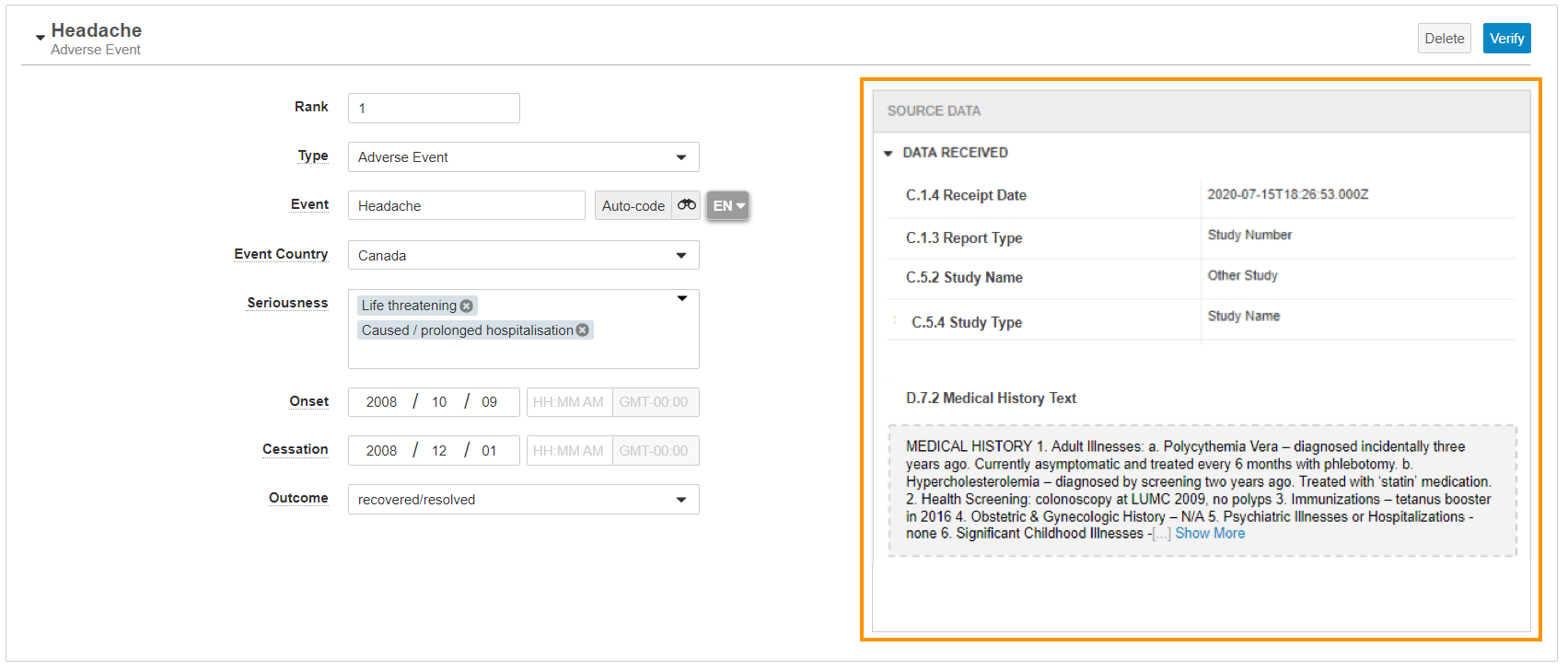 For _Inbox Items_ for _Studies_, Vault includes an information (
 ) icon next to the _Study_ value to indicate when Vault has matched the study number on the E2B file to a _Study_ through a _Study Number Alias_. When you hover over the icon, Vault displays _Study Alias Match_.
[1]: #import-an-e2b-inbox-item
[2]: #csv-rendition
[3]: #the-multi-case-csv-import-log
[4]: #vault-notification
[5]: #verify-an-inbox-item
[6]: #e2b-import
[7]: #non-e2b-import
[8]: #duplicate-xml
[10]: #multi-criteria
[12]: #case-ar
[13]: #verify-data
[14]: #source-data-pane
[15]: #import-suggestions
[16]: #zip
[17]: #about-multi-case-tabular-data-import
[18]: #local-import
[19]: #api
[20]: #imported-meddra
) icon next to the _Study_ value to indicate when Vault has matched the study number on the E2B file to a _Study_ through a _Study Number Alias_. When you hover over the icon, Vault displays _Study Alias Match_.
[1]: #import-an-e2b-inbox-item
[2]: #csv-rendition
[3]: #the-multi-case-csv-import-log
[4]: #vault-notification
[5]: #verify-an-inbox-item
[6]: #e2b-import
[7]: #non-e2b-import
[8]: #duplicate-xml
[10]: #multi-criteria
[12]: #case-ar
[13]: #verify-data
[14]: #source-data-pane
[15]: #import-suggestions
[16]: #zip
[17]: #about-multi-case-tabular-data-import
[18]: #local-import
[19]: #api
[20]: #imported-meddra