Vault sometimes receives Inbox Items that require little to no triage, and can automatically promote Inbox Items from certain sources to an initial or follow-up Case, depending on your Admin’s configuration. Vault determines auto-promotion eligibility and whether an automatically promoted Case should be an initial or follow-up version, or should be marked as follow-up based on the associated Transmission Profile or document. For cases that do not need to be reported to any health authority, you can run the Auto-Promote to Case action to manually promote the Inbox Item.
Prerequisites
To use this feature, your Admin must complete the following:
- Enable Automated Case Promotion.
- Enable the Allow Mark Follow-up and Follow-Up Options intake settings and define the prohibited states.
- Optional: Configure MedDRA Suggestions to provide MedDRA coding suggestions during promotion (when your Vault has an active MedDRA dictionary). For example, when automatic case promotion would be prevented by an incorrect or missing MedDRA code on the source document, Vault populates high-confidence terms, when available, during import or Inbox Item generation.
Note: Automated Case Promotion and Duplicate E2B XML File Detection are not compatible. If your Admin has enabled both options in your Vault, you can use only one for an inbound source.
Automatic Case Promotion Process
When Vault generates an Inbox Item, it determines whether automatic case promotion is possible:
- Vault generates Inbox Items using the following methods:
- A source organization, such as a trading partner or health authority, sends a transmission through an AS2 gateway (E2B file) or Intake API (JSON or E2B file) to import as an Inbox Item.
- A study site creates an SAE in EDC and the Safety-EDC Connection transfers the data to your Safety Vault, generating an Inbox Item.
- You generate an Inbox Item from an E2B (single E2B, multi-E2B, or ZIP file from your Library or email attachment).
- Vault determines if the Inbox Item is eligible for automatic promotion based on the following criteria:
- The Enable Auto Promote option is selected for the applicable Transmission Profile or document.
- The Inbox Item is valid for promotion and is not missing information.
- Vault determines how to promote Inbox Items.
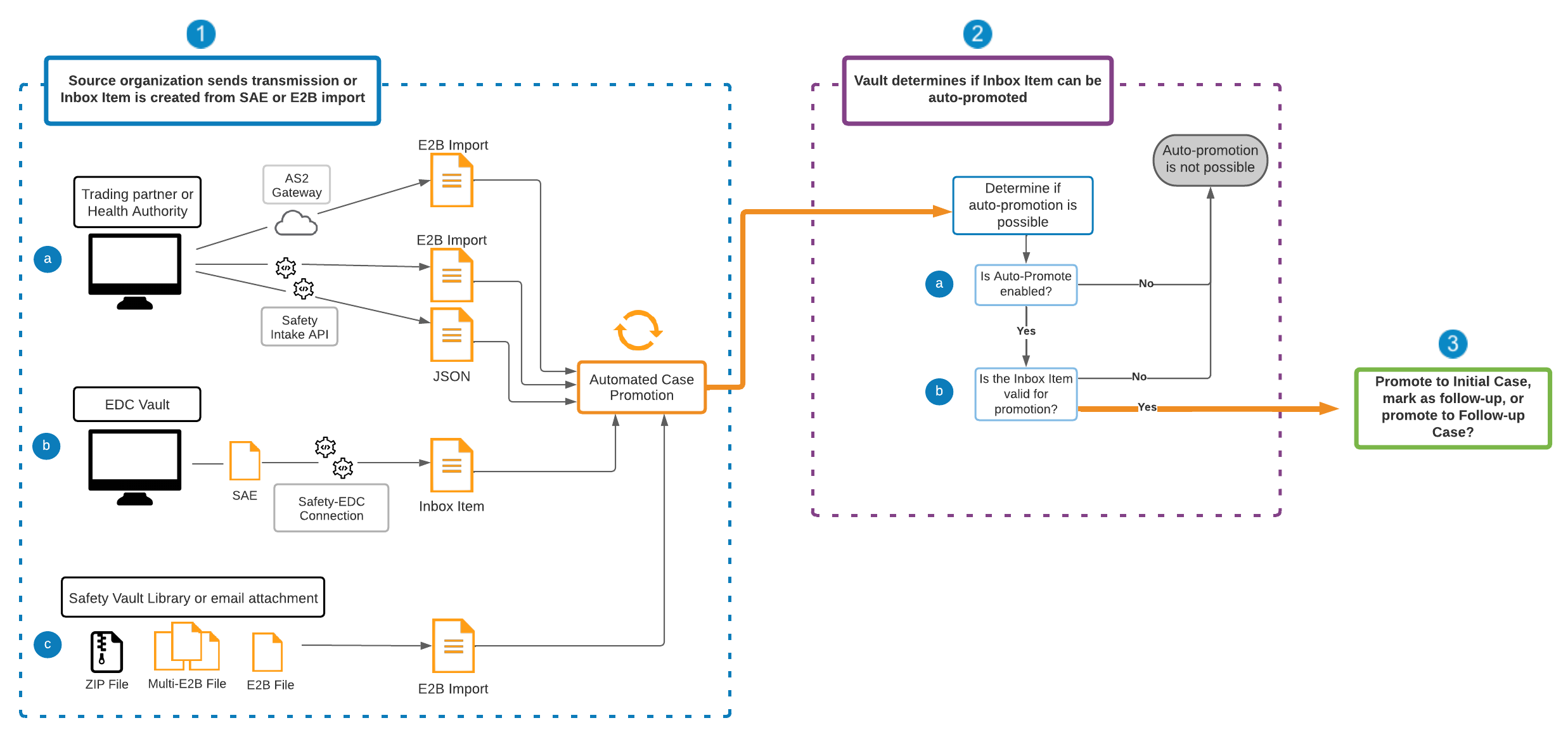
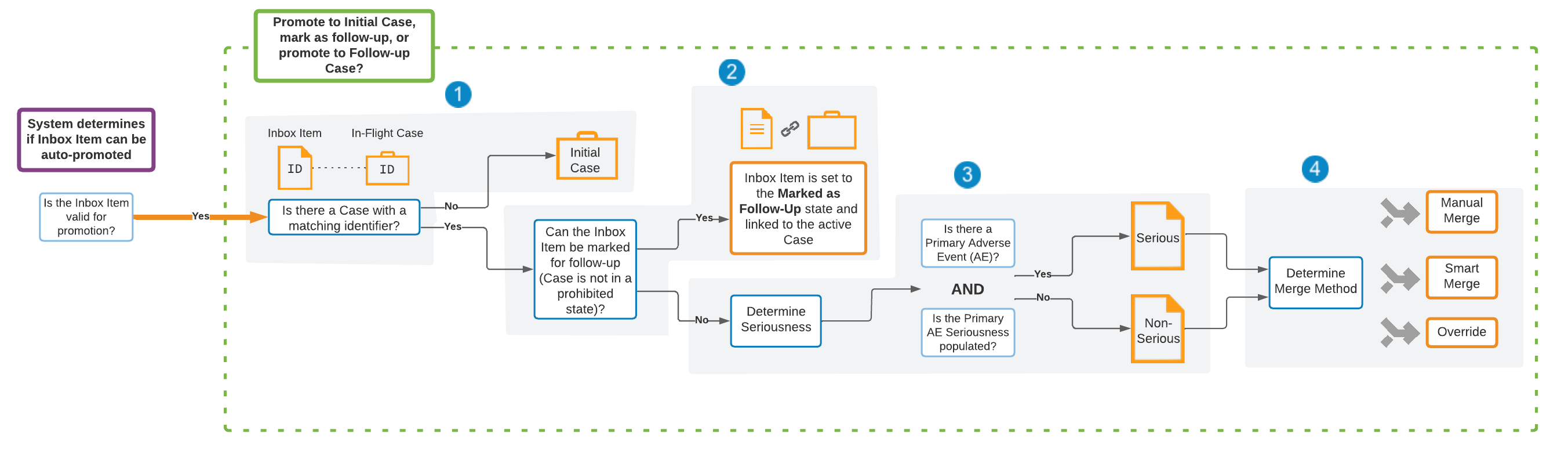
If the Inbox Item is eligible for automatic promotion, Vault moves the record to Processing state and determines if it should be promoted to an initial Case, marked as a follow-up for merge into an in-flight Case, or promoted to a follow-up Case.
- Vault performs duplicate detection and checks for any Case with a matching Case Identifier. If there is no matching Case, Vault promotes the Inbox Item to an initial Case.
- If there is a Case with a matching Case Identifier that is not in an Admin-defined prohibited state, Vault determines whether the Inbox Item can be marked as follow-up. If the Inbox Item can merge to the matching in-flight Case, Vault moves the Inbox Item to Marked as Follow-Up state and links it to the Case.
- If the Inbox Item cannot be marked as a follow-up, Vault determines if it can be promoted to a follow-up Case. First, it determines whether to treat the Case as serious or non-serious using the following criteria:
- Serious: The Inbox Item has a primary Adverse Event with a Seriousness value. The primary Adverse Event for E2B files is the first entry in the Reaction(s)/Event(s) section, which is E.I in E2B(R3) files and B.2 in E2B(R2) files.
- Non-serious: The Inbox Item does not have a primary Adverse Event or the Seriousness of the primary Adverse Event is blank.
- Vault determines if the Inbox Item can be created as a follow-up Case that is not in an Admin-defined prohibited state. If the matching Case is in a prohibited state, Vault moves the Inbox Item to the Promotion Failed state and links it to the Case.
- Vault proceeds with the merge method specified on the applicable Transmission Profile or source document.
Merge Methods
Vault includes the following merge methods for automatically promoting Inbox Items to follow-up Cases:
- Manual: After Inbox Item import, you must manually merge the Inbox Item into a follow-up Case.
- Smart: Vault creates a follow-up Case from both the Inbox Item and initial Case data using default merging behavior.
- Override: Vault creates a follow-up Case from only the Inbox Item data.
Manual Merge
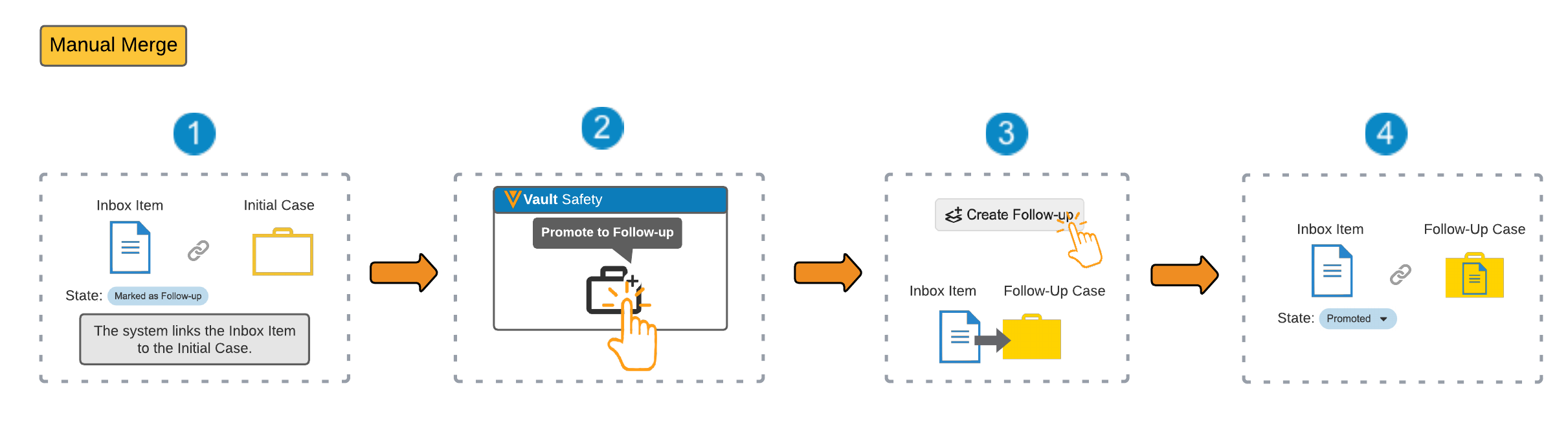
For manual merge method:
- Vault moves the Inbox Item to Marked as Follow-Up state and links it to the initial Case.
- Navigate to the generated Inbox Item and select Promote to Follow-up to open the Inbox Item to Case Compare page, where you can compare the two records and select any changes you want to make.
- Complete the Inbox Item to Case Compare page.
- Vault moves the Inbox Item to the Promoted state and links to this follow-up Case.
Smart Merge
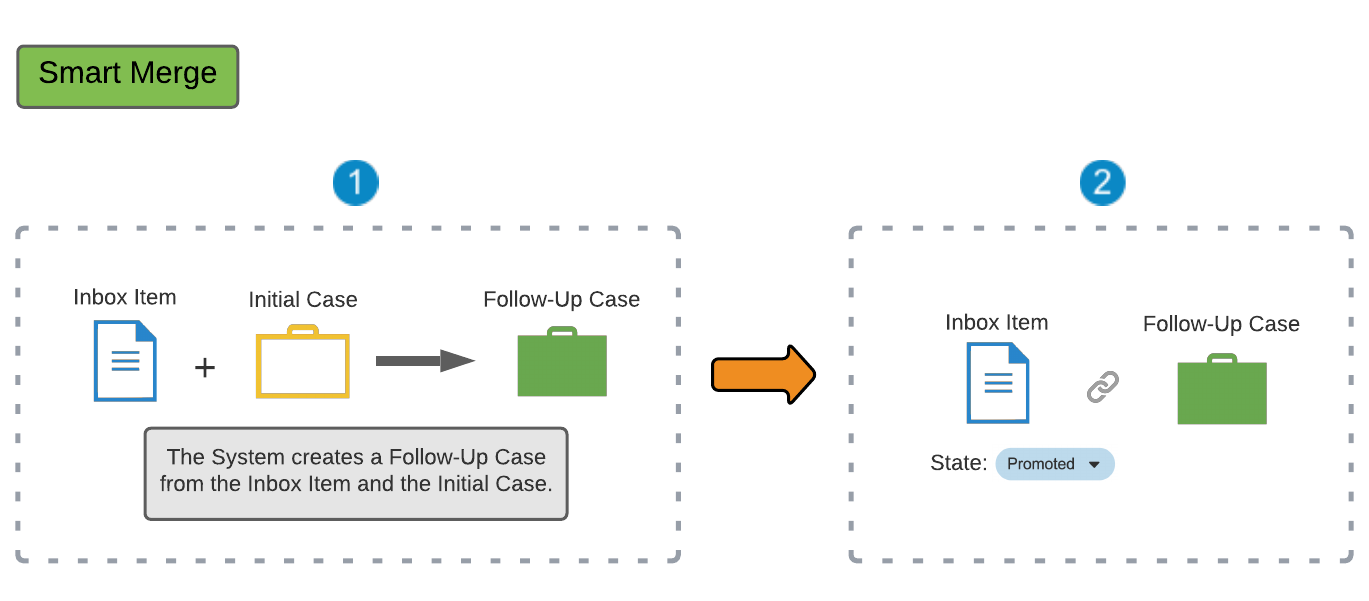
For smart merge method:
- Vault creates a follow-up Case from the Inbox Item and initial Case.
- Vault moves the Inbox Item to the Promoted state and links to this follow-up Case.
Override Merge
For override merge method:
- Vault creates a follow-up Case using only the Inbox Item (the follow-up Case is identical to the Inbox Item).
- If the initial Case has any narrative documents, Vault appends them to the generated narratives on the follow-up Case. Vault combines document references from the initial Case and Inbox Item on the follow-up Case.
- Vault moves the Inbox Item to the Promoted state and links to this follow-up Case.
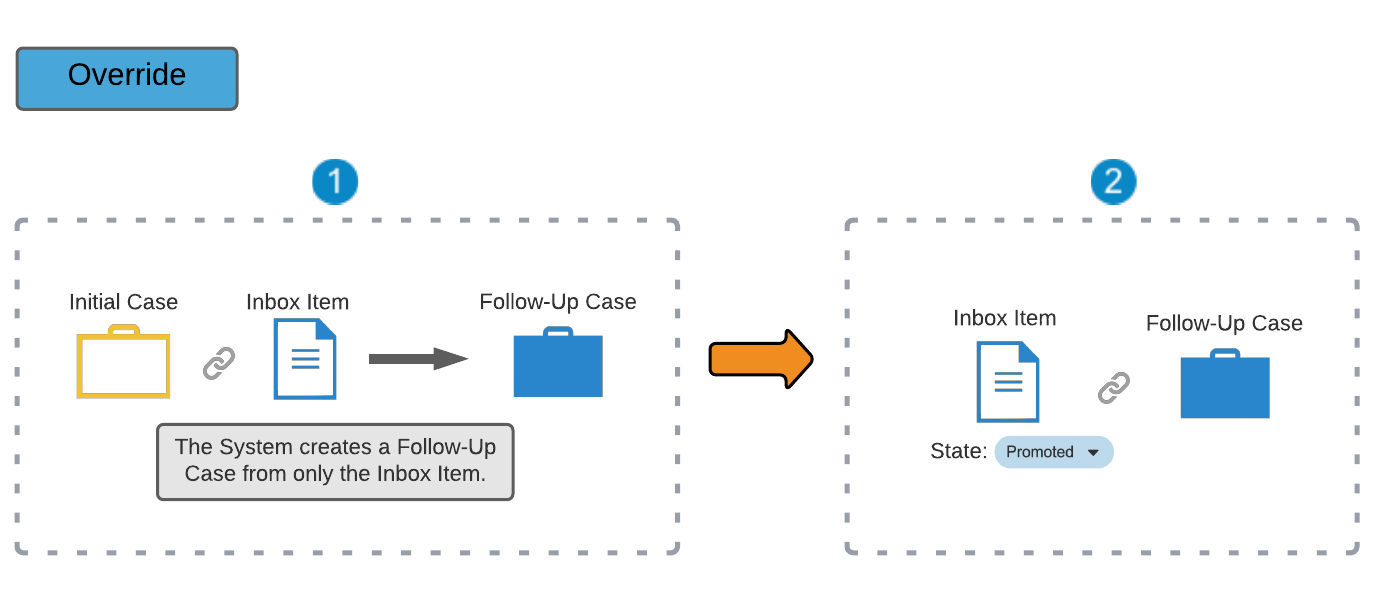
Note: When promoting a Global type Inbox Item matching a domestic Case using the override merge method, Vault carries over only the Inbox Item’s data, including the localized data. The override merge method creates a global follow-up Case instead of a domestic Case in this scenario.
Automated Case Promotion Failure
Vault notifies you of any errors found when attempting to automatically promote an Inbox Item. For certain imported Inbox Items, you can verify the data and review any validation issues. When promotion fails, Vault populates the Automation Message field on the Inbox Item with the failure reason. If Vault encounters errors, it moves the Inbox Item to one of the following states:
- Missing Information: Inbox Items enter the Missing Information state and the related Inbound Transmission enters the Validation Error state when any validation error occurs or there is no primary Company Product with a Rank of 1. Validation errors occur when an Inbox Item includes invalid data, such as a future date or missing values.
- Promotion Failed: Inbox Items enter the Promotion Failed state in the following scenarios:
- The matching Case is in a prohibited state and the specified merge method is Manual
- Multiple matching Cases exist
- The import includes multiple files with duplicate ID and New Info Date values
If an Inbox Item in the Promotion Failed state exists and any user imports a new Inbox Item that is eligible for automatic case promotion, Vault does not re-attempt to promote the existing Inbox Item in the Promotion Failed state.
Next Steps
If your Inbox Item fails automated promotion and moves to Missing Information or Promotion Failed state, we recommend ensuring it includes all data required to perform duplicate detection, then moving it to the New state so that you can manually promote it.