Web Intake Forms allow you to collect structured postmarketing data such as adverse event reports (AERs) directly from reporters, partners, and field representatives. Respondents can access on desktop and mobile devices and securely submit data without viewing or accessing any areas of your Vault. Vault then generates an Inbox Item from the submitted data.
Prerequisite
Your Admin must enable and configure Web Intake Forms.
How Respondents Access Forms
Respondents access Web Intake Forms using a URL based on your Admin’s configuration, which can be provided to respondents directly or accessed on your organization’s website depending on your business process. Upon opening the link, respondents are first routed to a verification page, which they must complete to access the form. By default, all form pages and emails display in English. When configured by your Admin, a language drop-down menu ( ) displays at the top right of the verification page. If a respondent selects a different language from the drop-down, all subsequent form pages and emails display in the selected language.
Veeva Safety provides the following access options for Web Intake Forms:
- Single Use forms with time-limited access for occasional respondents. These can be used for spontaneous adverse event reporting from patients, caregivers, and healthcare personnel.
- When a respondent visits the URL for a Single Use form, they must complete a CAPTCHA to proceed with the form.
- Repeat Use forms that require email verification for frequent respondents. These can be used for company field representatives and service providers who submit AERs or are contracted for partner support and market research programs.
- When a respondent visits the URL for a Repeat Use form, they must agree to the Admin-defined privacy notice and enter their email address for verification.
- If their email address domain is on the Admin-defined Allowed Email Domain List, Vault sends the respondent a Safety Form Email Verification email with a link to verify their email, which is valid for one hour.
- When the respondent selects the Verify my email link in the email, they are redirected to a page that confirms their email address has been verified. From that page, they must click on a link to access the form, which is valid for one hour.
- Vault then sends a Safety Form Access email to the respondent with a link to the form.
- If the respondent attempts to reaccess the form from a different device or browser from which they originally accessed, they must request a new verification link.
- Email access for a particular form lasts for 30 days of activity (after 30 days of inactivity, the respondent is prompted to verify their email again before completing the form).
How Respondents Submit Forms
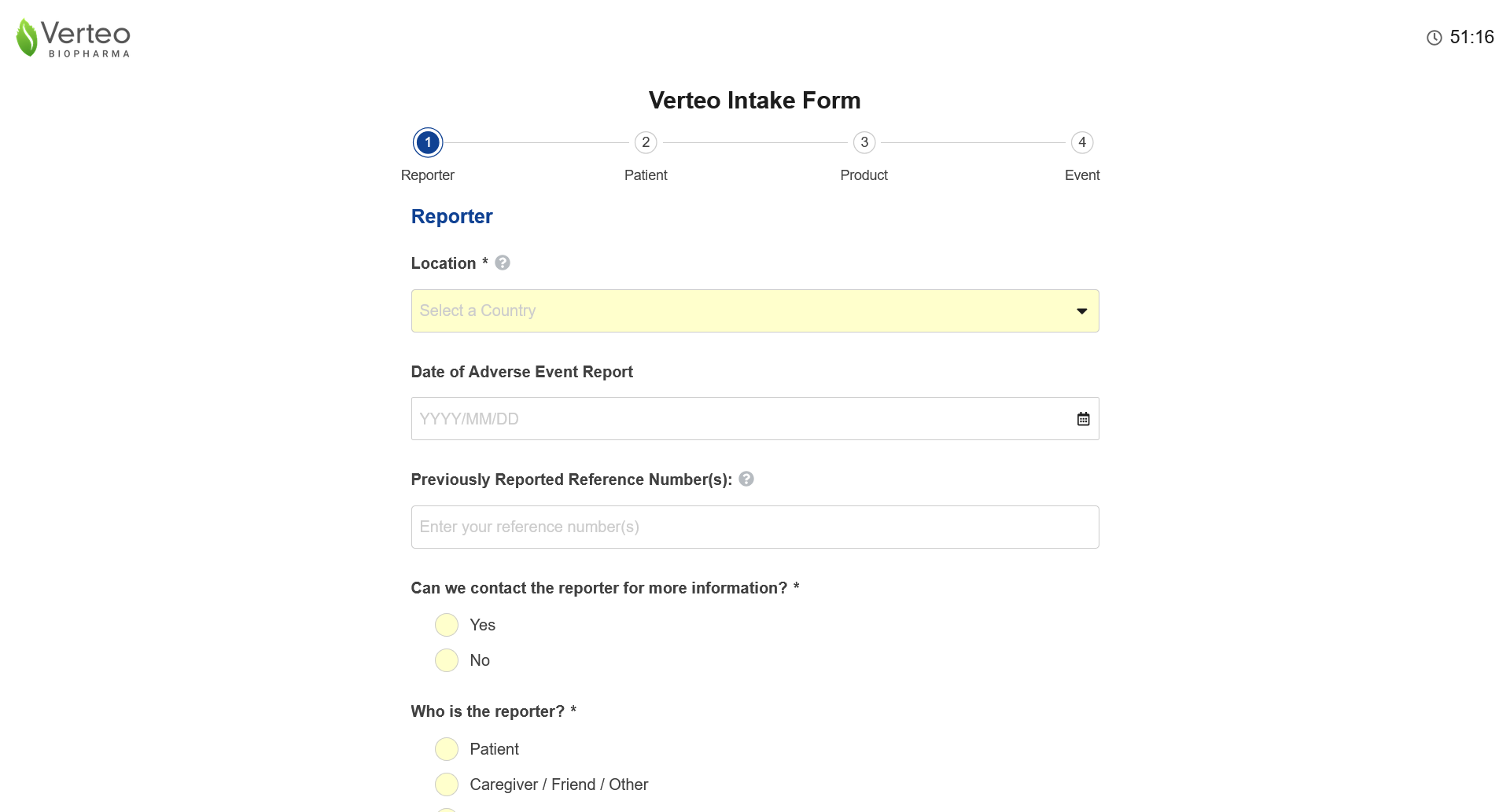
All Web Intake Forms display your organization’s logo based on your Admin’s configuration. Navigation steps appear at the top of the form for easy navigation between different sections on the form. Each respondent must agree to your organization’s privacy notice, as defined by your Admin, before they can submit their form. Respondents have one hour to complete a form, which begins at the time of form generation. The form page displays messages indicating when a respondent has 30 and 5 minutes remaining to submit their form. A countdown clock appears on the form for their reference.
When entering data, respondents can:
- Track and navigate through the form using the page number icons at the top of the page.
- Select caret icons to expand () or minimize () each section.
- Enter text in the Product Name field to display matching Products (and their aliases) associated with their organization.
- Navigate between pages for Product and Event sections with multiple entries.
- Add up to 100 products and 100 events. The Add Product and Add Event buttons become active when the respondent has populated all required fields for the current entry.
- For required radio buttons, select Clear Selection to remove the associated response.
- When configured by your Admin, respondents can upload up to five files of up to 10 MB each. Vault includes uploaded files in the Documents section of generated Inbox Items. Web Intake Forms support the following file formats:
- DOC
- DOCX
- JPG
- JPEG
- XLS
- XLSX
Data Validation
When respondents enter form data, Vault validates certain fields to ensure the generated Inbox Item contains appropriate values and prevents respondents from proceeding until all values are valid, including:
- Patient section:
- The Age at Onset cannot exceed 150 years
- The Height cannot exceed 250 centimeters or 98.425 inches
- The Weight cannot exceed 650 kilograms or 1433 pounds
- The Last Menstrual Period Date cannot be more than one day in the future
- Product section:
- Respondent must add at least one product
- Start Date cannot be later than End Date or more than one day in the future
- Event section:
- Start Date cannot be later than End Date or more than one day in the future
- Additional Information section:
- Date of Death cannot be before Start Date or End Date for any product or event
Respondents must resolve all errors before they can select the Review button and proceed to the Summary page. The page displays red descriptive text next to any field for which they must correct unresolved errors.
Summary Page
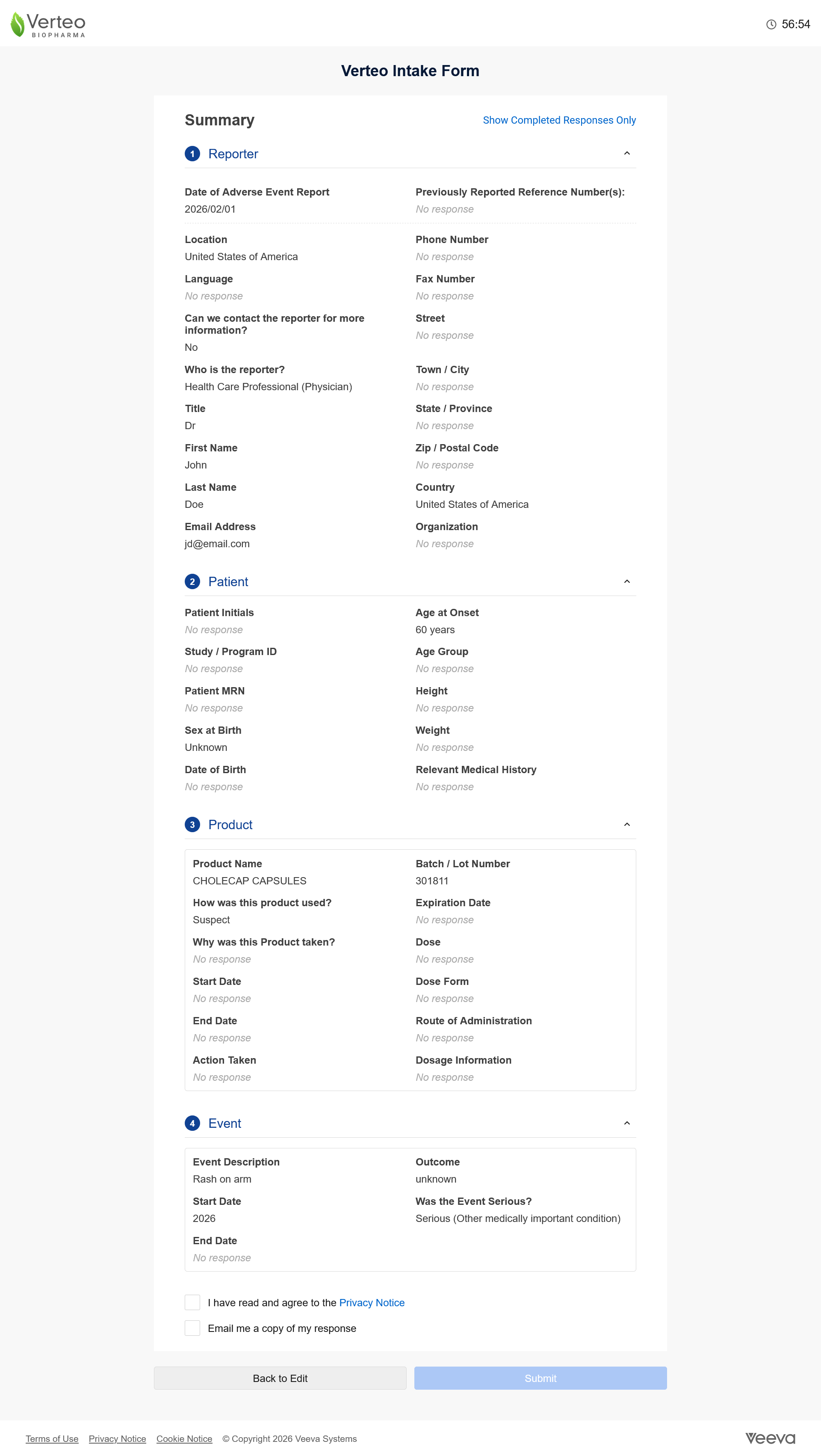
Before submitting a form, respondents can review their responses on the Summary page. On this page, they can:
- Filter the view to show only completed responses.
- Select caret icons to expand (
 ) or minimize (
 ) each section.
 - Go back to edit their entries.
- Request an emailed copy of their form.
Confirmation Page
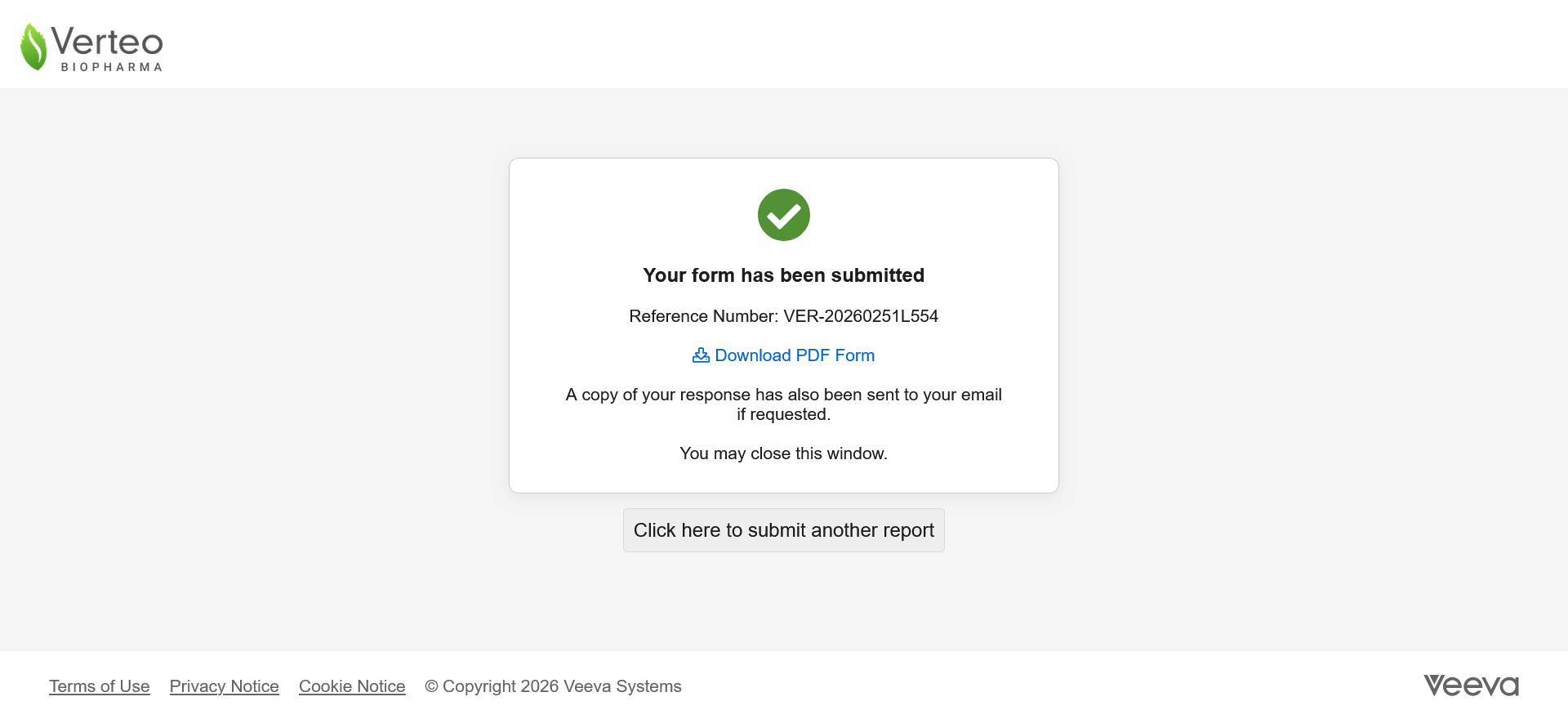
After submission, the Web Intake Form displays a confirmation message and reference number, which matches the Case Identifier value of the generated Inbox Item. Respondents can download the completed PDF form on this page.
Review Generated Inbox Items
Upon form submission, Vault generates an Inbox Item. You can modify the fields as needed and, when applicable, promote it to a Case. Vault populates fields on generated Inbox Items based on values entered by the respondent on the corresponding fields on the Web Intake Form. Vault also populates the following fields:
- Intake Method: Safety Form
- Intake Format: Data
- New Info Date: Depending on your Admin’s configuration, the date the form was created or the mapped value from the form
- Source Document: A PDF of the completed form, classified as Case > Source > Adverse Event Report (AER)
- Report Type: Based on your Admin’s configuration.
- Case Identifier: Vault-generated reference number, which includes the year and month the form was submitted and an Admin-defined prefix
- Type: Web Intake Form
- Documents: Any documents uploaded on the form, classified as Case > Source > Non Re-Transmittable Document