Note: Depending on your Vault’s creation date, Signal Investigation objects and fields may be labeled as Safety Investigation.
Signal Investigations in Veeva SafetyDocs investigate and evaluate events at the MedDRA term or MedDRA Query level that are associated with a medicinal product. A single Signal Investigation can capture multiple related adverse events and link to multiple Literature Articles. Additionally, a Signal Investigation can track safety issues for multiple Products and Product Families to monitor the primary Product as well as its concomitant or interacting Products.
Configuration Overview
Configuring your Vault to use Signal Investigations involves the following steps:
- Configure object layouts
- Configure object actions
- Configure the Evaluate Disposition workflow
- Configure user permissions
Note: Depending on your Vault’s creation date and which features are currently enabled and configured, some of the steps described in this article may be unavailable or already complete in your Vault.
Configuring Object Layouts
You must configure the following object layouts:
Configuring the Safety Investigation Object Layout
To update the Safety Investigation object layout:
- In the Details section, add the following fields:
- Description
- Due Date
- Validation Outcome Rationale
- Disposition Rationale
- In the Products section, edit the default columns to include:
- Name
- Safety Investigation
- Product Family
- Product
- Rank
- Before the Summary of Key Data section, insert the Safety Investigation Product related object section and populate the fields as follows:
- Section Label: Enter
Products - Creation Option: Select Create record in pop-up dialog
- Section Label: Enter
- After the Products section, insert the Safety Investigation MedDRA Event related object section and populate the fields as follows:
- Section Label: Enter
MedDRA Events - Creation Option: Select Create record in pop-up dialog
- Section Label: Enter
- After the PEC Periods section insert the Literature Data related object section and populate the fields as follows:
- Section Label: Enter
Literature - Creation Option: Select Create record in pop-up dialog
- Section Label: Enter
- In the Literature section, edit the default columns to appear as follows:
- Literature Data Unique Name
- Product Family
- MedDRA Term
- Literature Article
- Title of Article
- Keywords
- Abstract
- Reporting Period
- Current Disposition
- Current Disposition Date
- Detection Date
- Select Save.
Configuring the Safety Investigation MedDRA Event Object Layout
To update the Safety Investigation MedDRA Event object layout, in the Details section, remove the MedDRA Term field and add the MedDRA Term control field with the Slider ( ) icon.
Configuring the Safety Investigation Product Object Layout
Copy the Safety Investigation Product standard layout.
Configuring the Literature Data Object Layout
To update the Literature Data object layout:
- Copy the Literature Data standard layout.
- In the custom Literature Data layout, add the following fields to the Details section:
- Literature Article
- Title of Article
- Product Family
- Safety Investigation
- Literature Database
- Database Name
- Detection Type
- Reporting Period
- Product-Event Combination
- PEC Period
- MedDRA Term
- MedDRA Query
- Current Disposition
- Current Disposition Date
- Keywords
- Navigate to the List Layout tab and reorder the fields as follows:
- Literature Data Unique Name
- Product Family
- MedDRA Term
- Literature Article
- Title of Article
- Abstract
- Keywords
- Reporting Period
- Safety Investigation
- Select Save.
Configuring Object Actions
You must configure the following object actions:
Open Investigation Action
The Open Investigation action allows users to create a Safety Investigation from a PEC Period or Literature Article. To configure this action:
- Assign the Open Investigation action to the following objects:
- PEC Period
- Literature Article
- Add the action as a user action to the following states of the PEC Period object lifecycle:
- Active state:
- Condition Type: Select All conditions are met
- If: Select Safety Investigation > is blank
- Allow the following actions:
- Select Open Investigation
- Action Label: Enter
Open Investigation
- In Progress state:
- Condition Type: Select All conditions are met
- If: Select Safety Investigation > is not blank
- Allow the following actions:
- Select Open Investigation
- Action Label: Enter
Open Investigation
- Active state:
- Add the action as a user action to the applicable states of the Literature Article object lifecycle.
Open Investigation from Dispositions Action
The Open Investigation from Dispositions action allows users to create a Safety Investigation from multiple PEC Periods. To configure this action:
- Assign the Open Investigation from Dispositions action to the PEC Period object.
- Add the action as a user action to the following states of the PEC Period object lifecycle:
- Active state:
- Condition Type: Select All conditions are met
- If: Select Safety Investigation > is blank
- Allow the following actions:
- Select Open Investigation from Dispositions
- Action Label: Enter
Open Investigation from Dispositions
- In Progress state:
- Condition Type: Select All conditions are met
- If: Select Safety Investigation > is not blank
- Allow the following actions:
- Select Open Investigation from Dispositions
- Action Label: Enter
Open Investigation from Dispositions
- Active state:
Configuring the Evaluate Disposition Workflow
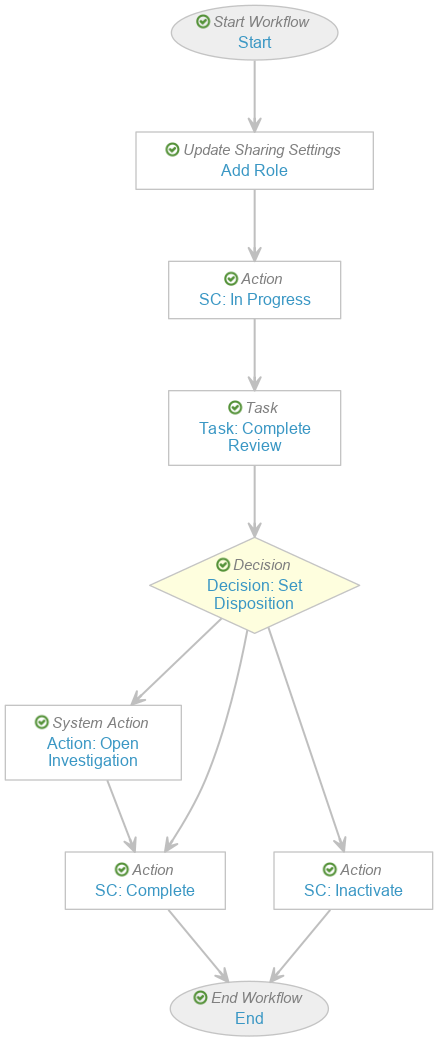
To update the Evaluate Disposition object workflow:
- In the Workflow Steps section, select the Decision: Set Disposition decision step and update Rule 1 as follows:
- If: Select Task > Task: Complete Review > at least one label equals > Needs Investigation
- then: Select Create Step
- In the Create Step dialog, enter
Action: Open Investigation
- Update the Action: Open Investigation action step as follows:
- Type: Select System Action
- Next Steps: Select SC: Complete
- System Action: Select Open Investigation
- Activate the workflow.
Configuring User Permissions
You must ensure users have the appropriate read and create permissions to access the appropriate objects and object fields in addition to the permissions outlined below:
- On the custom Signal Management permission set for the Literature Article object, grant Read, Create, Edit, and Delete permissions
- Under the Object Action Permissions section, grant View and Execute permissions for the Open Investigation action
- On the custom Signal Management permission set, navigate to the Application tab and select the Bulk Action checkbox for objects to allow users to create a Safety Investigation from multiple PEC Periods
- On the applicable permission set for the Safety Investigation MedDRA Event object, grant Read, Create, Edit, and Delete permissions
- Under the Object Control Permissions section, grant View permissions for the MedDRA Term field
- On the applicable permission set for the Safety Investigation Product object, grant Read, Create, Edit, and Delete permissions