After promoting an Inbox Item to a Case, Vault copies all data from the source Inbox Item to the appropriate fields on the Case and child records. Consider the following when processing Cases:
- If your Admin has configured your Vault to isolate blinded Product information on Clinical Trial Study Cases, see Isolate Blinded Clinical Trial Information for additional considerations during Case processing.
- Cases involving pregnancy, parents, and children include additional sections and fields. For more information, see Process Pregnancy Cases, Child Information & Parent Information.
- When processing Cases that may be reportable to the PMDA, see Complete Intake and Process Cases for the PMDA for regionally specific features in Vault.
- When entering data, picklist field values are accent-sensitive. Entering a value with an accent prioritizes results with accents.
Within many sections of a Case record, you can select Create to manually add related records. For information on specific Case fields, including in sections not described on this page, see Case Field Reference.
Prerequisites
To support Case processing, your Admin can enable the following:
- For some device detail fields to appear for Cases with Combination Products, see Enable Combination Products.
- To enter remedial actions and malfunctions on Cases with one or more device constituents, see Enable Remedial Actions and Malfunction for Combination Products.
- To lock Cases to prevent changes, see Enable Manual Case Locking: User Check In and Check Out.
- For Vault to consider Case Products with a Drug Role of Drug Not Administered as suspect, see Enable Extend Definition of Suspect to Drug Not Administered.
- To code device-specific adverse events using the International Medical Device Regulators Forum (IMDRF) dictionary or the FDA device code and NCI Thesaurus (NCIt) concept code equivalents, see Enable the IMDRF Dictionary for Maintenance, Case Processing, and Submissions.
- For clearer study product blinding labels, see Enable Product Masking Selection for Study Products.
- To capture substance data for EMA E2B(R3) section D.8.r.EU, update the Case Drug History Substance layout.
Report Details Section
For some device fields to appear, the Case must have a Case Product that is a Combination Product. Use the following Report Details fields to specify this information about device-type Case Products:
- Device Report Type
- Device Report Type (Status)
- Malfunction Only
- Device Follow-Up Type
- Remedial Action
- Remedial Action-Other
When you enter Remedial Action and Malfunction at the Case Product level, Vault syncs this device-specific information to the Case level. This is useful for Cases that involve multiple Combination Products or Combination Products with multiple device constituents.
Study Section
When the Report Type of the Case is Study, the Study section appears on the layout for entering information about the Study the patient is enrolled in. If the Inbox Item identifies a Study, Vault populates the Study section upon promotion based on the Study configuration and data.
Note: You cannot change a Study Arm on a Case once it has been promoted from an Inbox Item.
Blinding Details
The following Study section fields describe the blinding settings active on a Case Product:
- Study Blinded
- Case Blinded
- Blind Protection
- Masking
These values are informational and read-only. By default, these fields appear only if the Study associated with the Case is double-blinded. Manage Case Blinding provides information about unblinding Cases.
Study Registrations Section
When the Report Type of the Case is Study, the Study Registrations section appears on the layout for entering registration information about the Study the patient is enrolled in. When you select a Study in the Study section and save the page, Vault adds each registration configured under the associated Study in Business Admin.
Vault may update or populate Case Study Registration data in the following scenarios:
- When you create a follow-up Case from a Case or non-E2B-imported Inbox Item, Vault populates the Study Registrations section on the follow-up Case with the latest registration data from the Study library.
- When you merge an E2B-imported Inbox Item to an in-flight Case or promote it to a follow-up Case, Vault maps the Inbox Item’s Study registration data to the Study Registrations section on the in-flight Case.
- After automated Case promotion for Inbox Items imported from E2B or JSON, Vault populates the Study Registrations section on the follow-up Case with the Inbox Item Study registration data.
Contacts Section
When you promote an Inbox Item to a Case, Vault copies the reporter and patient information to create Case Contacts.
Types of Case Contacts
The following list describes the types of Case Contacts:
- Reporter: Captures information about the person who reported the Case. A Reporter type of contact is created for patients or health care professionals who are also the reporter.
- Patient: Captures information about the patient.
- Health Care Professional: Captures information about the health care professional who treated the patient for the adverse event that resulted in hospitalization or treatment.
- Base Case Contact: Captures information about contacts who are not reporters, patients, or health care professionals who have information relevant to the adverse event.
- Facility: Captures information about the facility where a vaccine dosage was administered. A Case Product Dosage can then reference a Facility record using the Administration Facility field.
- From Inbox Item promotion, the Facility type of Case Contacts are created only through the Intake Vault API from JSON files.
When imported Inbox Items include sender information, Vault adds those details to the Inbound Transmission.
How Vault Creates and Updates Case Contacts
On each new Case, Vault creates a Reporter type of Case Contact, using data from the Inbox Item contact information. Vault also copies patient information to the Reporter type of contact when the patient is also the reporter. If the patient was not the reporter, Vault creates a separate Patient type of Case Contact. Vault determines whether the patient is also the reporter using the Patient value specified in the Reporter Qualification field on the Inbox Item.
Note: Each Case must have a primary Reporter type of Case Contact. As such, you cannot delete a primary Reporter record. If a primary Reporter must be deleted, you can designate a different Reporter as primary using the Rank field, and then delete the non-primary Reporter.
When the Patient is the Reporter
Note: If the Qualification controlled vocabulary record corresponding to Patient is inactive, contact your Admin to make this Qualification option available.
If the Reporter Qualification is Patient, Vault:
- Considers the patient the primary reporter.
- Does not create a Patient type of Case Contact.
- Populates the patient information fields on the primary Reporter Case Contact.
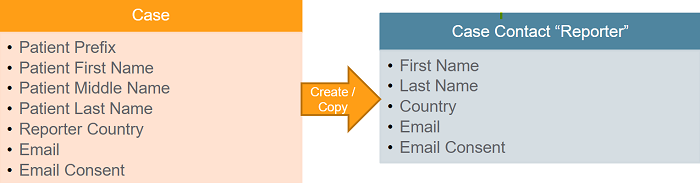
- Updates the corresponding fields on the primary Reporter Case Contact any time the Patient name fields are updated on the Case.
When the Patient is Not the Reporter
If the Reporter Qualification is not Patient, Vault:
- Creates a Patient type of Case Contact record in addition to the Reporter Case Contact.
- Populates the patient information fields on the Patient Case Contact

- Updates the corresponding fields on the Patient Contact any time the Patient name fields are updated on the Case. You can have only one Patient Contact per Case.
If the Inbox Item did not specify these fields and they are later added to the Case directly, Vault copies the patient name fields from the Inbox Item to create a new Patient Contact.
Products Section
Use the Products section to enter information about suspect and concomitant medications, including products suspected to have an interaction. For Cases under a Study, this section label appears as Products (Study). When you promote an Inbox Item to a Case, Vault copies the product information to create the primary Case Product record using the appropriate product type:
- Company Product (Drug, Biologic, Device, Vaccine, or Company Product): If a Product from the company library was selected on the source Inbox Item, then Vault creates the Case Product of that type.
- Study Product: If the Inbox Item specified a Study, then Vault copies the Study Products to the Case.
- External Product: If the Inbox Item does not link to a preconfigured Product, Vault adds the product details as an External Product.
- Combination Product: Following promotion of an Inbox Item with a Combination Product, Vault adds each constituent as a separate Case Product. Each constituent Product inherits the Combination Product Drug Role.
Note: If an Inbox Item was promoted with a constituent product in error, you can edit the Combination Product field of the Case Product. Vault automatically adds the related constituent products as separate Case Products.
When you add a Product that is configured in the Product Library, Vault populates the Product details on the Case. For information on coding products based on the reported Product, see Auto-Code and Browse Products.
About Company Products
The Company Product type of Company Product is used when a product has multiple Product Type registrations to meet agency reporting requirements. When Company Product is selected, the Transmission Product Type on the Registered As field from the Product Registration is copied to the Product Globally Registered As field. Available Transmission Product Types include the following:
- Drug
- Biologic
- Device
- Vaccine
- Nutritional
- Cosmetic
- OTC Drug
- OTC Device
- Combination Product
Note: Your Vault may not be configured to display the Globally Registered As field, which is intended for Admin use only.
When you create a Company Product record, the sections and fields included are based on the Product Types in the associated Product Registrations. For example, the Device Information section appears only when the Company Product is registered as a device in at least one jurisdiction.
Delete a Case Product
If configured by your Admin, when you delete individual Case Products, Vault also deletes the following related records:
- Case Product Dosage
- Case Product Indication
- Case Product Device Code
- Case Product Similar Incident
- Case Product Substance
- Case Assessment
- Case Assessment Result
- Case Assessment Expectedness
- Signal Individual Case Review (applies only to Safety Signal)
Each Case must have a primary Case Product. As such, you cannot delete a primary Case Product. If you have to delete a primary Case Product, you can designate a different Case Product as primary using the Rank field, and then delete the non-primary Case Product.
If configured by your Admin, when you delete a Case Product on a Case with a Localized Case, Vault deletes the related Localized Case Product and its related records. For Japan Localized Cases, Vault follows the same process as when deleting Case Product Registrations and the related records.
Note: You cannot delete Case Products and their related records using bulk delete or Vault Loader. You must delete Case Products individually.
Dosages Subsection
Use the Dosages subsection to add, edit, or delete dosage and route of administration regimens for a Case Product. By default, this section does not display for Device type of Case Products or Study Products associated with a double-blinded Study. When there are no Dosage records, the Case Product Dosage section appears blank. To create a Dosage, select Edit on the Case Product page.
To create additional dosages for a Case Product, select the Add Dosages button. After saving the page, Vault displays dosages in order of the earliest to latest First Admin Date. You can also copy a Dosage record and any inputted data by selecting the Copy ( ) icon. To mark a Dosage record for deletion, select the Delete (
 ) icon.
Note: After adding 10 dosage entries, Vault disables the Add Dosages and Copy buttons. You must save the page if you want to add more Dosage records. When there are 11 or more dosages, use the left and right arrows to move through the pages.
Case Combination Products
Selecting the Case Combination Product link on a Case Product opens the Case Combination Product detail view. This enables you to:
- Review the Combination Product.
- Review the Product Type of the Combination Product (Post-market or Study).
- Review all constituent products, which display in the Case Product Constituents section.
- Recode the Combination Product if needed.
Recode a Combination Product
The Case Combination Product detail view supports fast, centralized Combination Product recoding. To recode, select Edit and update the Combination Product field. When you recode, Vault:
- Updates the Combination Product on all existing Case Product Constituents.
- Adds the Combination Product to previously existing Case Products with blank Combination Product fields that are constituents of the newly coded Combination Product.
- Generates Case Products for any newly added constituent products.
To prevent data loss, Vault does not delete any Case Product Constituents that are not constituents of the newly coded Combination Product.
Manage Non-Constituent Products After Recoding
After Combination Product recoding, you can manage Case Products that no longer apply as constituent products. In scenarios where you have not entered data on non-constituent Case Products, you can clear them all from the Case Product Constituents section in a single action. From the All Actions menu, select Remove Non-Constituent Products.
In scenarios where a leftover Case Product includes data you want to keep, you can manually reassign it to an applicable constituent product and delete the related blank Case Product Constituent. Consider the following example:
- Before recoding: Combination Product A (CP-A) includes Case Product Constituents N1, N2, N3
- After recoding: Combination Product B (CP-B), includes Case Product Constituents N2, N3, N4
In this example, N1 is no longer a valid product constituent, but you want to retain its data, which applies to product constituent N4. To transfer the data:
- On the N1 record, select the Name to open the Case Product detail view.
- Select Edit, update the Product value to N4, and then select Save.
- Return to the Case Combination Product detail view, where two N4 records display.
- On the N4 record without the data, from the Actions menu, select Delete.
Delete Case Combination Products
Vault manages Case Combination Product record deletion as follows:
- If you delete the last remaining constituent Case Product for a Combination Product, Vault deletes the associated Case Combination Product record.
- If you delete a Case Combination Product record, Vault deletes all Case Product records that reference the related Combination Product. You cannot delete Case Combination Products that reference constituent Case Products with rank 1.
Device Codes Section
Use the Device Codes subsection to add Case Product Device Codes under a Device-type Case Product. For Case Product Device Codes generated from a Case Assessment Result evaluated as related to a device, Vault populates IMDRF and MedDRA data based on the MedDRA term coded to the related Case Adverse Event.
Substances Section
Use the Substances subsection to add Substances under a Case Product. Substance records specify the active substance and strength in the product. By default, this section appears only for External Products and open or single-blinded Study Products.
Case Product Similar Incident Section
When generating reports in the EU MIR format, the Case Product Similar Incident subsection captures information about similar incidents based on region and time period. Depending on your Admin’s configuration, Case Product Similar Incident records may be generated automatically or manually. To generate them manually, from the All Actions menu, select Generate Similar Incident Records.
If no other Case Product Similar Incident records exist, after running the action, Vault generates twelve records, one for each region and time period pair. After record generation, you can enter the market and similar incident data on each record.
Registration Subsection
Use the Registration subsection to add license and registration details for a Case Product. By default, this section does not appear for blinded Study Products.
If the registration details are already configured in the Product library and you select that Product Registration in the Case Product Details section, Vault automatically populates data in the Registration section.
The following related sections are available only for processing Cases that may be reportable to the PMDA:
- Case Product Registrations
- Local Reporting Details
- PMDA Reportable Products
- Case Comments
For information on these sections, see Complete Intake and Process Cases for the PMDA.
Events Section
Use the Events section to add Case Adverse Events with details of each adverse event. For Cases with SAEs transferred from the Safety-EDC Connection, you can run the Add Relevant Subject Information action to add the applicable subject information to the Case.
Delete a Case Adverse Event
When you delete individual Case Adverse Events, Vault also deletes the following related records:
- Case Assessment
- Case Assessment Result
- Case Assessment Expectedness
- Depending on your Admin’s configuration, Case Product Device Code (if generated from a Case Assessment Result evaluated as related to a device)
Each Case must have a primary Case Adverse Event. As such, you cannot delete a primary Case Adverse Event. If you must delete a primary Case Adverse Event, you can designate a different Case Adverse Event as primary using the Rank field, and then delete the non-primary Case Adverse Event.
If configured by your Admin, when you delete a Case Adverse Event on a Case with a Localized Case, Vault deletes the related Localized Case Adverse Event and its related records.
Note: You cannot delete Case Adverse Events and their related records using bulk delete or Vault Loader. You must delete Case Adverse Events individually.
Diagnoses Section
Use the Diagnoses section to combine signs and symptoms that were reported into a single Case Diagnosis, if required.
By default, the Diagnoses section does not appear until the Case is in the Medical Review state.
Causes of Death Section
Use the Causes of Death section to enter the details about the reported and autopsy-determined causes of death. The Causes of Death section appears if at least one of the following conditions are met:
- The Date of Death field has a value
- A Seriousness field value on a Case Adverse Event for the Case contains Results in Death
Medical Assessments Section
The Medical Assessments section provides a centralized view of all assessment data for a Case. Use this section to review and update:
- Case Assessment fields: Display the assessed relationship between Case Adverse Events and Case Products with an eligible Drug Role and assessments of Product Quality Complaints (PQCs).
- Case Assessment Result fields: Support entering the assessed relationship between the adverse event and product pair from individual sources.
- You can enter additional comments about the assessment in the Company Comments field in the Narrative section.
- Case Assessment Expectedness fields: Display the evaluated expectedness of Case Adverse Events.
Note: If an E2B-imported case contains an assessment for an adverse event or suspect product with an unknown link, Vault labels the assessment with UNK.
For more information on Case Assessments, Case Assessment Results, and Case Assessment Expectedness, see Generate Assessments.
Documents Section
Use the Documents section to add and manage documents linked to a Case, including the source report, narrative, attachments, literature, and other relevant documents. For Cases and Localized Cases linked to Literature Articles in your SafetyDocs Vault, Vault adds the related literature documents to this section.
To include document descriptions or contents in E2B transmissions, Case documents must meet specific criteria.