Safety supports advanced product match coding verification. When an intake user imports a structured source file to an Inbox Item, Vault performs product matching for Company Products with a Drug Role evaluated as suspect using your configured criteria. Depending on your configuration of this feature, Vault performs this match for just the primary or the first 500 imported Company Products with an applicable Drug Role.
Vault verifies whether imported Inbox Items meet the product coding criteria and determines whether to proceed with product matching.
Prerequisite
You must configure Company Product Match Verification for imported Company Products with a Drug Role evaluated as suspect on Inbox Items.
Must Match and Should Match Confidence Outcomes
When importing a structured source file to create an Inbox Item, Vault verifies whether the reported product matches a Product Registration. Depending on your configuration, verified values may include Country, Route of Administration, and Dose Form. If the product’s Country Obtained value is blank, Vault attempts to match the Country using the primary reporter’s Country.
Based on your configured Must Match and Should Match fields, Vault checks which reported product details match a Product Registration and populates a Product Match Confidence on the Inbox Item as follows:
- 1-Exact Match: Any of the following IDs match:
- MPID
- PhPID
- Registration Number
- 2-Confident Match: All Must Match and Should Match fields contain values, and all those values match a single Product Registration.
- 3-Likely Match: All Must Match fields contain values, and all those values match a single Product Registration, but at least one Should Match field is blank.
- 4-Unlikely Match:
- All Must Match and Should Match fields have values, but at least one Should Match field does not match the Product Registration common to the Must Match fields.
- At least one Must Match field is blank or does not match the Product Registration common to the other fields.
- The best match is a deprecated Product Registration.
- 5-Unknown: There are no configured Must Match or Should Match fields.
- 6-No ID or Name Match:
- The Inbox Item does not specify any ID (MPID, PhPID, or Registration Number).
- The Product Name on the Inbox Item does not match a Product.
Product Match Verification Diagrams
The diagrams in this section illustrate how Vault Safety determines whether to auto-code the Inbox Item Company Product. Review the sections below to learn about successful and unsuccessful Company Product matches.
Successful Match
The following diagram illustrates a successful Company Product match:
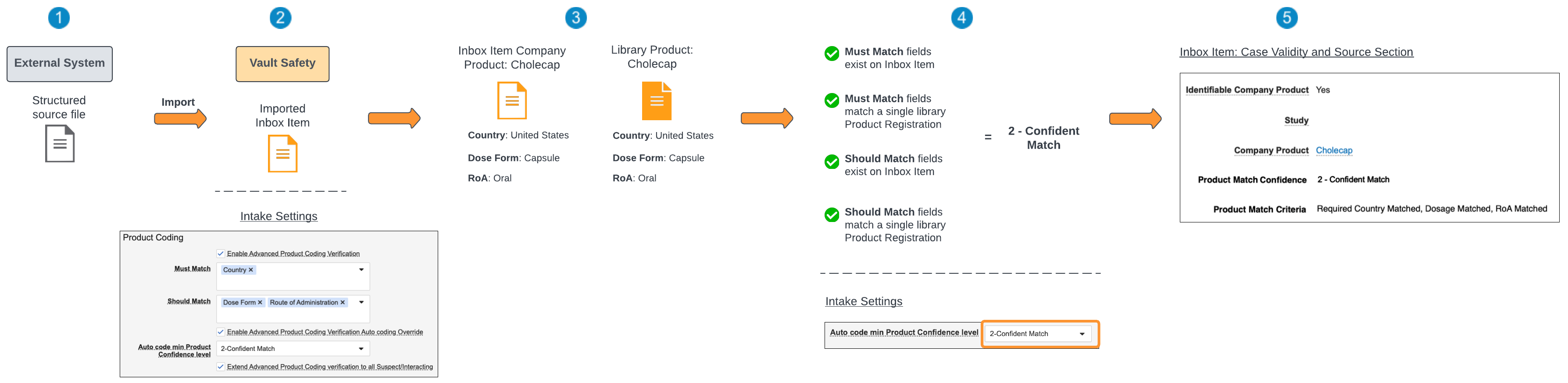
 Import the structured source file from an external system to Vault.
 On the Admin > Intake Settings page, the Product Coding criteria are as follows:
- Must Match: Country
- Should Match: Dose Form and Route of Administration
- Auto code min Product Confidence level: 2 - Confident Match
From the Must Match and Should Match Confidence Outcomes, achieving a 2 - Confident Match requires that all Must Match fields and Should Match fields exist on the Inbox Item and match a single Product Registration.
 Vault attempts to match the Company Product on the Inbox Item to a library Product by comparing the registration information.
 Vault determines the Must Match and Should Match fields exist on the Inbox Item and these fields match a Product Registration in the Product library. The resulting Product Match Confidence is therefore 2 - Confident Match.
On the Intake Settings page, the Auto code min Product Confidence level was set to 2 - Confident Match.
 Since the Vault-determined Product Match Confidence met the confidence level threshold set by your Admin, the Inbox Item Company Product can be auto-coded to the library Product.
Unsuccessful Match
The following diagram illustrates an unsuccessful Company Product match:
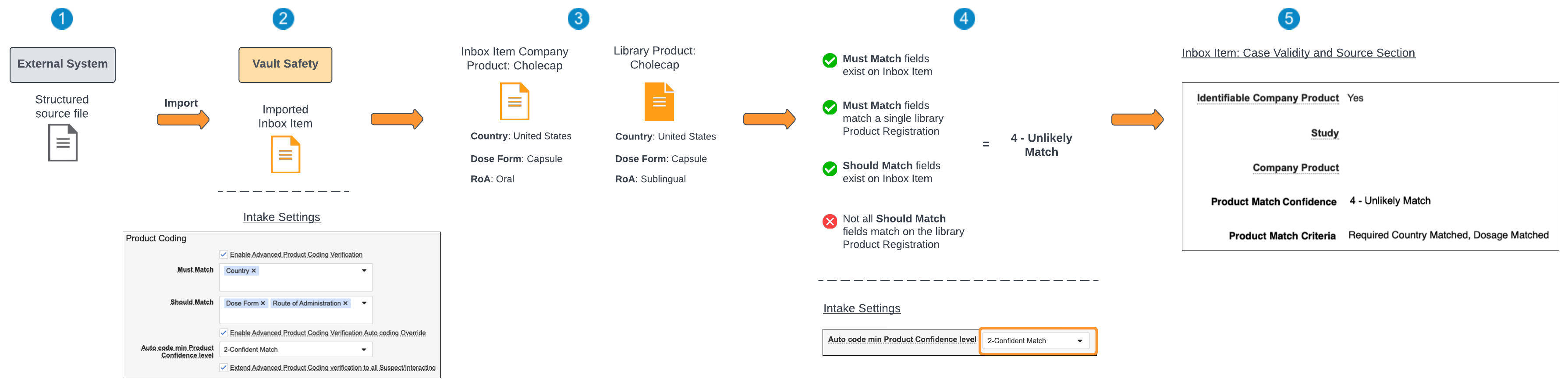
Import the structured source file from an external system to Vault.
On the Admin > Intake Settings page, the Product Coding criteria are as follows:
- Must Match: Country
- Should Match: Dose Form and Route of Administration
- Auto code min Product Confidence level: 2 - Confident Match
From the Must Match and Should Match Confidence Outcomes, achieving a 2 - Confident Match requires that all Must Match fields and Should Match fields exist on the Inbox Item and match a single Product Registration.
Vault attempts to match the Company Product on the Inbox Item to a library Product by comparing the registration information.
Vault determines the Must Match fields (Country) exist on the Inbox Item and match a library Product Registration. However, although all the Should Match fields (Dose Form and RoA) exist on the Inbox Item, one (1) of them (RoA) does not match that on the library Product Registration. The resulting Product Match Confidence is therefore 4 - Unlikely Match.
On the Intake Settings page, the Auto code min Product Confidence level was set to 2 - Confident Match.
Since the Vault-determined Product Match Confidence did not meet the confidence level threshold set by your Admin, the Inbox Item Company Product field is left blank.