You can configure Web Intake Forms in accordance with your organization’s branding, which respondents can access on desktop and mobile devices for postmarketing data collection such as adverse event reports (AERs). Vault generates a public access link (PAL) for each form, allowing respondents to securely submit data without viewing or accessing any areas of your Vault. When a respondent submits a form, Vault generates an Inbox Item from the submitted data based on Veeva-defined field mappings as well as a Web Intake Form record linking to the Inbox Item.
Note: This feature uses strictly necessary cookies. Collection and use of cookies during form submission is subject to data privacy regulations for various regions, such as General Data Protection Regulation (GDPR). We recommend reviewing cookie consent regulations for the specific jurisdictions in which you intend to collect data to ensure your use of this feature complies with all applicable laws.
Vault includes the following access options for Web Intake Forms:
- Single Use forms with time-limited access for occasional respondents. These can be used for spontaneous adverse event reporting. These forms require respondents to complete a CAPTCHA.
- Repeat Use forms that require email verification for frequent respondents. These forms require respondents to verify their email address before they can access a link to the form. Email verification for a particular form lasts for 30 days, after which a respondent will be prompted to verify their email again before completing the form.
Prerequisites
Before you can configure this feature in your Vault, you must complete the following:
- Enable Web Intake Forms
- Configure Case Access Group security
- Optional: We recommend configuring a custom outbound domain for emails Vault sends respondents, including a From Email Person type of Person you can select for Safety Form Admins.
Configure Product Aliases
To allow respondents to select from a product’s aliases when adding products to a form, you must create the applicable Product Aliases. Ensure the Alias Type value of the Product Alias records is Trade Name. As respondents enter text in the Product Name standard Form Field, the drop-down displays matching Product Aliases associated with their Organization (as specified in the Safety Form Admin). The drop-down does not display duplicate values.
Create Organizations
You must create the applicable Trusted Vendor types of Organizations that will submit Repeat Use types of Web Intake Forms.
Define Allowed Email Domain Lists
You must add all email domains to your Vault’s allowed email domain list for all vendors for which you will configure Repeat Use types of Safety Form Admins:
- Navigate to Business Admin > Objects > Allowed Email Domain Lists.
- Select Create.
- Select the applicable Trusted Vendor.
- Enter the Email Domain of the selected Trusted Vendor. For example, enter
veepharm.com. - Select Save.
If a respondent attempts to verify their email address with an email address from a domain without an Allowed Email Domain List record, Vault does not send a follow-up email for that respondent to continue with a Web Intake Form.
Each time a respondent verifies their email address for a Repeat Use form, Vault creates or updates a Verified Email ID with details about the associated form and last active session, with associated Verified Email ID Email Events. Vault inactivates Verified Email IDs after 30 days of inactivity.
Form Designs
Form Designs define the page respondents see when they access the form. Veeva provides standard form components that reflect standard questions for collecting AER details and you can create custom records for certain components. Fields and answers map to corresponding Inbox Item sections and fields so that generated Inbox Items include data from submitted forms. Design components include:
- Form Sections: Pages available for data entry on the form, including:
- Respondent
- Patient
- Product
- Event
- Additional Information
- Documents
- Form Fields: Questions available for respondents to answer
- Form Answer Selections: Answers available for the Form Fields
- Section Field Groups: Define which Form Fields display in each section
- Conditional Field Display Rules: Define the display and requiredness conditions for certain Form Fields
Note: You cannot create custom Form Sections.
Form Fields
Vault provides standard Form Fields for your use in Form Designs, which you must update to the Standard object type so that Vault generates records for each new Form Design. You can also create custom records for certain supported field types for fields supported for structured data intake that meet field limits and restrictions For all mapped picklist fields, Vault only displays active values on forms.
Reported Assessment Result
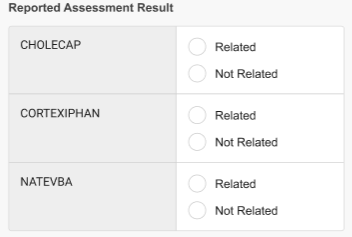
For Repeat Use types of forms, you can add the Reported Assessment Result standard Form Field to the Event section to capture the relatedness of the first five respondent-specified suspect products. Upon form submission, Vault generates Case Assessment Results for each Product and Event combination, which users can review after promoting the generated Inbox Item to a Case. To display this component in a form, you must include it in the applicable Form Design Version.
Create Custom Records
To create custom Form Fields:
- Navigate to Business Admin > Objects > Form Fields.
- Select Create.
- In the Create Form Field dialog, select Custom, and then Continue.
- Enter a Name for the field.
- Select the Form Section this field will appear in. You cannot add fields to the Document section.
- Optional: Enter Field Help Text that displays to respondents on the form.
- Enter a Field Label that displays to respondents on the form.
- Select an Answer Type. For all RadioGroup types, you must create at least one Field Answer Selection.
- Optional: Enter the following details to map a field of the same type you selected for Answer Type:
- For Mapped Field Name, enter the unique API name of the field. For example,
custom_field__c. - For Mapped Object Name, enter the API name of the object on which the field exists. For example,
case_version__v. - If you selected Product for the Form Section, you must map to the
case_product__vobject. - If you selected Event for the Form Section, you must map to the
case_adverse_event__vobject. - If you selected Patient, Reporter, or Additional Information for the Form Section, you must map to the
case_version__vobject.
- For Mapped Field Name, enter the unique API name of the field. For example,
- Select Save.
Field Answer Selections
Vault provides standard Field Answer Selections for your use in Form Designs. You can also create up to ten custom records for each RadioGroup type of Form Field. To do this:
- Navigate to Business Admin > Objects > Field Answer Selections.
- Select Create.
- Enter a unique Name for the answer.
- Select the RadioGroup type of Form Field to which this answer applies.
- Define the following optional fields, as applicable:
- Enter a Display Order to specify the order this answer displays under the Form Field. If you leave this field blank, Vault orders the answers by order of creation.
- Select a Controlled Vocabulary.
- Select a Reason Omitted.
- Select Save.
Section Field Groups
Vault provides standard Section Field Groups to define which Form Fields appear in each Form Section. You can also create custom records. To do this:
- Navigate to Business Admin > Objects > Section Field Group.
- Select Create.
- Select the Form Design Version to which this group applies.
- Select the Form Section in which this field appears.
- Define the following optional fields, as applicable:
- Select the Form Field to which this group applies.
- Select the Field Display to specify the display or requiredness condition of the selected Form Field.
- Enter a Field Display Order to specify the order this field displays in the section. If you leave this field blank, Vault orders the field by order of creation.
- Enter Field Help Text Override to display instead of the Field Help Text of the selected Form Field.
- Enter Field Label Override to display instead of the Field Label of the selected Form Field.
- Select Save.
- Optional: In the Conditional Field Display Rules section, create rules for this group.
Conditional Field Display Rules
You can create Conditional Field Display Rules to define the display or requiredness conditions for certain Form Fields on Web Intake Forms. For each display rule you want to define, you must create a pair of Conditional Field Display Rules: one to specify the behavior when the condition is met, and another to specify the behavior when the condition is not met. For example, to configure a display rule for a Yes/No source field, you would create one Conditional Field Display Rule that defines the condition for when the answer is Yes and another that defines the condition when the answer is No.
You can nest up to three Conditional Field Display Rules, for example:
- Level 1: Field A = Yes
- Level 2: Field B displays based on Field A
- Level 3: Field C is required based on Field B
To create a Conditional Field Display Rule:
- Navigate to Business Admin > Objects > Conditional Field Display Rules or to the Conditional Field Display Rules section of the applicable Section Field Group.
- Select Create.
- Select the Form Design Version to which this rule applies.
- Select a unique Source Field associated with the specified Form Design Version. The Form Field you select here must have an Answer Type of Picklist, RadioGroup, YesNo, or CheckboxGroup.
- Select a Condition to define when the specified Value applies.
- Enter the exact Value to which the rule applies. To apply to multiple values, separate each value with a comma. Depending on the Answer Type of the specified Source Field, the field supports the following values:
- Picklist: Name or Label of the picklist value (for picklist field types) or record ID value (for object reference field types)
- RadioGroup: Name of the Field Answer Selection
- YesNo:
YesandNo - CheckboxGroup: Name of the Field Answer Selection (this type only applies to the standard Event Seriousness record)
- Select the Target Field Display to specify the display or requiredness condition of the selected Target Field.
- Select a unique Target Field associated with the specified Form Design Version.
- Select Save.
Form Design Versions
Form design versioning allows you to manage changes to Web Intake Forms over time in a controlled manner. With versioned forms, you can track form responses to the specific form design version from which it was created, allowing you to maintain traceability. Use the following actions to create and approve Form Design Versions:
- Create Draft Version: This action generates a new Form Design Version. Wherever you run this action for a Form Design Version with custom translations, Vault copies the Language value and the most-recent versions of the CSV translation file attachments to the new record.
- Approve Version: This action approves the Form Design and publishes the latest version for all associated forms. Any previous versions update to Superseded state. You cannot edit approved Form Designs or their associated records.
Create Form Stylesheets
Use Form Stylesheets to define your branding for Web Intake Forms. Create a Form Stylesheet for each Sponsor type of Organization that will receive forms:
- Navigate to Business Admin > Objects > Form Stylesheets.
- Select Create.
- Enter a Name.
- Select a Sponsor type of Organization to which this stylesheet applies.
- Enter a Reference Number Prefix up to three alphanumeric characters that Vault will prepend to a generated Case Identifier value for all submitted forms associated with this stylesheet. We recommend using uppercase letters for this prefix.
- Upload a Header Logo PNG, JPG, or JPEG file up to 500 KB that is 176 pixels by 88 pixels in size. This image will appear on all forms associated with this stylesheet. We recommend uploading a dark-colored image in a PNG file.
- Upload a Privacy Notice PDF file (up to 10MB) that will be accessible from the Privacy Notice link in the footer of all forms associated with this stylesheet.
- Select Save.
Create Safety Form Admins
Use Safety Form Admins to define how respondents will access the Web Intake Forms associated with the specified Form Stylesheet. Vault generates a URL at which respondents can access the associated form with the following Safety Form Admin parameters:
https://[Vault-DNS]/safety-form/[Access-Type]/[Form-Name-for-URL]
You can integrate the generated URL on your organization’s website for respondent access. Vault uses the following field values in the generated URL, which cannot be modified after the Safety Form Admin is in Published state:
- Vault DNS: The value generated by Vault for the specified Connection
- Access Type: Based on the specified value
- Single Use:
su - Repeat Use:
ru
- Single Use:
- Form Name for URL: The specified value (we recommend using lowercase characters)
To create a Safety Form Admin:
- Navigate to Business Admin > Objects > Safety Form Admins.
- Select Create.
- Enter a Name. This value displays to external respondents on all associated Web Intake Forms.
- Select the Organization specified in the associated Form Stylesheet.
- Select the Safety Form type of Connection.
- Select the Form Stylesheet to which this record applies.
- Select Access Type to specify if the form will be single or repeat use.
- If you select Repeat Use, you must create a Form Admin Trusted Vendor for this record’s specified Organization.
- Optional: Enter a Description.
- Enter three characters or more for the Form Name for URL. This field supports numbers, letters, and hyphens (
-). This value appears at the end of the URL respondents use to enter forms associated with this record. - Select a Form Design.
- Specify if the associated forms Allow Document File Upload. When you select Yes, all associated Form Designs include a Documents section in which respondents can upload and attach files. If you leave this field blank, associated Repeat Use forms include the Document section, but Single Use forms do not.
- Optional: Enter a From Email for the applicable From Email Person. All emails generated for forms associated with this record include this value as the sender. If you leave this field blank, Vault sends related emails from
vault-emails@veeva.com. - Optional: Select a Pre-populate Report Type value to assign a specific report type to Inbox Items generated for forms associated with this record.
- Optional: Enter an Error Message Description that displays to respondents if Vault encounters an error during form submission.
- If applicable, specify Country-based Product Selection. If you select Yes, respondents can only select Products associated with their specified country location or, if blank, the country of the first listed event.
- Select Save.
- On the new record, run the Publish action.
When you run the action, Vault updates the Sync Status value to Pending. When the sync completes:
- The Sync Status updates to Synced.
- Vault populates the Published Date and Published URL field. This is the URL at which respondents can access forms associated with this Safety Form Admin. You can provide this link directly to respondents or integrate it on your organization’s website.
- The record updates to the Published state to indicate when the content is published on the associated Web Intake Forms. You can have up to five Safety Form Admins in the Published state.
- You cannot change the Access Type or Form Name for URL values.
Inactivate Forms
You can move a Safety Form Admin to the Inactive state if you no longer want to use it. When you do this, Vault populates the Inactivation Date for traceability. The Published URL field remains active, but respondents can no longer access associated forms.
Create Form Admin Trusted Vendors
You must associate each Repeat Use type of Safety Form Admin with a Trusted Vendor type of Organization by creating Form Admin Trusted Vendors:
- Navigate to Business Admin > Objects > Form Admin Trusted Vendors.
- Select Create.
- Enter a Name.
- Select the applicable Repeat Use type of Safety Form Admin.
- Select the applicable Trusted Vendor.
- Select Save.
Vault adds the Trusted Vendor to the selected Safety Form Admin. To remove access before 30 days of inactivity, you can manually remove the related record from the Safety Form Admin.
Customize Notification Templates
You can update your Vault’s email banners and customize the following notification templates that Vault sends to form respondents:
- Safety Form Email Verification: Sent to respondents to verify their email address before accessing a Repeat Use form.
- Safety Form Access: Sent to respondents after verifying their email address so they can access a Repeat Use form.
- Completed Safety Form Reference: When requested, sent to respondents after they submit a form.
Configure Custom Translations
By default, all Web Intake Form pages and emails display in English. You can configure translations for any supported language in your Vault UI so that when respondents first access a form, they can select any configured language from a drop-down menu on the verification page. Upon making a selection, all subsequent form pages and emails display in the selected language (with the exception of the Name field of the Safety Form Admin, which always displays in the original value).
Note: We recommend first configuring a Form Design Version to test forms, then completing all translation steps in a new version.
To configure custom translations:
- Activate the languages in your Vault for which you want to configure custom translations.
- Navigate to Business Admin > Objects > Form Languages.
- Link each applicable Form Language to an active language by populating each record’s Language field.
- Translate answers and picklist fields for each Form Language.
- Translate form field labels for each applicable Form Design Version.
- Translate static text for your Vault.
- Run the Approve Version action on the applicable Form Design Version. When the action runs, Vault validates data in all associated translation CSV files. If applicable, correct any data issues, reimport the files, and try again.
Translate Answers and Form Fields
For each Form Language you linked to an active language in your Vault, you can add translations for all Field Answer Selections and certain Form Fields:
- Navigate to Business Admin > Objects > Form Languages.
- Generate CSV template files for each applicable Form Language:
- Depending on your Vault’s configurations, you can generate CSV files by selecting Generate Language Template from a record’s All Actions menu or by performing a bulk object record action to Bulk Generate Language Template.
- When the action completes, Vault adds two files to the Attachments section of each applicable record.
- Navigate to the Attachments section of the applicable Form Language and download the following CSV files:
FieldAnswerSelections_[language-code].csv: Use this file to add translations for Field Answer Selections.FormFields_[language-code].csv: Use this file to add translations for picklist types of Form Fields.
- Add translations for the Form Language.
- In each CSV file, populate the Translation column for each associated Record Name value with up to 128 characters per cell.
- Do not leave any cell blank. We recommend duplicating the English value in the Record Name column rather than leaving any Translation cell blank.
- Save the updated CSV files.
- Add the updated files to the record. When you do this, Vault upversions the existing attached files.
Translate Field Labels
For each Form Design Version, you can add translations for all fields in the Section Field Groups for each active language you linked to a Form Language:
- Navigate to Business Admin > Objects > Form Design Versions > [Form Design Version].
- Select Edit.
- For Language, select all applicable active languages.
- Select Save. Vault adds a file to the Attachments section.
- Navigate to the Attachments section and download the generated CSV file.
- Add translations for the Form Design Version.
- In the CSV file, populate the Field Label Translation column with up to 200 characters per cell.
- Do not leave any Field Label Translation cell blank. We recommend duplicating the English value in the Field Label column rather than leaving any Field Label Translation cell blank.
- Optional: Populate the Field Help Text Translation column with up to 300 characters per cell.
- Save the updated CSV file.
- Add the updated file to the record. When you do this, Vault upversions the existing attached file.
Customize Translate Static Text
You can customize translations for content displayed on form pages and notification messages. Use the bulk translation tool to translate static text for the applicable active languages. We recommend adding translations for any custom picklist fields and picklist field values you’ve mapped to form fields.
You can adding translations for the following items:
- Field Labels: All rows with Type values of
message__sysand Key values containingonline_safety_form - Notification Messages: All rows for related notification templates
Note: Any translations imported with this tool apply to your entire Vault, not just Web Intake Forms.
CSV Translation Files
When working CSV translation files, consider the following guidelines:
- You must use UTF-8 encoding in all CSV translation files to display all characters correctly.
- Do not change the file name or type.
- Do not modify or delete any existing column headers or column order.
- Do not modify or delete any existing values in the ID columns.
- Do not add any values that exceed the character limits for that column.
- Ensure all referenced Language columns in the exported files are active in your Vault.