To assign user tasks outside of the standard Case Processing workflow, create and assign action items. For example, action items are useful to track requests for follow-up information.
View Action Items
View action items for a specific Case from the Case page under Action Items:

View action items for all Cases from the Action Items tab:
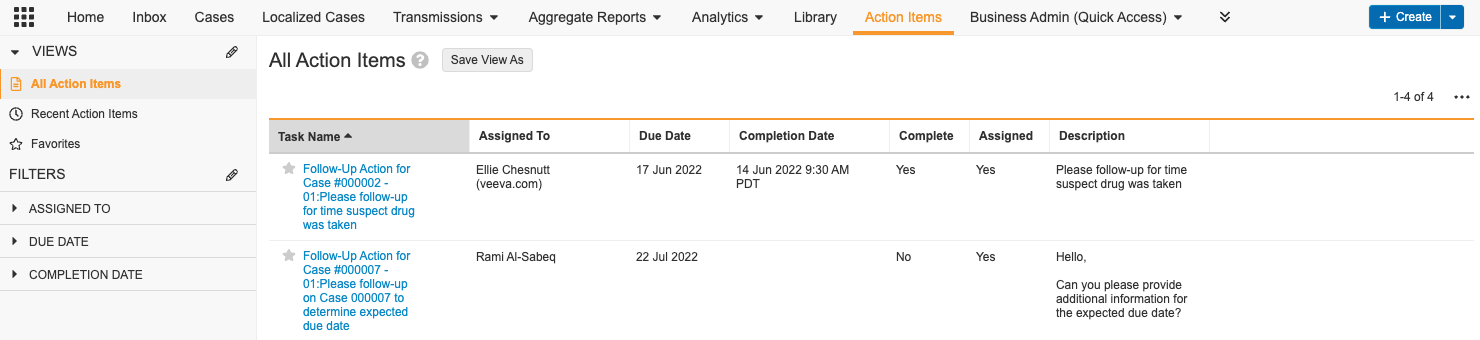
Add an Action Item
- Go to the Action Items tab.
- Select Create. The Create User Task window appears.
- Select Case Task > Continue.
- On the Create Case Task page, complete the following fields:
- Case: Select the Case number.
- Case Task Type: Select General, Follow-Up, or leave the field blank.
- Task Name: Enter a name for the task.
- Description: Enter a description or instructions for the task.
- Case Contact: Select the reporter record to use as a contact.
- Assigned To: Select the user to assign the task to. Users must have the organization configured on their account page from Business Admin > Objects > Users to appear.
- Due Date: Enter the date that the task must be completed by.
You can use the Complete and Completion Date fields to keep track of when the task is done.
- Select Save.
Result
Vault assigns the task to the appropriate user.
Mark an Action Item as Complete
- Go to the action item.
- Select Edit.
- In the Complete field, select Yes.
- In the Completion Date field, enter when you completed the task.
- Select Save.
Result
The task enters the Complete state.